

Bottom line: Learn how to use the AutoSum feature and keyboard shortcut to create SUBTOTAL formulas.
Skill level: Beginner
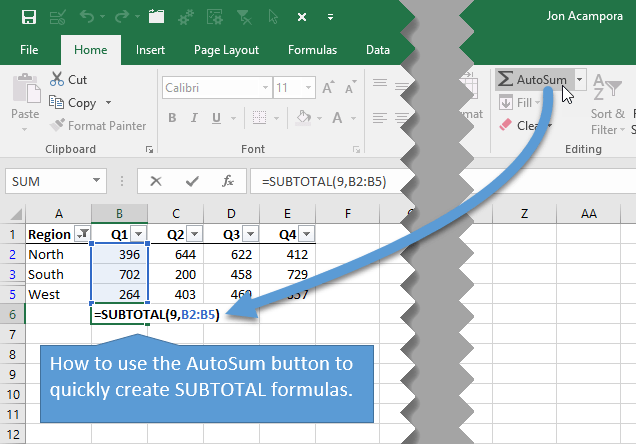
AutoSum Typically Creates SUM Formulas
Excel's AutoSum feature is a great shortcut that automatically creates a formula with the SUM function. It's pretty smart at figuring out the range we want to sum up. We can select a blank cell below a column of data, press the AutoSum button, and the entire formula will be created for us. Huge time saver!
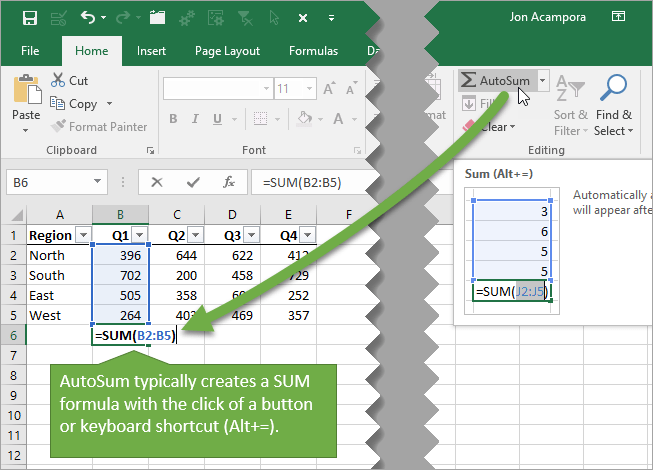
AutoSum also works by selecting a blank cell to the right of a row of data.
The keyboard shortcut is Alt+=. Hold down the Alt key and press the equal sign.
How to use AutoSum to Create SUBTOTAL Formulas
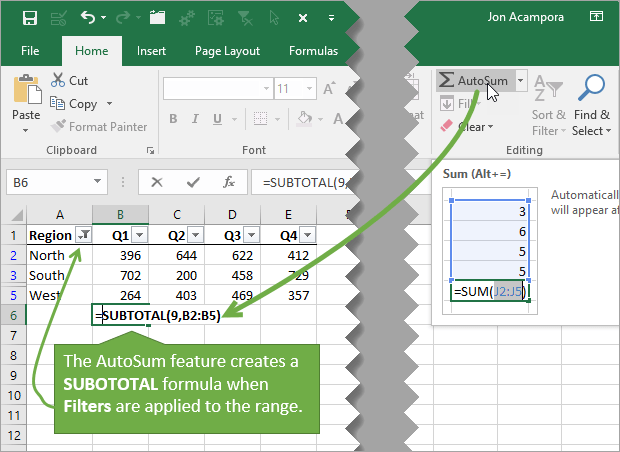
We can also use the AutoSum feature to create formulas with the SUBTOTAL function.
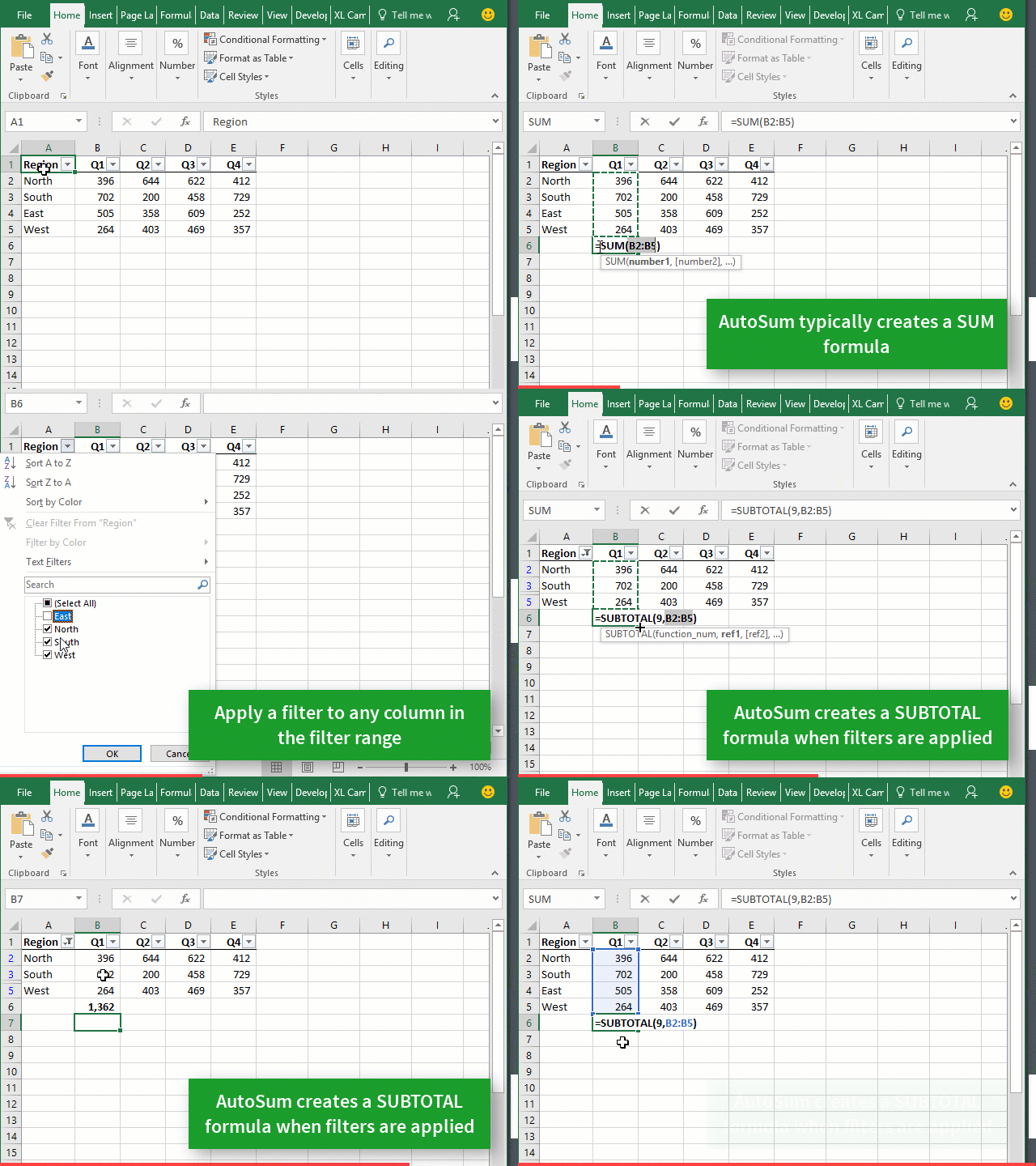
The trick is to first apply a filter to the column that you want to subtotal.
Here are the steps:
- Apply a filter to the range.
- Select a cell in the column or the blank cell below the filtered range.
- Press the AutoSum button or keyboard shortcut (Alt+=). The SUBTOTAL formula will be automatically inserted in the cell.
- Press Enter.
The range reference in the SUBTOTAL formula will include all the cells in the column of the filtered range, even if they are hidden by the filter.
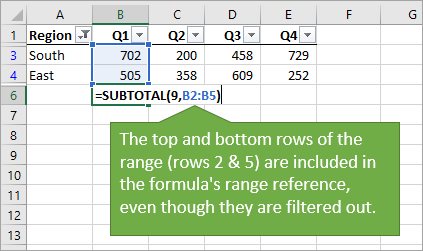
The advantage of using the SUBTOTAL formula is that is only displays the calculation (sum) of the visible rows. It allows us to quickly see the sum, average, count, min, max, etc. of the visible rows after filters are applied.
Checkout my article on the Excel SUBTOTAL function for more details. I also have an article on how to create a SUBTOTAL summary report with a macro.
If you are using Excel Tables, then you don't have to worry about this because the Total Row uses the SUBTOTAL function by default. When you press the AutoSum button or keyboard shortcut in the Total Row of a Table, the SUBTOTAL function will be created. Checkout my article on how to sum all columns in the Total Row of a Table. I also have a video on a beginner's guide to Excel Tables.
This is a bonus tip from my Excel Pro Tips eBook. The eBook is a free download, so make sure you grab a copy.



Hi Jon,May I know that How to match 2 or 3 words from 2 or 3 excel sheet in one place from formula?
This is a great shortcut. I can’t wait until I need to break out some subtotals for one of huge lists.
Awesome! Thank you Linda! 🙂
This is actually awesome on my database I created on excel. With my losses register I can now efficiently subtotal on my types on losses and amounts.
Thanks
Dear Jon,
I need to TLB.731 / TLB-731 as TLB 731. Why it works?
Excellent work jon. Thank you so much
I am also know This shortcut key. But you explained so good. I’m so happy because i am touch you.
Thanks
Thanks for sharing these tips. They really make work much easier in excel. Am enjoying my excel.
Thank you for the great tips and shortcuts. They’re a real time save!
Excellent jon & very helpful for me
Many thanks
Sir I have 100 ledgers in excel I want to sum of all ledgers in one click can this is possible?
Plz sir I am waiting of your answer thanx
Imran Ali,
I have no affiliation with Jon or Excel Campus, but I’d assume anyone who wants to help you would need additional information. Are all the “ledgers” in one file? When you say you want to sum them in one click, what do you mean exactly? So you need a consolidated (the resulting sum of the 100 ledgers) as a new sheet in your worksheet or in a new file?. If that is what you want, and if you still need help, I can help you so please reply to this posting with more information.
Jon, with your lessons, I’ve been able to convert my worksheets to automatically update each month, as soon as I load the new information. The PROBLEM with your lessons is that, even though I’ve been given additional assignments, I am BORED OUT OF MY MIND while at work!!
I am looking for a Auto Sum to add the subtotals in the column. I set it somehow by happy accident once. Now, I need that function and cannot find it. Should work like a grand total on a calculator. Do you have any idea? Please. Thanks
Nalic
Great tips on using SUBTOTAL formulas! I love how you broke down the steps for using the AutoSum button and the keyboard shortcut—super helpful for streamlining my workflow in Excel. Thanks for sharing!
Great post! I love how you broke down the use of SUBTOTAL with the AutoSum button. It’s a feature I often overlooked, and your examples really clarified its benefits. Can’t wait to implement this in my next project!
Great tips! I always struggled with using SUBTOTAL formulas effectively, but the AutoSum button makes it so much easier. Thanks for breaking it down!
Great post! I really appreciate the clear step-by-step instructions on using SUBTOTAL formulas. The tips about the AutoSum button and keyboard shortcuts were particularly helpful. Can’t wait to try this out in my own spreadsheets!
Great tips! I love how the AutoSum button makes it so easy to create SUBTOTAL formulas without much hassle. The keyboard shortcuts are a game-changer too! Thank you for breaking it down step by step.
Great tips on using the SUBTOTAL function with AutoSum! I didn’t realize how versatile the SUBTOTAL formula can be. The keyboard shortcut is a game-changer; I’ll definitely be using it in my next project. Thanks for sharing!
Thanks for the clear explanation on using SUBTOTAL formulas! I never realized how handy the AutoSum button could be for quickly calculating subtotals. The keyboard shortcuts you shared will definitely speed up my workflow in Excel. Keep up the great content!