


How Do You Paste Values?
What method do you use to paste values in Excel?
I’m talking about copying a cell that contains a formula or number formatting, and pasting the values of that cell to another cell.
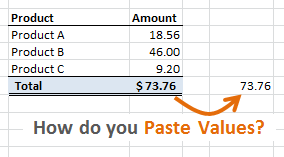
There Are A LOT of Ways to Paste Values
Did you know that there are at least eight different ways to perform the paste special commands in Excel? Eight different ways!
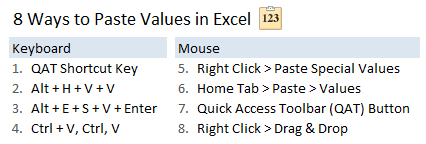
That means that we spend a lot of time copying and pasting. Since it’s something we do so often, it’s best to figure out which of these eight methods is the fastest.
Which Method is the Fastest?
If you are a reader of my blog, you probably know that I am constantly trying to find the fastest and most efficient ways to get things done in Excel.
One of the fastest ways I have found to paste values is to add the paste special buttons to the Quick Access Toolbar (QAT) and then use the built-in Alt+# keyboard shortcuts.
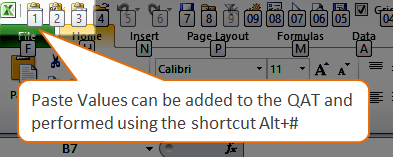
Most Ways to Paste Values are Slow or Difficult
Most of the other built-in methods require multiple mouse clicks or key presses. This makes them slow and/or difficult to perform.
Using the QAT is great, but many people find that to be quite a stretch with the fingers. It also prevents you from using the QAT for other commands that do not have keyboard shortcuts.
So I have developed a solution that has saved me a lot of time and will hopefully do the same for you.
Paste Buddy will Save You Tons of Time

Paste Buddy is an Excel Add-in that allows you to create custom keyboard shortcuts for any of the paste special commands like paste values, formulas, formats, and more.
This means you can choose keyboard shortcuts for any of your favorite paste special commands. And the keyboard shortcuts are fast and easy to perform in one step.
In the following example I am using the keyboard shortcut Ctrl+Shift+V to paste values in the the worksheet.
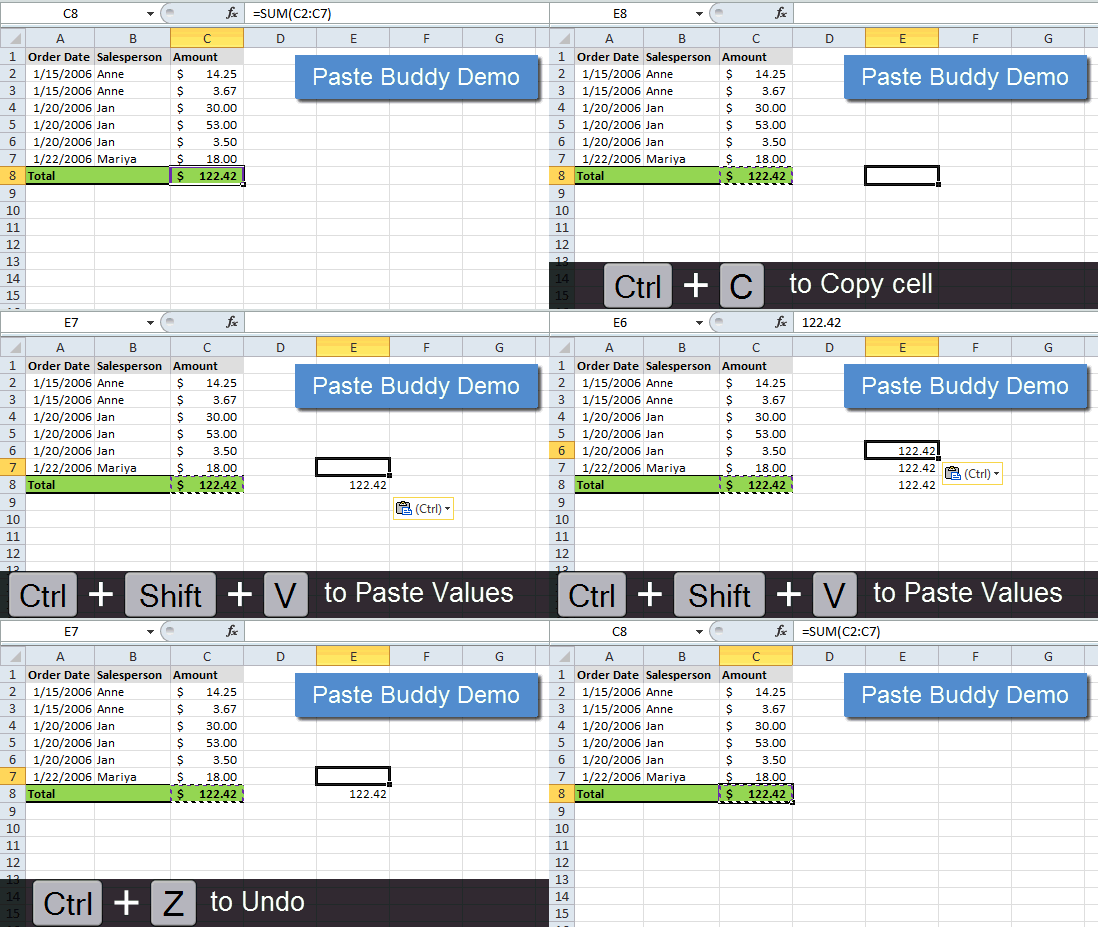
In the above video I use Ctrl+C to copy cell C8. Then I use the keyboard shortcut Ctrl+Shift+V to paste the values in cells E6:E8. I then undo my actions with Ctrl+Z to show that you can still use Undo with Paste Buddy.
It’s a really fast way to paste values, and you can setup custom shortcuts for any of the paste special commands.
How Does Paste Buddy Work?
Paste Buddy is an Excel Add-in that will automatically load every time you open Excel. It remembers your shortcuts and only needs to be setup once.
Once the add-in is installed, the Paste Buddy button will appear on the Add-Ins tab of the ribbon. Clicking this button will open the Paste Buddy setup window.
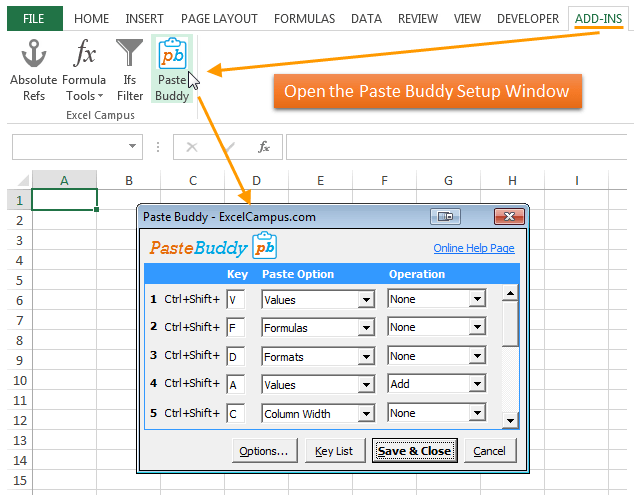
The following is a screenshot of the Paste Buddy setup window where you can create keyboard shortcuts for any of the paste special commands.
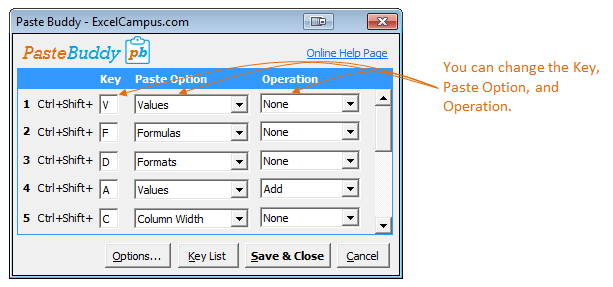
This window is only used for setting up the shortcut keys. The setup window is NOT open when you are working in Excel and copying & pasting in a worksheet. Paste Buddy works in the background and you won’t even know he’s there.
The following image shows an example of how Paste Buddy works:
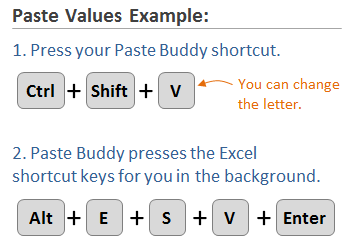
The built in keyboard shortcut in Excel to paste values is Alt+E+S+V+Enter.
Paste Buddy basically presses these keys for you when you press Ctrl+Shift+V. So all you have to do is press Ctrl+Shift+V on the keyboard, and Paste Buddy will press Alt+E+S+V+Enter for you.
This makes it very fast and easy to perform any of the paste special commands. Paste Buddy really is your buddy, and his job is to help make your life easier.
Can I Undo? 
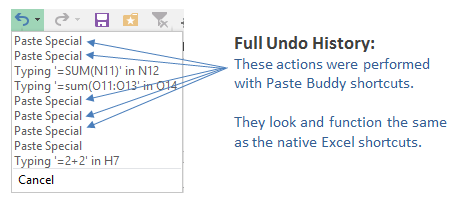
YES! Let’s say you accidentally press one of your Paste Buddy shortcut keys and need to undo it. Not a problem. The full undo history is retained in Excel, so you can always press the Undo button (Ctrl+Z) if you make a mistake.
New Feature: Paste to the Visible Cells Only
If you have ever received the following error message in Excel, “The command cannot be used on multiple selections”, then you know that you cannot paste to the visible cells in range that contains hidden rows or columns. This is a limitation of Excel, and it can be frustrating.
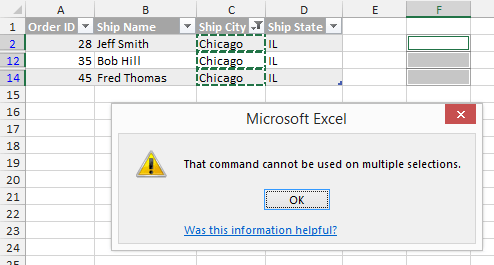
The video below explains two workarounds for this, including a new Paste Visible feature.
Paste Buddy has a new feature that allows you to do this with the click of a few buttons.
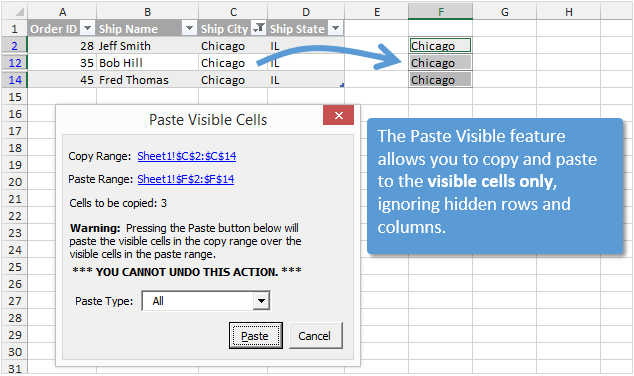
This feature allows you to quickly paste to the visible cells in a range that contains hidden rows or columns. It also allows you to choose from any of the paste special commands like: paste values, paste formulas, and paste formatting when performing the paste.
What do Paste Buddy’s Friends Think?
“Thanks for putting these tools together, they are a huge timesaver! I have people ask me all the time “How did you do that so quickly?!?”, and besides being an Excel Guru, I usually tell them about the great addins that I have found.” –Peter R., Logistics Engineer
“The Paste Buddy add-in is very practical and can customize my paste actions easily. It works very well in my Excel 2010/2013 32 bits pt-BR.” -Felipe, Microsoft Excel MVP
“I like this version because it has the undo feature still available. I liked how you can program it to do all of the paste special commands.” -Don H., Vice President, FP&A
“Paste Buddy is one of those tools you wonder how you managed without. I like how you can customise it to suit your needs and preferences, and it has certainly improved my efficiency. Thanks for filling this gap in Excel functionality.” -Mynda T., Microsoft Excel MVP
Paste Buddy Will Save You Time 
Paste Buddy is one of those friends that you can depend on to make your life easier. His main goal is to save you time. He can help you in a lot of ways:
- Quickly perform any of the paste special commands with a custom keyboard shortcut. You decide what keys you want to use, making the shortcuts easy to learn and remember.
- Make it comfortable for your hands to press the shortcuts. If Ctrl+Shift+V is too much of a stretch for your fingers, then you can use keys that are closer to the left side like Z, X, C, A, etc. If you are left handed, then you can use keys closer to the right side like ?, >, <, etc.
- Keeps your hands in the action by using the Ctrl+Shift+{letter} combination. The fastest way to copy & paste in Excel is by using the keyboard shortcuts Ctrl+C and Ctrl+V. Paste Buddy’s Ctrl+Shift+{letter} shortcuts are a natural extension of this. Once you press Ctrl+C to copy, your fingers will already be in right place to perform the paste or paste special command. This makes it very, very fast to paste.
- Change your shortcut keys for different tasks at any time. Let’s say you’re working on a task that requires you to perform a paste special command like transpose over and over again. You can quickly change one of your favorite Paste Buddy key combinations to perform the transpose. Then change it back when you are done with the task.
- Become a keyboard ninja in Excel. If you don’t know a lot of keyboard shortcuts yet, don’t worry. The best way to learn is to start with the basics. As you start using the Paste Buddy shortcuts to paste values, you will want to learn more keyboard to keep your hands on the keys. Over time you will become much more productive and save lots of time with your every day tasks.
- Easily remember you shortcut keys with the printable Key List. Once you setup all your shortcut keys, Paste Buddy will give you a list of them to print out for reference. This makes it easy to learn and remember them. I have my list taped to the side of my monitor.
- Undo your actions with Excel’s Undo button (Ctrl+Z). Paste Buddy is there when you need him, but doesn’t get mad if you accidentally call him.
A Friend With Many Great Features 
So what else do you get with Paste Buddy?
- 12 Keyboard Shortcuts – Create up to 12 custom keyboard shortcuts for any of paste special commands. This includes the Operation commands like Add, Subtract, Multiply, Divide, Transpose, and Skip Blanks.
- Adapts to Change – Nothing is permanent with Paste Buddy. You can change the shortcut keys and their associated paste special commands at any time. You can setup Ctrl+Shift+V to paste values. If you don’t like it, then you can easily change it to Ctrl+Shift+X. Try different keys until you find the one that works the best for you.
- Combine Commands – You can setup keyboard shortcuts that combine the paste commands and operations. For example, you can have a shortcut that pastes Formulas and Adds at the same time. Or you could have a shortcut that paste values and transposes at the same time. The possibilities are endless.
- Set It and Forget It – Paste Buddy remembers your shortcut keys. So next time you open Excel, your shortcut keys will be enabled. You don’t have to do anything to activate Paste Buddy. He is there waiting for your call.
- Printable Key List – Pressing the “Key List” button in the Paste Buddy window will automatically create a list of your shortcut keys in a new Excel workbook. It is formatted for printing, so you can print your list and put it on your desk for reference. This helps you learn and remember your new shortcuts.
- Compatibility – Paste Buddy works with Excel 2007, 2010, 2013, & 2016 for Windows.
- Improved by You – Have a suggestion to make Paste Buddy better? Let me know and I will do my best to update Paste Buddy with your requests.
- Support – Paste Buddy comes with a user guide and instructional video to help get you started. It is very easy to use.
- Still have Questions? – I respond to your questions within 2 business days (usually faster). So you can rest assured that you and Paste Buddy are not alone.
Ok, Ok, How Do I Get Paste Buddy?
I hope you’ve learned that Paste Buddy will save you a lot of time with the pasting data. That’s his only job, and he does it well.
You can download a free trial version of the Paste Buddy Excel Add-in below. This is a 14 day free trial, and it will give you a chance to see what a great friend Paste Buddy can be.
The download includes: Paste Buddy Excel Add-in File and Installation Instructions.
Compatibility: Paste Buddy works with Excel 2007, 2010, 2013, & 2016, 2019, 2021, and Microsoft 365 Desktop versions for Windows (both 32-bit and 64-bit).
If you have already tried Paste Buddy, or just want to jump right in, the full version is now part of our Hero Tools Add-in. Hero Tools includes ALL of the Excel Campus add-ins with over 100 time saving features.
Additional Resources:
Paste Buddy is an amazing add-in and has definitely saved me a bunch of time with combination paste specials (such as paste-values-transpose). Thanks for creating such a great and useful add-in!
Thank you Chris! I’m so happy to hear that PB is helping you out. 🙂
hello, when i install the pluging i get an error massage saying the code might be wrong or incomplit. what can i do?
The trial version is not currently compatible with the 64-bit version of Excel. I believe this is causing your issue. I will try to make a 64-bit trial version available in the future. Thanks!
is it available now? the free trial is not working for me either
Does the product come with an installer, or can you just copy the file(s) to the proper folder? Thank you.
Hi Jim,
The add-in does not come with an installer. You copy the add-in file to a folder on your computer, then install it from within Excel. Installation instructions are provided with the download. Please let me know if you have any other questions. Thanks!
Thank you for creating this amazing add-in! A definite time saver!
Any 64bit version yet?
Hi Chuck,
The full version works with 64-bit. However, the free trial only works with 32-bit. Sorry about that. Thanks!
Hello, I wanted to state that Paste Buddy is awesome. I had this one spreadsheet that I just could not copy & paste in the visible cells only. I purchased Paste Buddy and was able to finish my task in less than 5 minutes. Great software. Thanks so much.
Hi Dexter,
Thank you so much for the nice comment! I am really happy to hear that Paste Buddy saved you some time. Awesome! Have a great day! 🙂
Dudee this software save my head from cracking up!!Thanks a lot!
Thanks Amroll! 🙂
Hi. Just to be sure: Paste Buddy does not work with Excel 2016? Thank you for your answer. Best regards, Martin
Hi Martin,
Paste Buddy does work in Excel 2016 for Windows. It does not work on the Mac version. Please let me know if you have any other questions. Thanks!
Have you thought about updating the site so it says it works with Excel 2016? Had to dig a bit deep to find that out!
THANK YOU Andrew! I just updated the page. I appreciate you letting me know. 🙂
Can I install this in our office computer that is restricted to install any software that has no admin rights?
Hi Gavino,
It depends on the restrictions. Some companies do not allow add-ins at all. If your company allows you to open/use macro enabled files then you should be ok. Paste Buddy is an add-in (.xlam) file, and you enable it through Excel. It is NOT actually installed as an application on the computer. You can try the trial version to see if it works. I hope that helps. Please let me know if you have any other questions.
Thanks!
Thank You so much sir, really paste buddy is very helpful am happy to see such type of videos.
Sir plz I want full version without cost if you give me paste buddy full version I m very thankfull to u plz
HI Sir i have 64 bit where excel paste buddy not run what i do?
Hi Imran,
The trial version only works on 32-bit. The full version of Paste Buddy does work on 64-bit. Please let me know if you have any questions.
hi sir when i work on excel i found some problem like change case in excel with formula. sir i want not to change with formula i want to change with shortkey is that possible? Thank you
Hi Imran,
I don’t believe there is anyway to change the case directly in Excel, without using a formula or macro. You could change the font to one that only has uppercase letters. I hope that helps.
seem error in Turkish version of excel 2013
Hi rcoskun,
I’m sorry to hear that. Paste Buddy might now work in all language versions of Excel. The trial version is not compatible with the 64-bit version of Excel. That might be your issues as well. The full version is compatible with 64-bit. I hope that helps.
The trial version disappears after reopening excel. I have to disable and enable the add-on every time to get the ribbon menu to show up again. Is that the case with the full version too? I hope not, because that would be a deal-breaker for me. Once I enable it, it should be there every time I open excel shouldn’t it?
Hi Shawn,
I’m sorry to not respond sooner. This issue of the disappearing add-ins is due to an Office Security Update. The installation instructions explain how to Unblock the file to prevent this from happening. I also have an article that explains the disappearing add-in ribbon issue and how to fix it. You will only need to Unblock the file once, and the XL Campus tab of the ribbon should appear every time you open Excel. Please let me know if you have any questions. Thanks!
Hi Shawn,
This issue that causes the add-ins to disappear is due to a Microsoft Office security update. There is a fix for this, and you will need to unblock the add-in. This is a new property of the file. The installation instructions that came with the add-in explain how to Unblock the file. I also have an article and video that explain this issue and solution in more detail.
https://www.excelcampus.com/vba/add-in-ribbon-disappears/
I hope that helps. Please let me know if you have any questions.
Hi
You just saved 5h of my life !
Great Add In !!!
Thank you Przemek! I really appreciate the nice feedback and happy to hear Paste Buddy is saving you time. 🙂
Hi Jon,
Paste buddy can not copy selected cells from one file and paste to selected cells of another file.
Does this software has this limitation?
Pl help.
Hi there,
I am getting an error that says the macro may not be available in the workbook or all macros may be disabled. My macros are not disabled and I installed pastebuddy according to the pdf file. is there anything I’m missing?
Thanks!
Does the trial version work with 64 bit?
Hi Norm,
I know it’s a year later, but the trial version does work with 64-bit now. Just wanted to post a comment here for others as well. Thanks!
Does this work for ranges with more than one column? Let’s say I want to copy three consecutive columns with hidden rows and paste them on another 3 consecutive columns.
Life. Saver. Thanks so much! Just saved me days of work!
how to use paste buddy and how can i paste value in the selected cell only can you please explain me step by step i have bulk data to paste special
I just wanted to update that the Trial Version of Paste Buddy is now available with the 64-bit version of Excel. It is compatible with all Windows Desktop versions of Excel from 2007 to present (including Office 365) both 32-bit and 64-bit.
Hi Jon – Just wanted to know how many PCs i can install the full version after purchase,
Regards
Naresh
Hi Jon
I really enjoy your video’s. I am wondering does excel have an option to rename a PDF document. We have thousands of scanned documents that we need to rename. They all start with a “Sir Name” such as NUM, EXT, ABD, followed by a four digit number 3344, then followed by a dash last two numbers of the year. “-19”. The final doc name would be “NUM3344-19”. I am trying to figure out a way to save these doc’s with less key strokes “almost like a order taking station at a fast food restaurant. Thanks Travis
Where is the download?
Thanks.
A FAST New Way to Paste in Excel – Paste Buddy
Better buddy when it comes to pasting. Does a wonderful job.
Fans from China
Would love to have this
how to download this paste buddy
Hope this will work – paste buddy
I’ll like to try Past buddy
Where is dl?
Where to download? all the links end up to this comment page.
Exactly what I needed for large file Changes.
dsdsf
Good App
where is the add in file ? I can’t download it.
I will try use it
kindly i need to the option paste buddy to paste in visible cells only
Exactly what i needed
working
very good
Great app
Thank you! Exactly what i need!
Thanks
Nice!
I want to download paid version of this app. Please guide me for the same.