

The combination of AI and LET function in Excel is powerful. It can make formulas faster and easier to manage. But it can also produce formulas that look complicated and scare colleagues. This guide explains what the LET function does, why AI often recommends it, and practical ways to decide when to use it and when to avoid it.
Download the Excel Files
Complete the form below to instantly access the Excel files and Excel Formula Prompting Guide.
Video Tutorial
Watch on YouTube & Subscribe to our Channel
👉 Join the AI Literacy for Excel Course
What is the LET function?
The LET function lets you create named variables inside a formula. These variables store intermediate results. This reduces repeated calculations and can greatly improve performance in large workbooks. The use of AI and LET function in Excel often shows up when a lookup or calculation is repeated several times in a single formula.
Key points about LET
- LET creates a name for a value inside the formula.
- It helps avoid repeating expensive calculations like XLOOKUP.
- It improves readability if used with clear variable names.
Why AI recommends the LET function
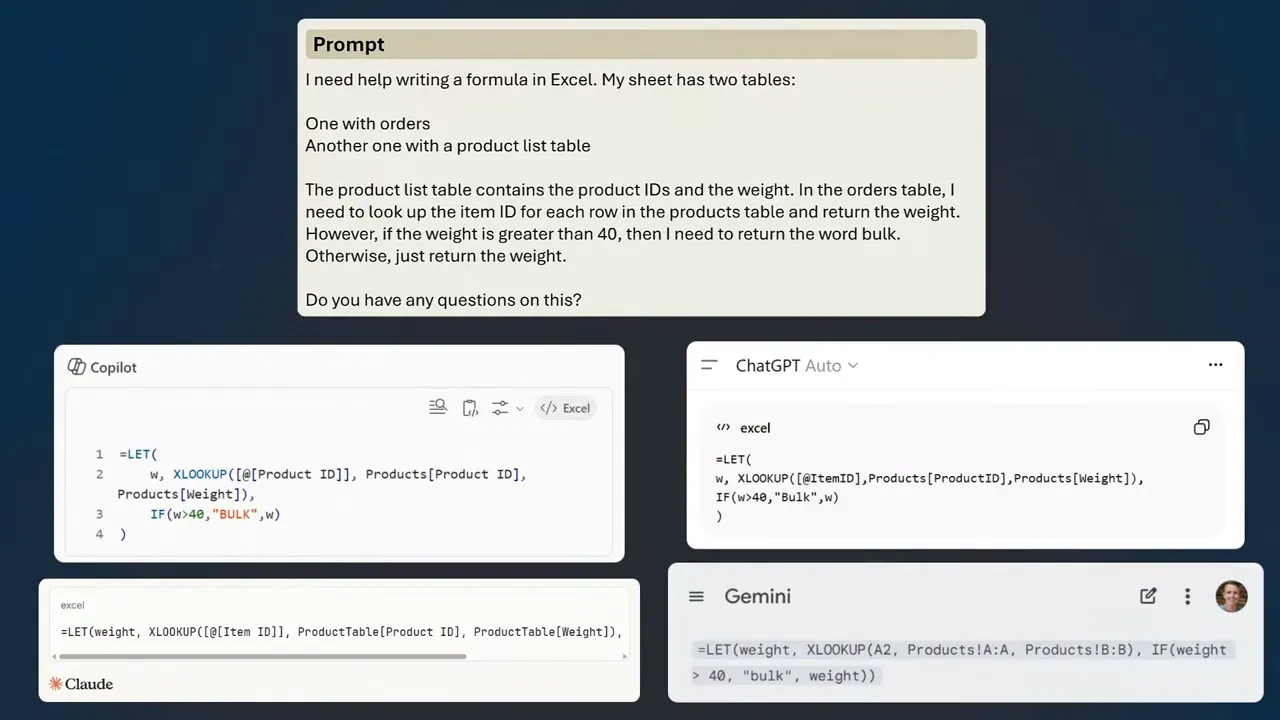
AI models prioritize efficiency. When an AI sees a formula that repeats the same calculation, it suggests LET to avoid duplicated work. For example, if a formula calls XLOOKUP twice, an AI will often rewrite the formula to run XLOOKUP once and store the result in a LET variable.
This is why AI and LET function in Excel often appear together. The AI is optimizing for performance and redundancy. That optimization makes sense technically. It does not always make sense for people who need to read or maintain the workbook.
Step-by-step example: From XLOOKUP to LET
This example uses a sales table and a products table. The goal is to return a product weight and show the word bulk if the weight is over 40.
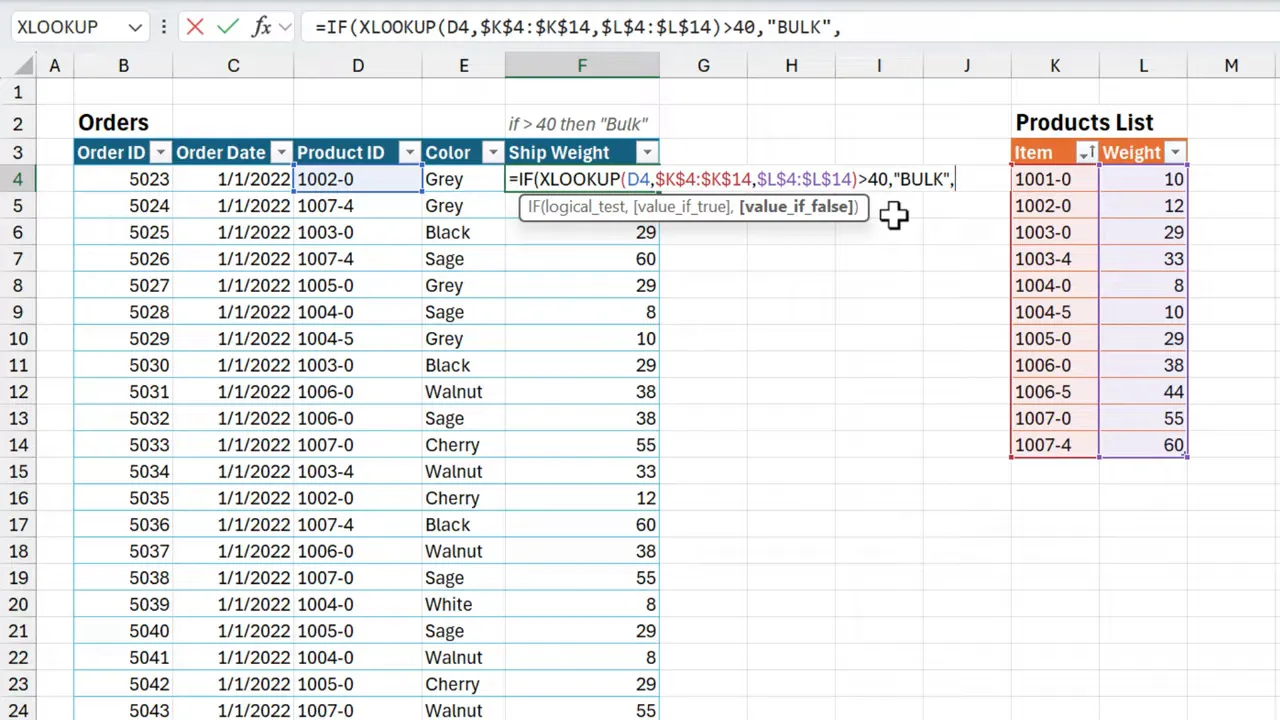
1. Build the basic XLOOKUP
Start with a simple lookup to return the weight.
- Write XLOOKUP to find Product ID in the products table.
- Return the weight column from that table.
- Confirm the value displays correctly. =XLOOKUP([@ProductID], Products[ProductID], Products[Weight])
This formula returns the weight. It is simple and easy to understand.
2. Add the IF test
Next, wrap the XLOOKUP in an IF to show the word bulk when weight > 40.
- Use IF with a logical test that compares the XLOOKUP result to 40.
- If true, return “bulk”. If false, return the weight. =IF(XLOOKUP([@ProductID], Products[ProductID], Products[Weight])>40, “bulk”, XLOOKUP([@ProductID], Products[ProductID], Products[Weight]))
This works. But the lookup runs twice. That is slow on large datasets. This is where LET helps.
3. Optimize with LET
LET stores the XLOOKUP result in a variable. The formula then reuses that variable in the IF test and the result.
=LET(wt, XLOOKUP([@ProductID], Products[ProductID], Products[Weight]), IF(wt>40, "bulk", wt))Now the XLOOKUP runs once. The value is stored in wt. The IF uses wt for both the check and the return. That reduces calculation time and avoids duplicated logic.
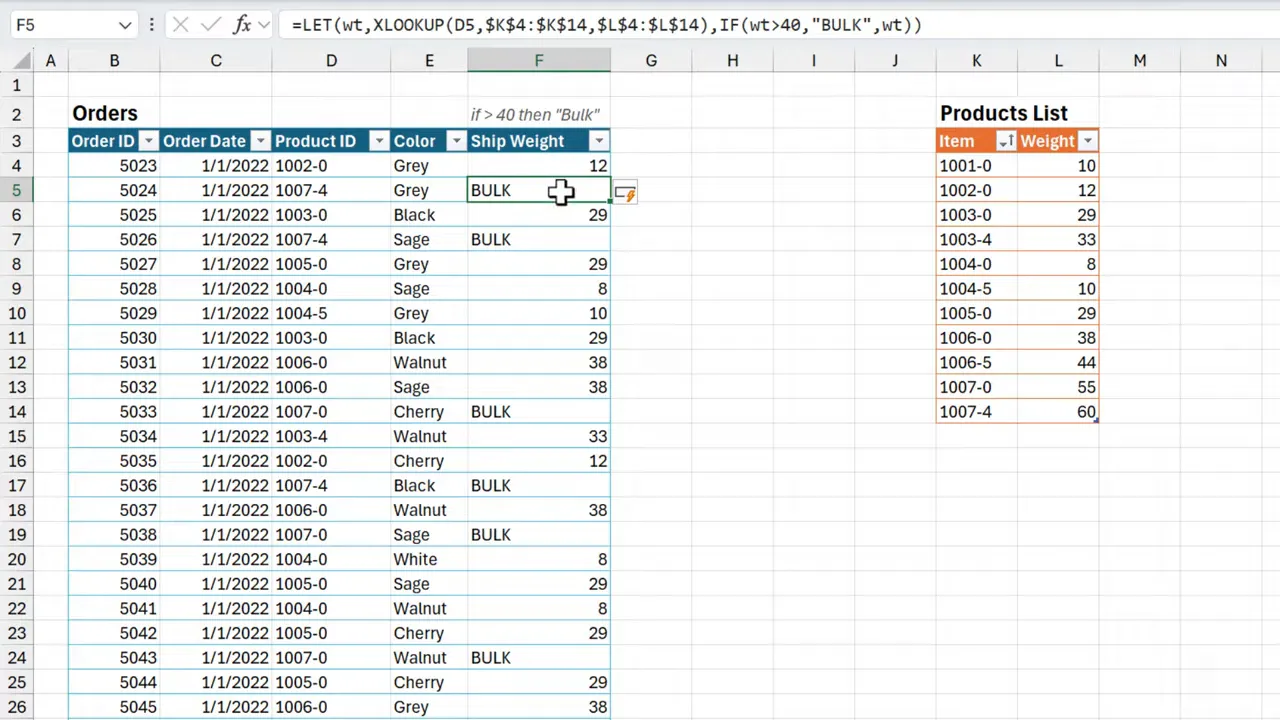
That short example shows the two main benefits of combining AI and LET function in Excel:
- Performance: fewer repeated calculations.
- Clarity: intermediate results can be named for readability.
When to use LET and when to avoid it

LET is great for performance and for formulas with repeated expressions. But it's not always the best choice for shared workbooks. Decide based on the audience and the file purpose.
Use LET when
- Formulas repeat expensive calculations, like multiple lookups.
- The workbook handles large datasets and performance matters.
- Advanced users will maintain or update the workbook.
Avoid LET when
- You will share the workbook with novice Excel users.
- Readability for less technical users is more important than micro-optimizations.
- Change tracking or auditing is done by people unfamiliar with LET.
Remember that AI and LET function in Excel are tools. The right tool depends on the context. If colleagues will ask how the formula works, a simpler approach may save time in the long run.
Alternatives to LET: Prompting AI and using helper columns
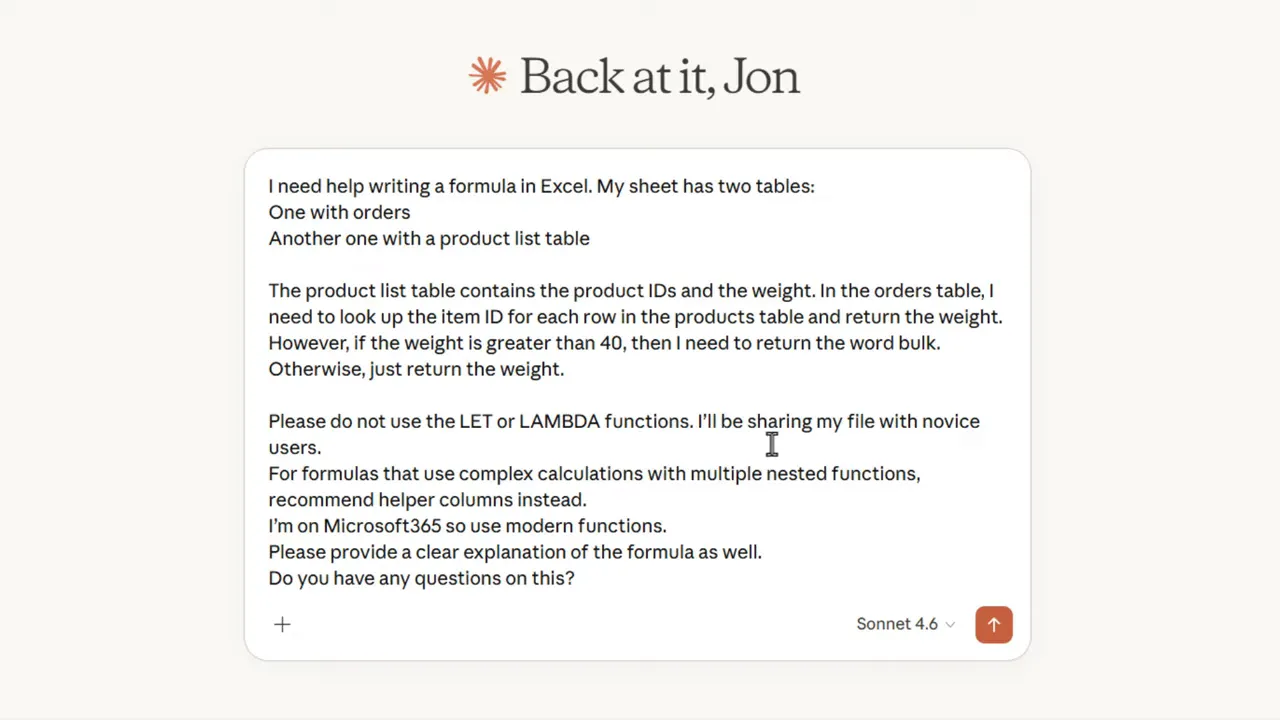
If you want AI to avoid LET, tell it in your prompt. For example:
- Request no LET or LAMBDA in generated formulas.
- Ask for helper columns for complex calculations.
- Specify your Excel version and the skill level of your users.
AI will then provide formulas that may repeat a lookup. That is acceptable in most cases. If the dataset is huge and performance slows, use helper columns instead of LET.
Helper columns explained
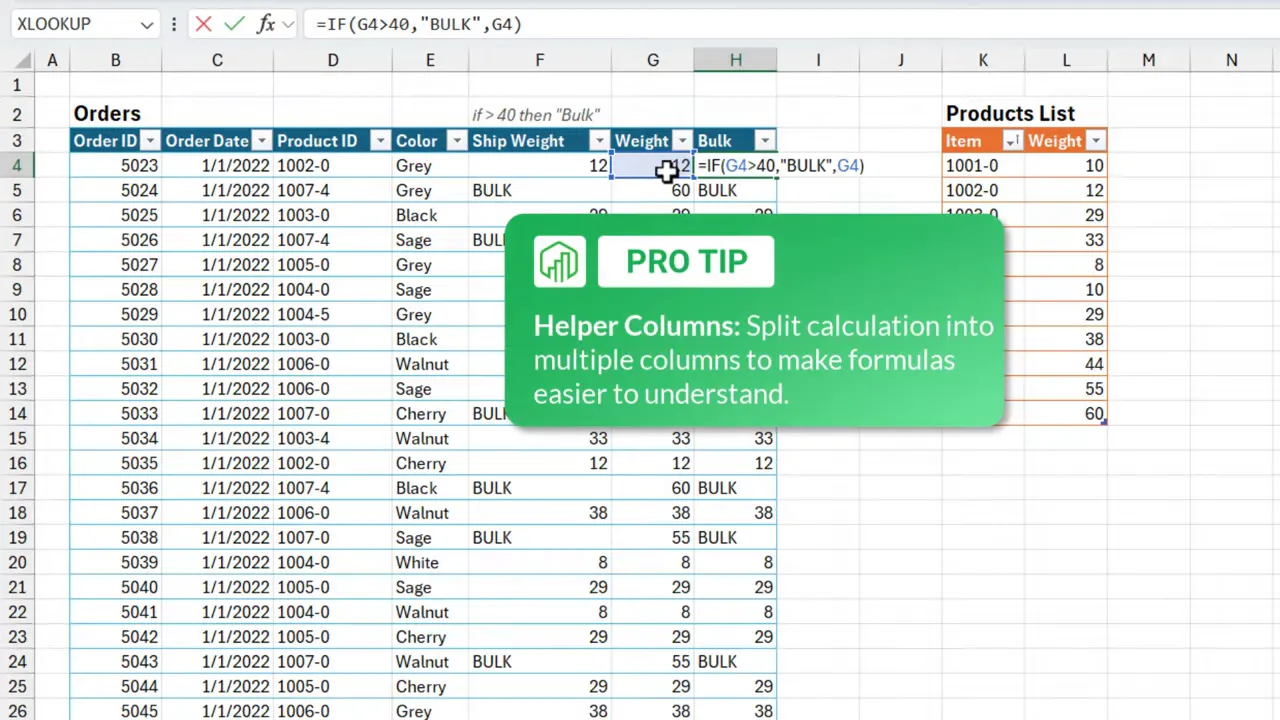
Helper columns store intermediate results in cells. They make formulas easy to follow. They also avoid LET if your users do not know it.
- Place the XLOOKUP result in a helper column named Weight.
- Use a second column with an IF test to return “bulk” or the weight.
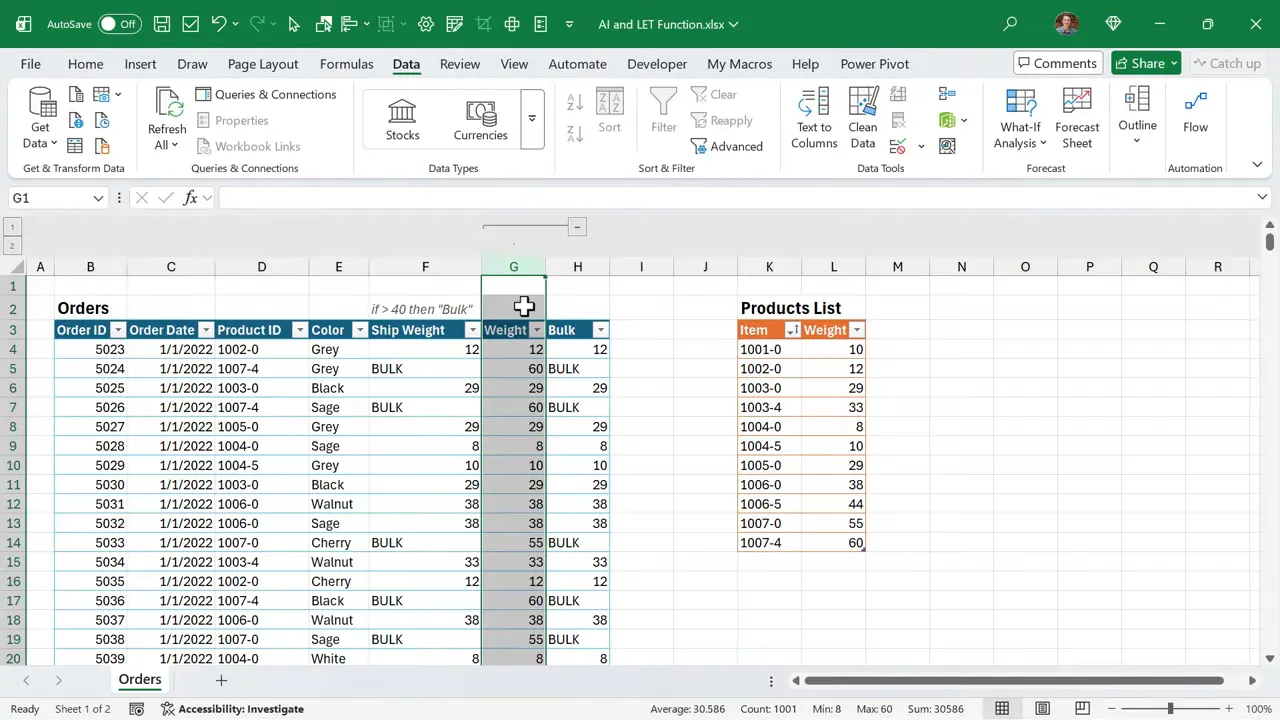
- Hide the helper column if you want a cleaner sheet.
Helper columns are essentially the spreadsheet equivalent of LET. The difference is the value is stored in a cell, not a variable inside the formula. For many teams, helper columns are easier to explain and maintain.
Practical tips and best practices
Here are clear, practical rules for using the LET function and for working with AI-generated formulas.
- Know your audience.
- Choose LET for performance and experienced users.
- Choose helper columns for novice users and easier debugging.
- Keep variable names meaningful.
- Use short but clear names like
wtfor weight. - Avoid cryptic names if others will read the file.
- Use short but clear names like
- Use line breaks to improve readability.
- Press Alt+Enter inside the formula bar to add lines.
- Line breaks do not change how the formula calculates.
- Hide helper columns when you use them.
- Group the helper columns (Data > Group) to collapse them.
- That keeps your sheet tidy while retaining the benefits.
- Prompt AI carefully.
- Include instructions like “Do not use LET or LAMBDA.”
- Ask for helper column recommendations if needed.
These tips help you balance the strengths of AI and LET function in Excel with real-world maintainability.
Checkout my articles on the LET and LAMBDA functions to learn more about these powerful Excel features.
Final Thoughts
AI and LET function in Excel together solve repeated-calculation problems elegantly. They improve performance and reduce duplication. But they can also make formulas look intimidating. The right choice depends on your team, your data size, and how much you value performance versus immediate readability.
When in doubt, follow this rule:
- Use LET when performance matters and users understand it.
- Use helper columns and clear prompts to AI when you need simplicity.
The combination of AI and LET function in Excel is one of many ways to write better formulas. Use the method that reduces errors, saves time, and keeps your coworkers happy.
Join the AI Literacy for Excel Course
If you're feeling a bit overwhelmed or behind with all the changes in AI and Excel, then our AI Literacy for Excel Course will help get you up to speed quickly.
In the course you will learn how to use AI to save tons of time with your everyday Excel tasks.
And don't worry, you don't have to share sensitive data to benefit from AI. In the program I explain how to use AI to help with spreadsheet design, process automation, formula writing, and much more.





Add comment