

When it comes to AI and Excel, one of the biggest factors in getting good results is WHERE the AI is running. Understanding this distinction will help improve your results, prevent frustration, and save time.
Download the Excel Files
Complete the form below to instantly access the Excel files and Excel Formula Prompting Guide.
Video Tutorial
View on YouTube and Subscribe to our Channel
The Two Main Ways AI Modifies Excel Files
There are two distinct environments where AI can work with your Excel files.
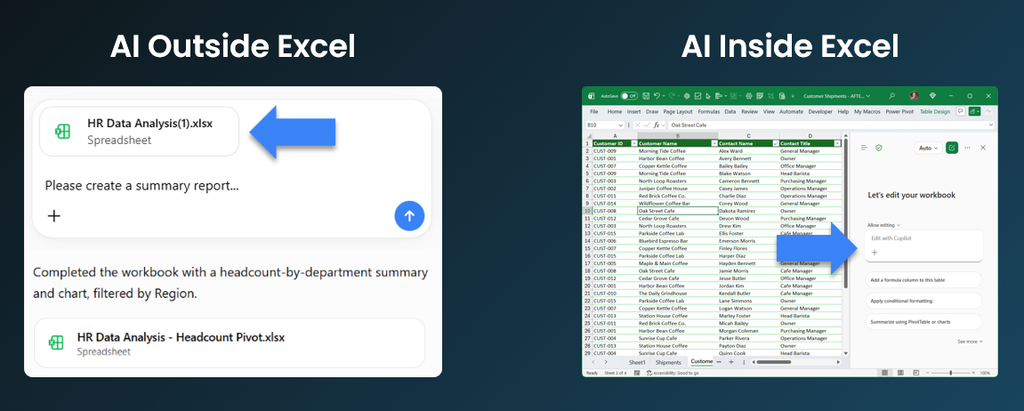
The first is AI outside Excel, where you attach an Excel file to a chat interface like ChatGPT, Copilot chat, Claude, or Gemini.
The second is AI inside Excel, where the AI runs directly within the Excel application through a built-in feature or an add-in.
In both cases, the actual process works the same way:
- You write a prompt
- AI writes code in the background
- That code modifies your Excel file
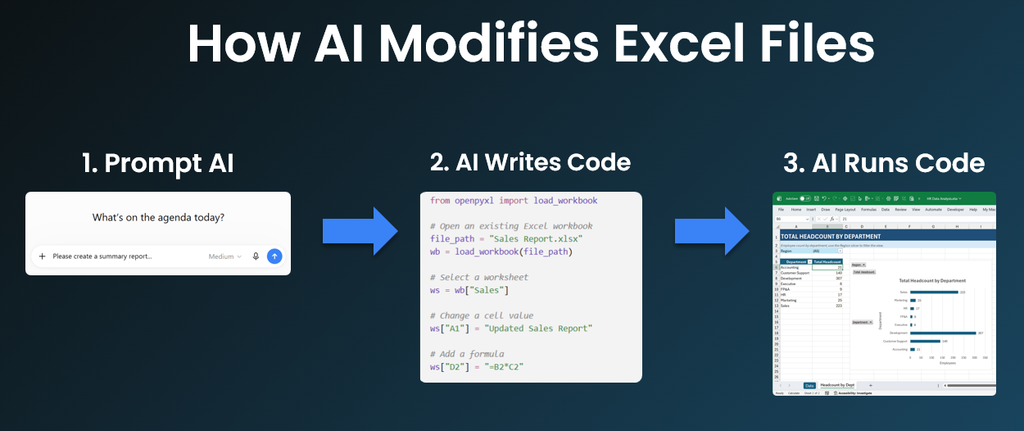
The critical difference is which coding language the AI has access to, and that changes everything about what it can actually do.
Why the Coding Language Matters
AI outside Excel typically uses Python to modify your workbook. Sometimes it falls back to LibreOffice when Python hits its limits. Python can read and write Excel file data just fine, but it does not have deep access to native Excel objects like PivotTables, slicers, or PivotCharts.
AI inside Excel uses Office.js, a coding language developed by Microsoft and deeply integrated into Office applications. Because Office.js has direct access to the live Excel object model, it can create and manipulate native Excel features that Python simply cannot touch.
This is the core reason the same prompt can produce such different outputs.
A Real Example: Pivot Table, Chart, and Slicer
Here is a practical example that shows the difference clearly. I attached an HR data file to Copilot chat (AI outside Excel) and asked it to create a pivot table, pivot chart, and a slicer filtered by region.
Instead of delivering those native Excel objects, Copilot came back and admitted it could not create a native PivotTable or slicer. So it improvised.
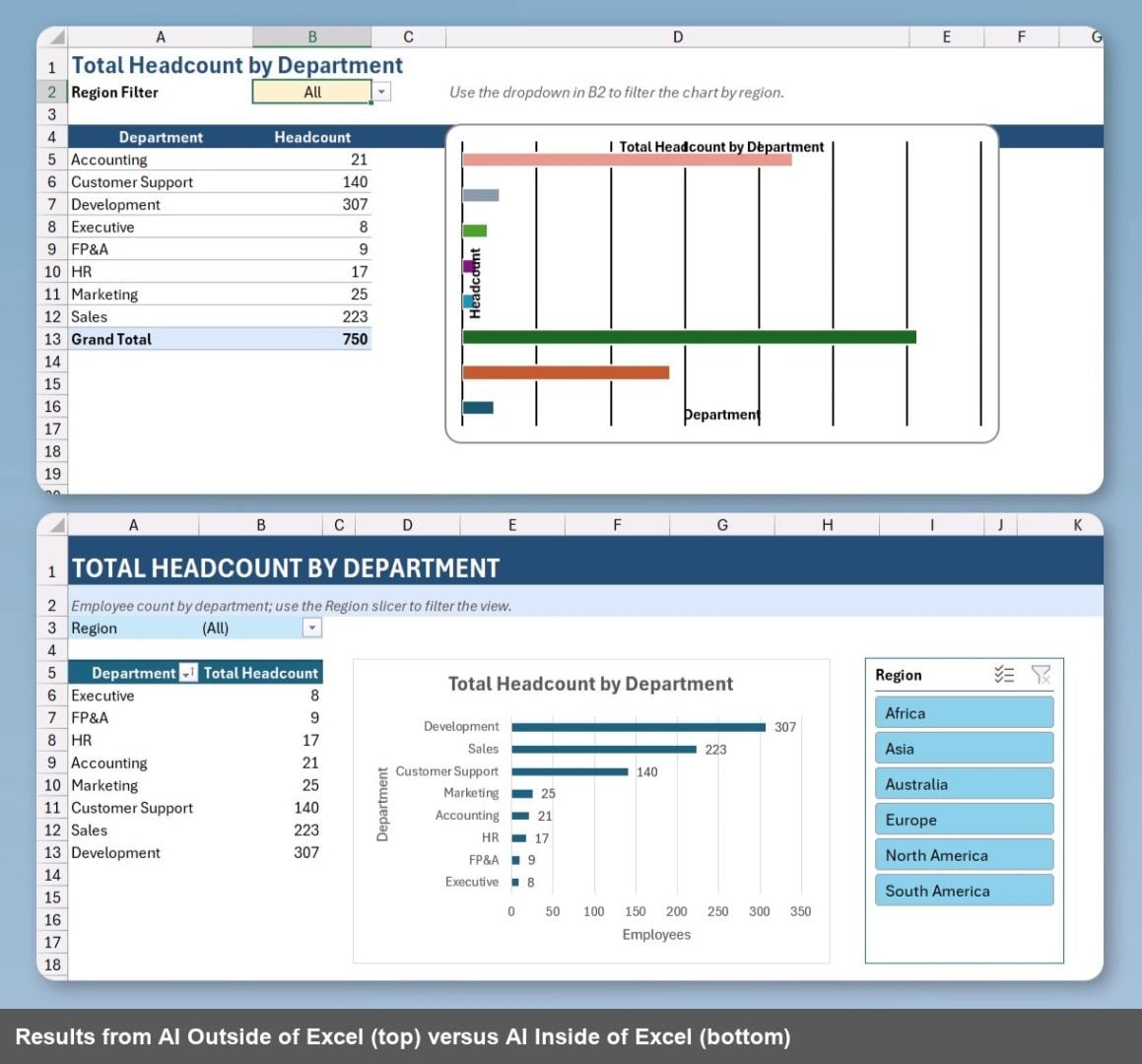
The result was a formula-based summary table, a dropdown filter using data validation, and a standard chart. It technically works, but it is not dynamic. Add new departments and you would need to update the spreadsheet manually.
The Formula AI Used Instead of a PivotTable
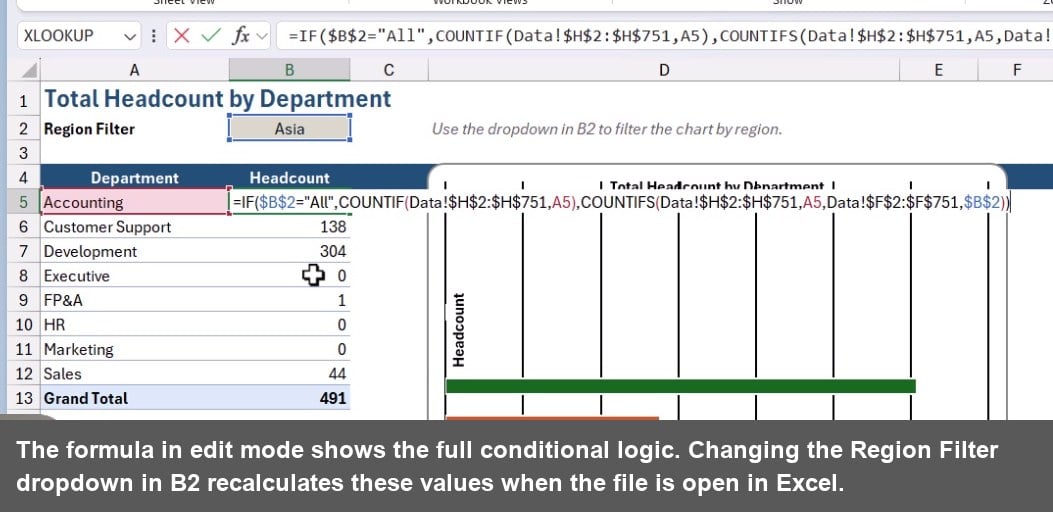
To replicate pivot-style aggregation, the AI wrote a conditional count formula in the headcount column. Here is what it generated for the region-filtered headcount calculation:
=IF($B$2="All",COUNTIF(Data!$H$2:$H$751,A5),COUNTIFS(Data!$H$2:$H$751,A5,Data!$F$2:$F$751,$B$2))
AI Inside Excel Gets It Right
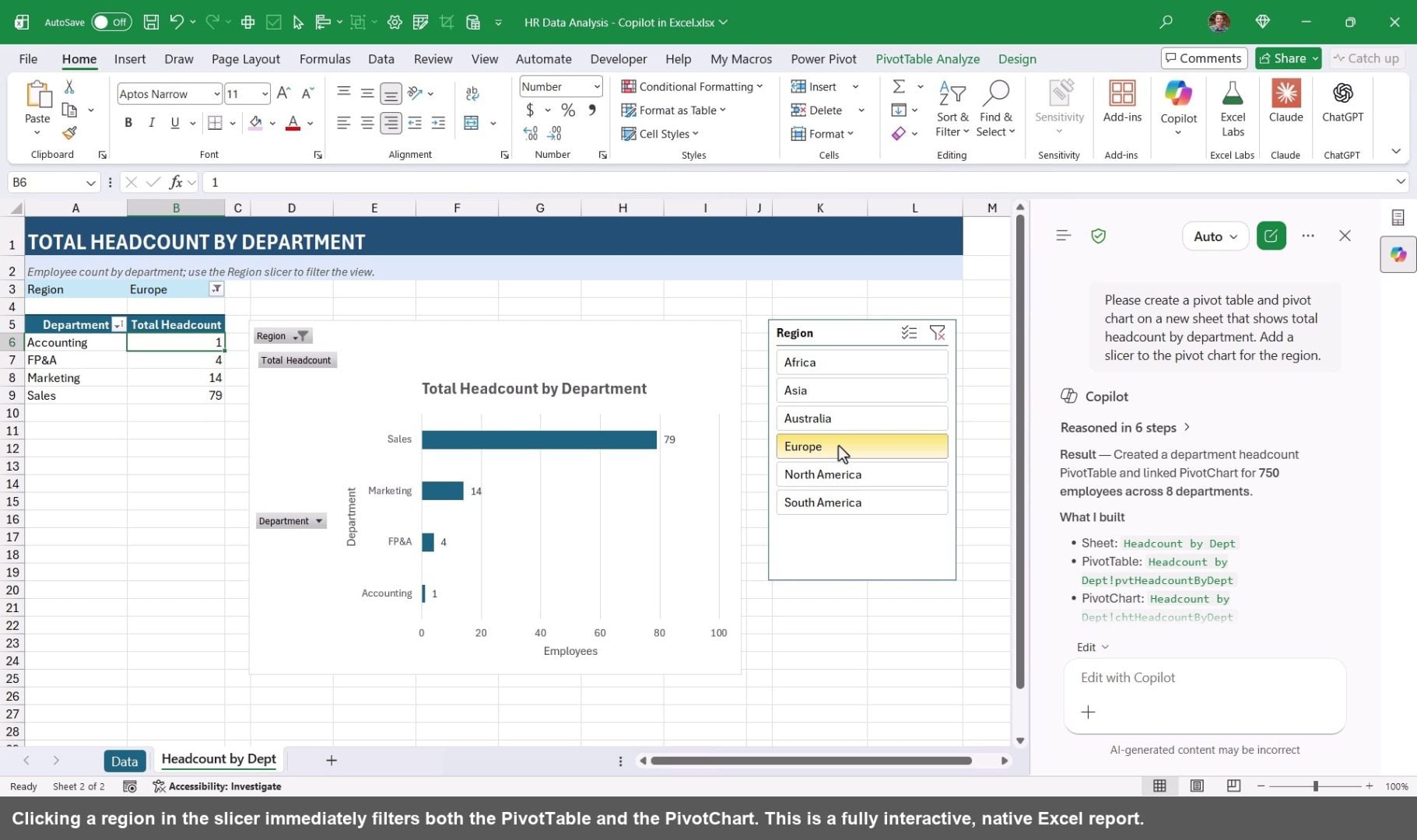
Now compare that to running the exact same prompt using Copilot inside Excel. The result was a proper PivotTable, a linked PivotChart, and a working Region slicer, all native Excel objects. Click the slicer and both the chart and the table filter instantly.
This works because Office.js has direct access to Excel's object model. Creating a PivotTable through Office.js is the equivalent of a developer clicking the Excel UI buttons programmatically. Python operating on a closed file simply does not have that level of access.
Formula Calculation Is Another Key Difference
When AI outside Excel modifies your file, the Excel application is typically closed. That means the calculation engine does not run.
The AI is editing the underlying XML inside the file and formulas do not recalculate until you open the workbook. AI cannot verify live results or catch formula errors before you see them.
With AI inside Excel, the application is open and the calc engine runs in real time. That means AI can inspect results, catch issues, and self-correct before handing the file back to you. For complex formulas or financial models, that difference matters a lot.
A Surprising Exception: Copilot Chat Creating New Workbooks
There is one important caveat to the AI outside Excel story. In Copilot chat, if you use the Build a Workbook capability (rather than attaching an existing file), the results can look very different. I tested this by asking Copilot to create a brand-new workbook with sample sales data, a pivot table, and a pivot chart.
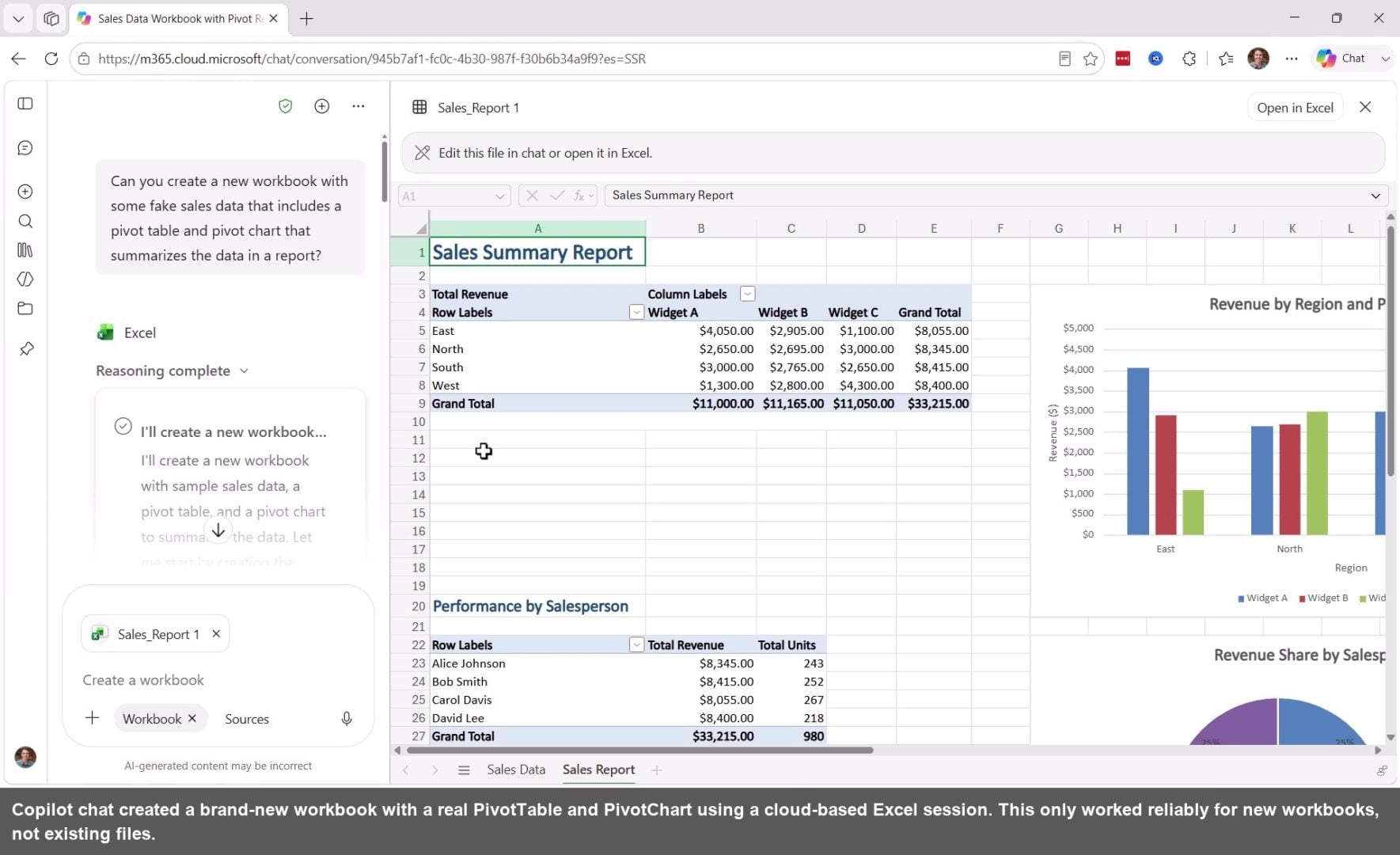
The output included a proper native PivotTable and PivotChart. When I asked Copilot to explain how, it said it has access to a cloud-based Excel session running on Microsoft's infrastructure. Essentially, the workbook is genuinely open on a server, which is why Office.js can run. I could only get this to work reliably when creating a new workbook, not when modifying an existing file. But it is worth knowing the capability exists.
Computer Use: Is It the Future?
One other environment is called computer use. This is where AI takes over your computer to perform keystrokes and mouse clicks on applications that are installed on your computer.
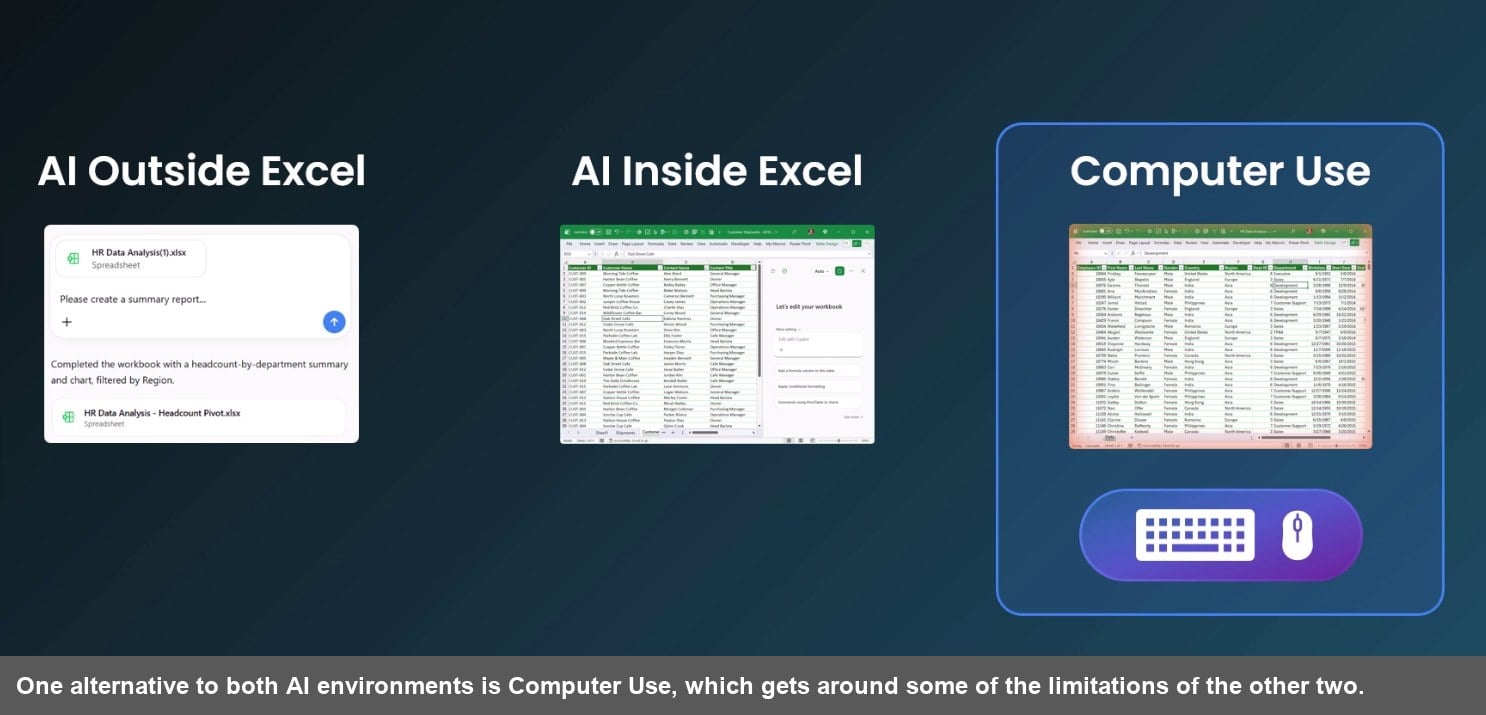
Right now, it's a bit slow and resource intensive, but it does get around some of the limitations of both AI outside and inside Excel.So it could be a viable solution in the future and one to keep an eye on.
What About VBA and Office Scripts?
You might be wondering why VBA and Office Scripts are not on the list of tools AI uses. The short answer: AI cannot run VBA or Office Scripts on your behalf, at least not in either of the two main environments covered here. There is an emerging third option called Computer Use, where AI can literally take control of your mouse and keyboard to interact with Excel, but it is slow and resource-intensive right now.
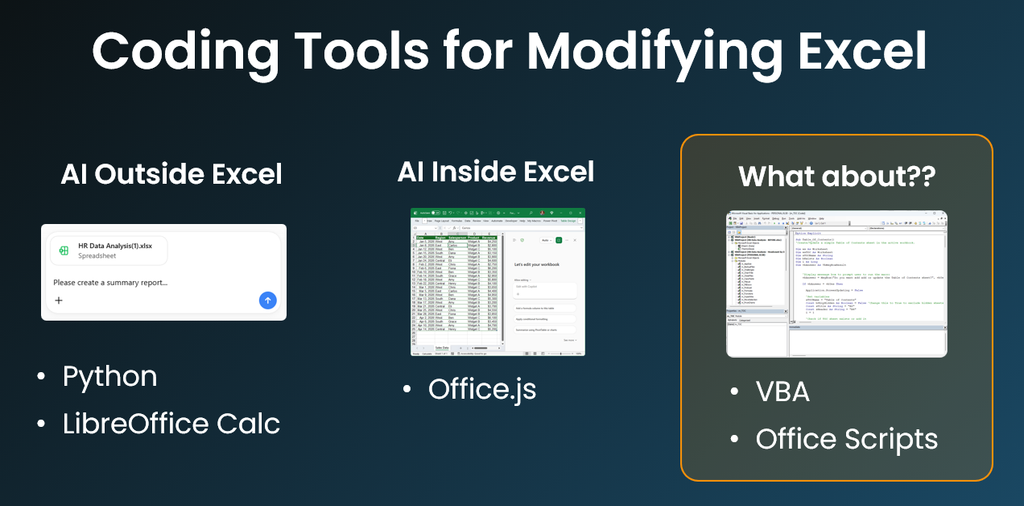
The practical takeaway is that you can have AI write VBA code and then run it yourself in Excel. That approach can actually be more efficient for automation tasks than having AI modify your files directly. It is a workflow worth exploring if you do a lot of Excel automation.
Summary
The environment where AI runs relative to Excel has a huge impact on what it can actually build. AI outside Excel uses Python and other tools, which is great for data manipulation but cannot create native PivotTables, slicers, or PivotCharts.
AI inside Excel mostly uses Office.js, which has deep access to the Excel object model and can deliver fully interactive, native reports. AI inside Excel can also recalculate the workbook while it's working, to help validate results and fix issues.
For most reporting and dashboard work, running AI inside Excel through Copilot, Claude, or ChatGPT add-ins will give you better, more accurate results. For bulk data processing or tasks involving many files, AI outside Excel with Python may still be the right call.
Knowing which tool fits your task is the first step to getting AI to actually do what you want in Excel.
AI Literacy for Excel Course
Right now we're running an End of Summer Sale on our AI Literacy for Excel Course.

If you're feeling a bit overwhelmed or behind with all the changes in AI and Excel, then our AI Literacy for Excel Course will help get you up to speed quickly.
You will also learn how to communicate with AI (prompt and context engineering) to get the best results.
Plus, we just added a new section on Copilot, ChatGPT, and Claude in Excel, to help you get the most out of the AI Inside Excel tools.




Add comment