

Excel just shipped an update that has been 19 years in the making. The Create Table dialog now includes a name field, so you can give your table a proper name the moment you create it. 🥳
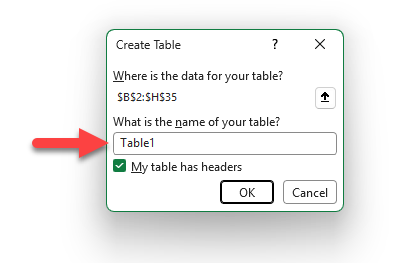
No more hunting down the Table Design tab afterward, and no more workbooks full of Table1, Table2, Table3.
In this post we'll walk through the new feature, explain why naming your tables matters, and share some fast ways to rename tables you've already created, including a Copilot trick that handles an entire workbook in seconds.
Download the Excel Files
Complete the form below to instantly access the Excel files and Excel Formula Prompting Guide.
Video Tutorial
Watch on YouTube & Subscribe to our Channel
The New Name Field in the Create Table Dialog
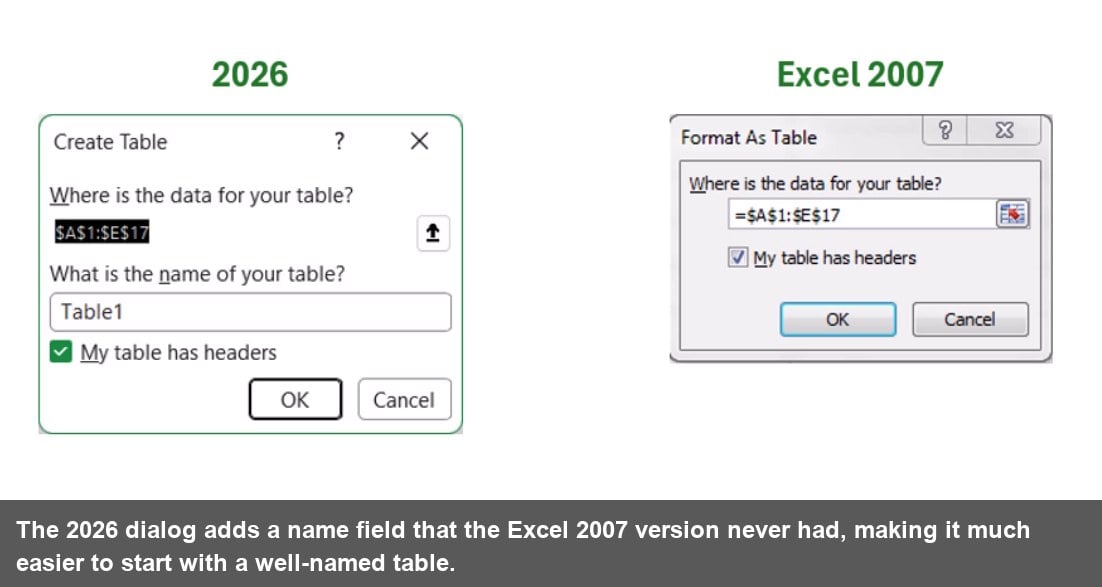
When you insert a table using Format as Table, the Insert tab's Table button, or the Ctrl+T shortcut, the Create Table dialog now shows a second field: “What is the name of your table?” It defaults to Table1, but you can replace it with anything descriptive before you click OK.
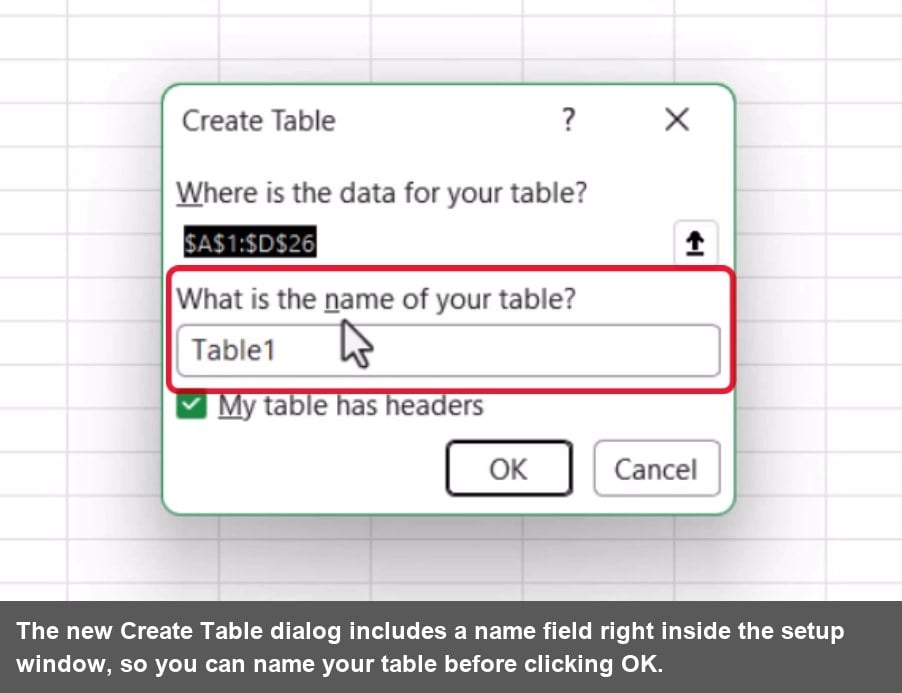
The fastest way to use this field is with a keyboard shortcut. Press Ctrl+T to open the dialog, then press Tab. Focus jumps straight to the name field with the default text already selected, so you can start typing your table name immediately.
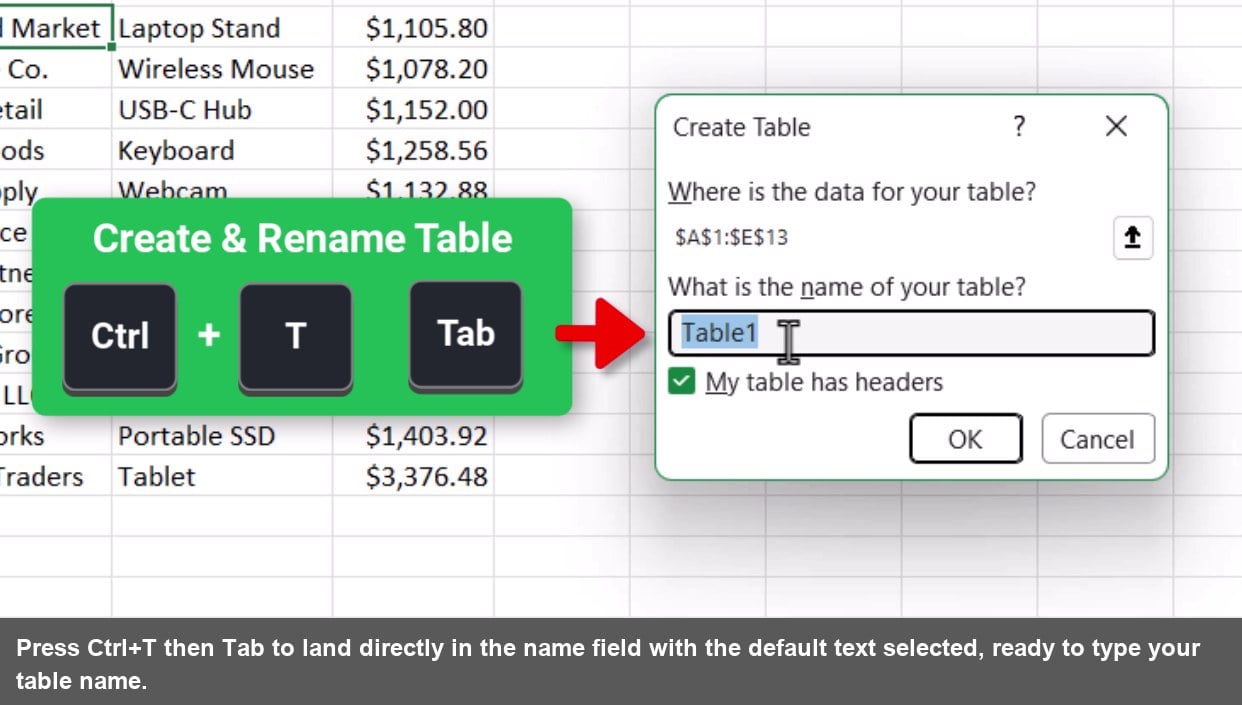
In the example below, the table is being named tblOrders before clicking OK. A consistent prefix like “tbl” is a small habit that pays off in a big way, which we will cover in a moment.
If the Dialog Is Already Gone: Table Design Tab
Already created a table without naming it? Click anywhere inside the table, then go to the Table Design tab. The Table Name box is in the far-left corner of the ribbon. Click it, type your name, and press Enter.
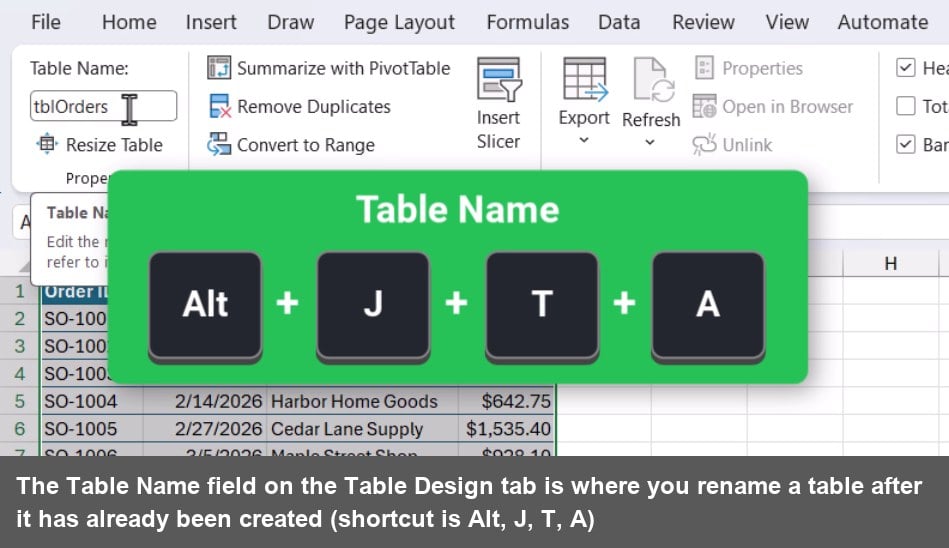
The keyboard shortcut for that box is Alt J T A. It works, but it's a lot easier to just name the table during creation now that the dialog supports it.
The History of the Create Table Window
Excel tables have existed since Excel 2003, where they were called Lists. The Create Table dialog hadn't changed since then, until now. The side-by-side comparison below shows exactly how much was added.
3 Reasons to Rename Excel Tables
Table names aren't just cosmetic. They affect how readable your formulas are, how easy it is to navigate your workbook, and whether your Power Query connections stay healthy. Here's why each of those things matters.
Reason 1: Readable Structured Reference Formulas
When you reference a named table in a formula, Excel uses a structured reference that reads almost like plain English. The formula below sums every value in the Amount column of tblOrders.
=SUM(tblOrders[Amount])
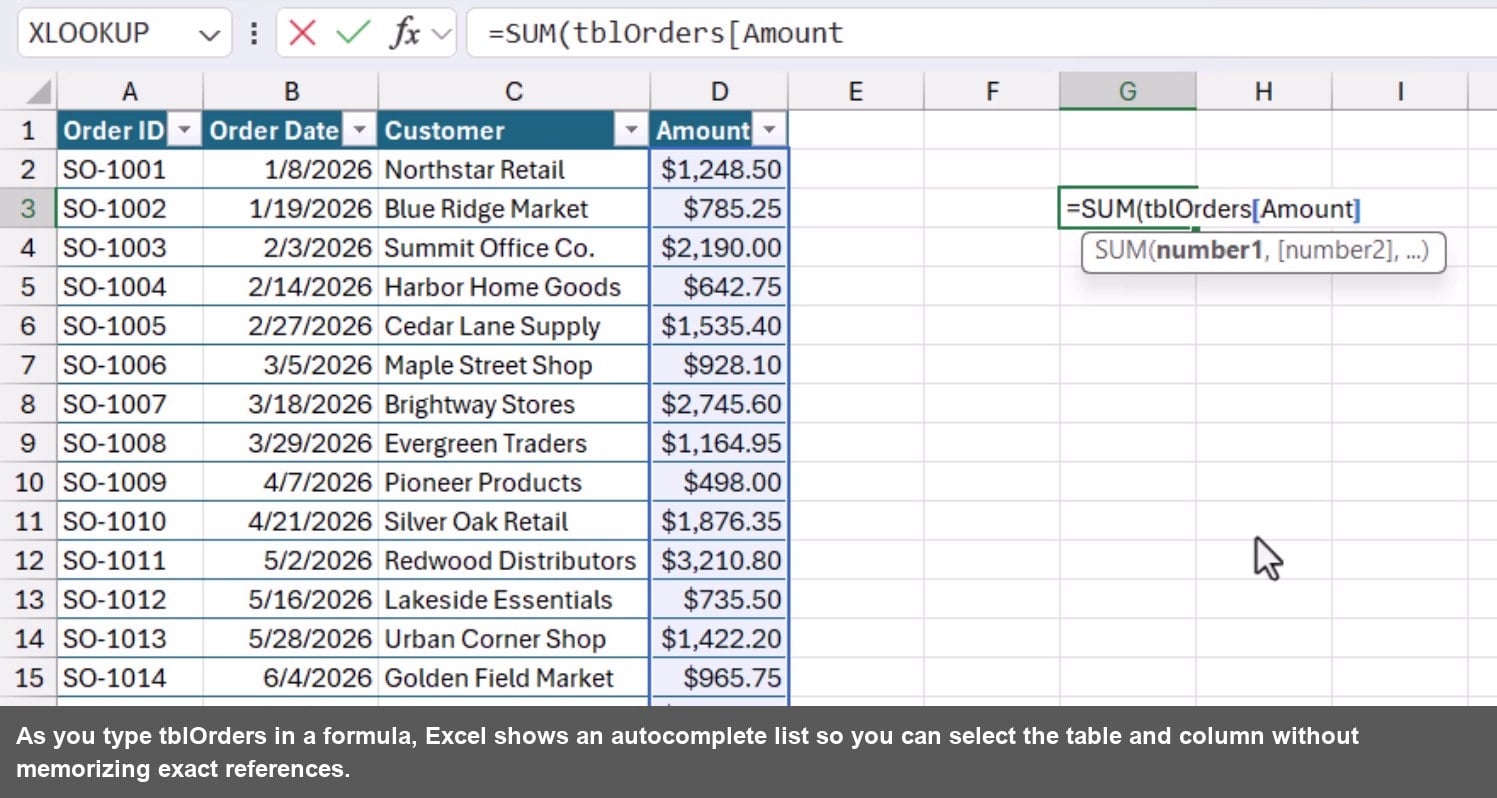
Compare that to =SUM(Table2[Column4]). You'd have no idea what data you're summing without digging through the workbook. A good table name makes the formula self-documenting.
Reason 2: Faster Workbook Navigation
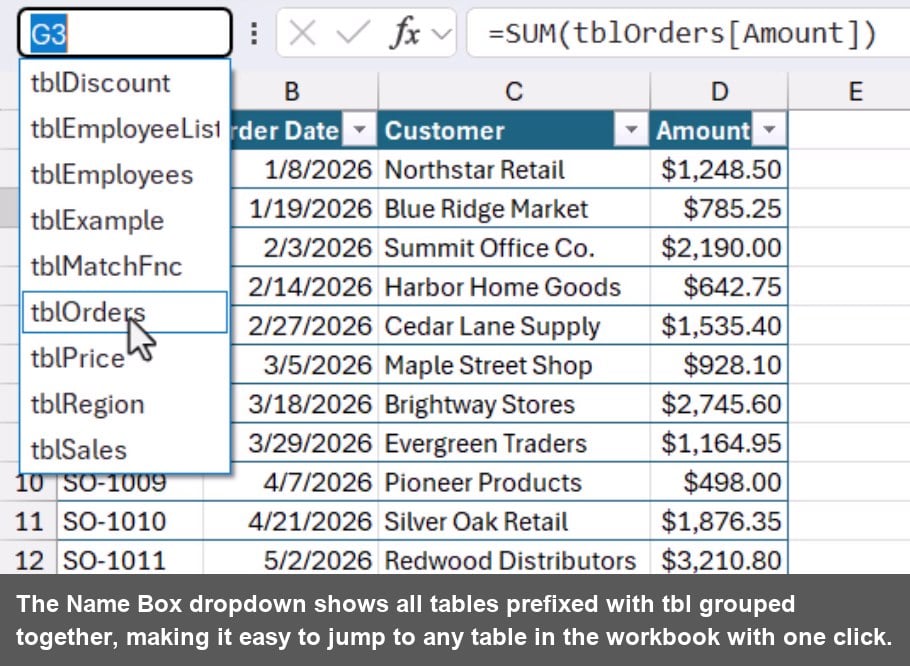
Click the Name Box at the top left of Excel and you'll see a dropdown listing every table and named range in the workbook. If all your tables start with “tbl”, they group together alphabetically and you can jump to any of them instantly, no matter which sheet you're on.
Reason 3: Clean Power Query Connections
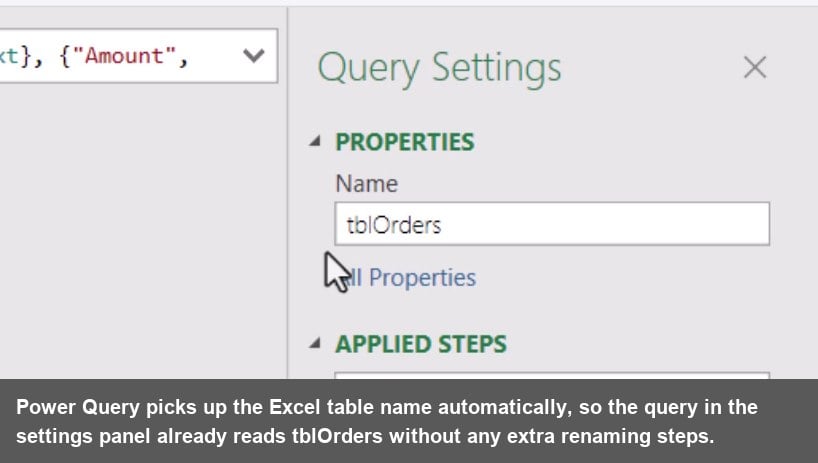
When you load an Excel table into Power Query, the query inherits the table name automatically. If the table is already named tblOrders, the query is named tblOrders from the start. No cleanup required.
If you rename a table after the query already exists, you can break the connection and create extra work to fix it. Naming the table at creation prevents that problem entirely.
Renaming Existing Tables with Copilot, ChatGPT, or Claude
If you've inherited a workbook full of generic table names, AI tools can rename them all at once. Open Copilot in Excel and prompt it with something like this: “Please name all of the tables in this workbook. Use the prefix tbl, give each table a descriptive name based on its contents, and use upper camel case.”
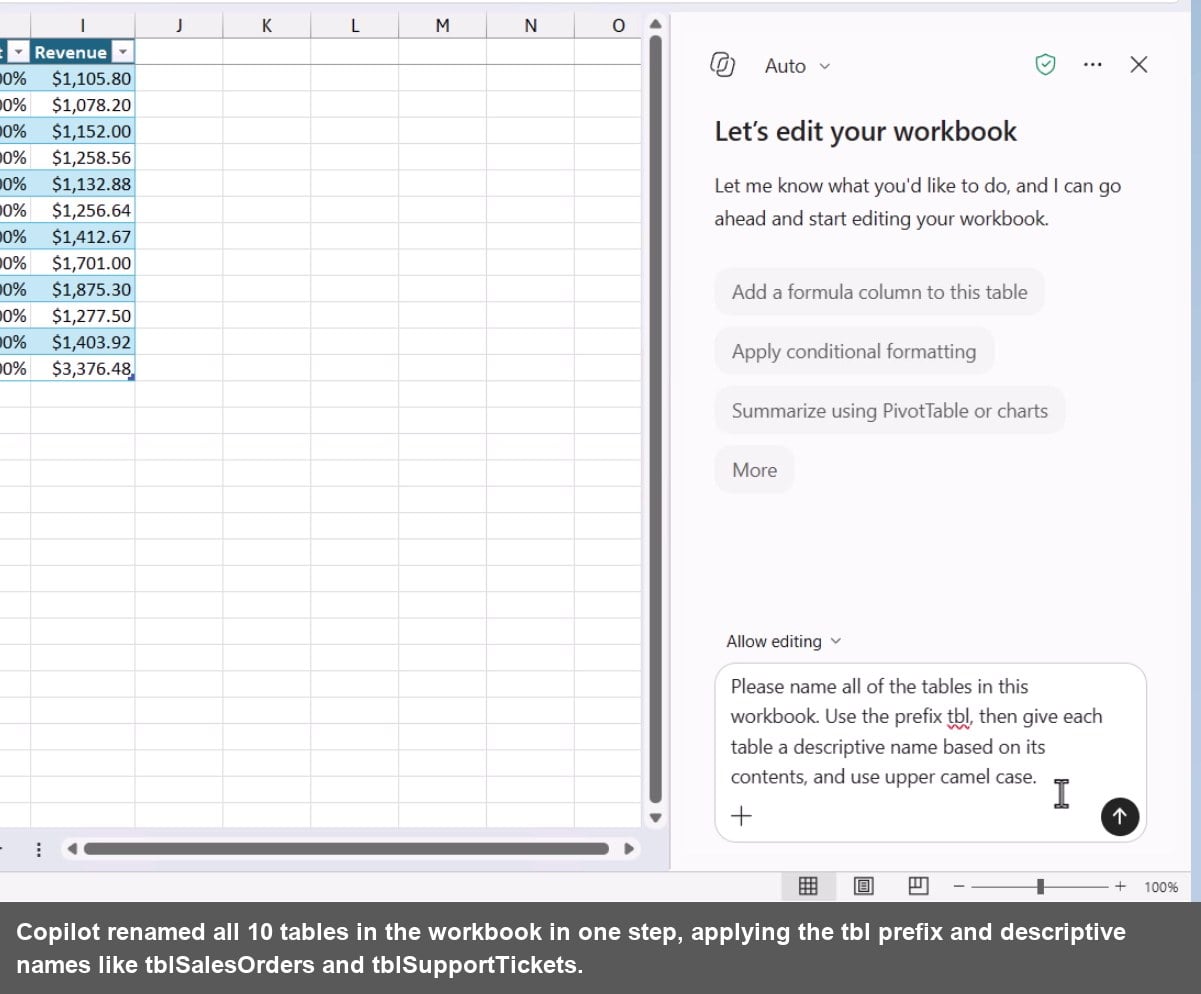
The same approach works with the ChatGPT or Claude add-ins for Excel. Whichever AI tool you prefer, a single prompt can handle a workbook that would take several minutes to fix manually.
Save Your Naming Rules in Copilot Personalization
Copilot has a Personalization setting where you can store standing instructions that apply to every prompt you send. Add your table naming convention there once, and future prompts can be as simple as “rename all the tables in this workbook” without spelling out all the rules again.
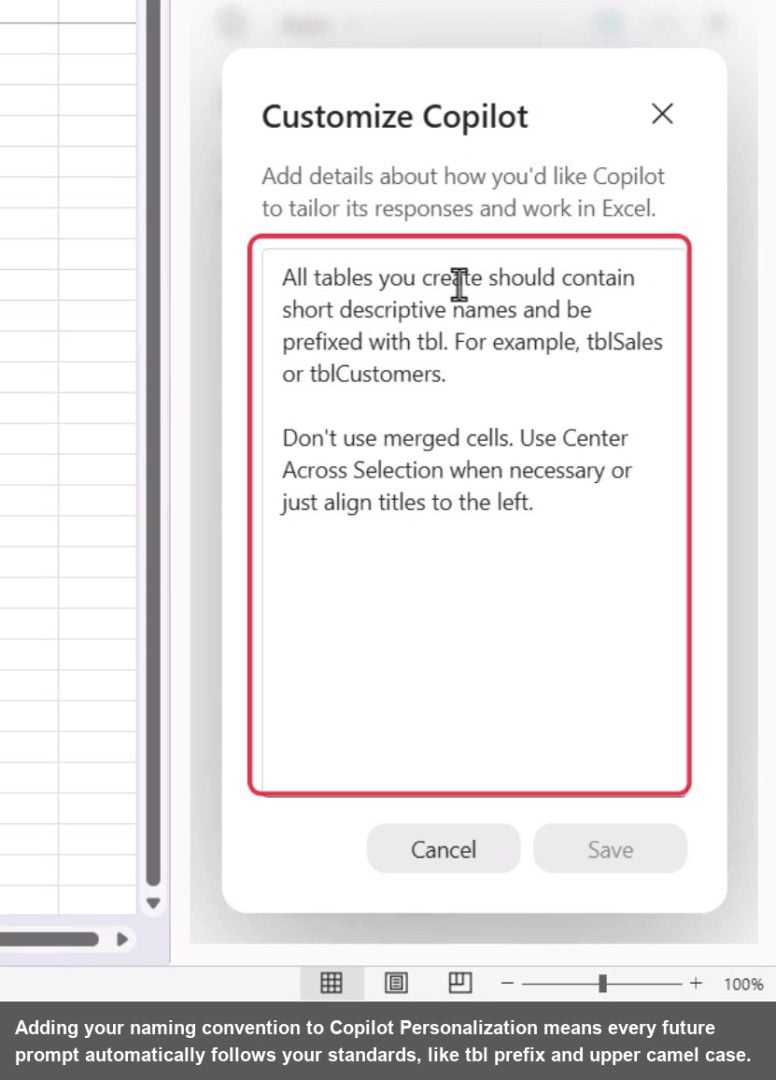
Claude and ChatGPT both have similar custom instructions settings. Set them once and your preferred naming conventions follow you across every workbook.
A Note on Renaming Tables You've Already Used
Renaming a table after it's already in use can break formulas in other workbooks that reference it, or break Power Query connections tied to the old name. All of those issues are fixable, but they take extra work. The cleaner habit is to name the table when you create it so you never have to rename it.
Summary
The new name field in the Create Table dialog is a small change with a real impact. Naming your tables at creation keeps your formulas readable, your workbook navigation clean, and your Power Query connections stable.
Use Ctrl+T then Tab to drop straight into the name field, apply a consistent prefix like tbl, and give each table a descriptive name based on what's actually in it.
For workbooks that already have generic table names, Copilot, ChatGPT, or Claude can rename them all in a single prompt. Start the habit now and you'll save yourself a lot of detective work later.





Add comment