

Bottom Line: Learn to create a Table of Contents sheet that automatically updates whenever changes are made to sheets in an Excel workbook.
Skill Level: Intermediate
Watch on YouTube & Subscribe to our Channel
Download the Excel File
Here's a link to the file I use in the video that includes the VBA macros.
The following file will work with workbooks that contain Chart sheets. These are NOT worksheets that contain charts. Chart sheets are a special type of sheet that only contains a single chart that takes up the entire sheet.
Chart Sheets cannot be selected with hyperlinks because they do not contain cells. Therefore, this solution uses the Worksheet_FollowHyperlink event to select the Chart sheet. All of the code is still contained in the shtTOC sheet module, and the sheet can be copied to other workbooks.
Create Automatic Updates to Your Table of Contents in Excel
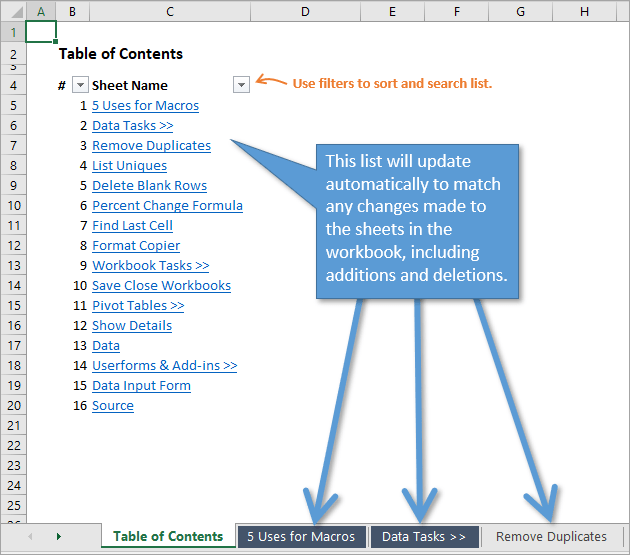
A Table of Contents is a simple yet extremely useful feature in any Excel workbook that contains more than a few sheets. This one sheet can provide a clickable list of your worksheet labels that link directly to their corresponding sheets.
This post will demonstrate how to create a Table of Contents (TOC) that updates automatically. The TOC will display an accurate list when you add, remove, or change the names of sheets in the workbook.
Adding a Macro to Create the Table of Contents
In this example I use two macros to update the Table of Contents.
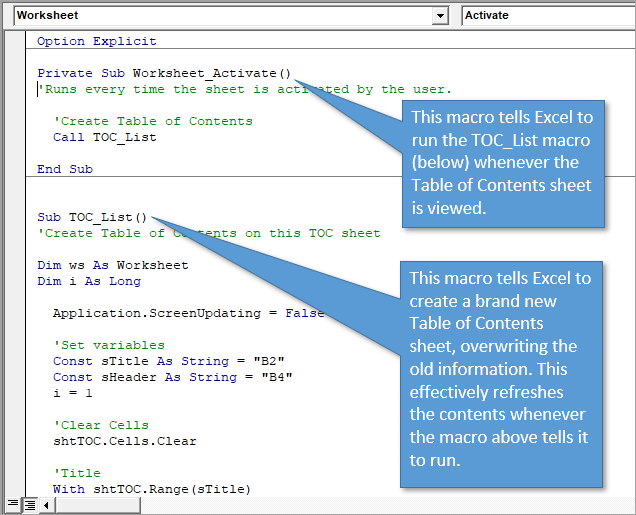
The first macro is the Worksheet_Activate event. This macro will run every time the user selects the Table of Contents sheet. The code is stored in the sheet's code module, and will only run when that particular sheet is activated (selected).
The code in the Worksheet_Activate calls the second macro (TOC_List). This macro actually recreates the entire Table of Contents on the sheet.
Alternatively, you could put all the code in the TOC_List macro in the Worksheet_Activate event. I just kept them separate in case you want to use a different macro for the TOC, like the TOC Gallery macro I mention below.
You just have to change the Call line in the Worksheet_Activate macro to call a different macro. The macro can also be stored in the same code module for the TOC sheet.
Use it in Your Own Workbooks
This solution is very easy to implement in your own workbooks.
All you have to do is copy the TOC tab (provided in the file download above) to your workbook. All of the code travels with the sheet because it is stored in the sheet's code module.
Here's how you can copy the sheet to a different workbook. It's always a good idea to save your workbook before adding this sheet that contains VBA code.
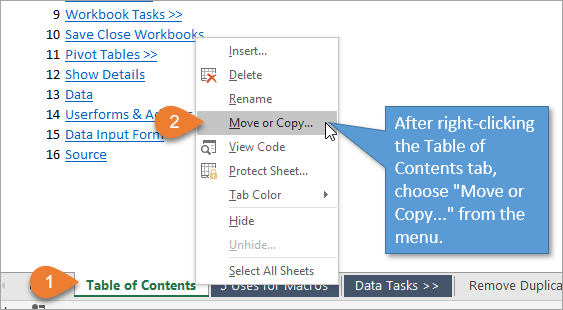
- Right-click on the Table of Contents tab, and then choose “Move or Copy…” in the menu that appears.
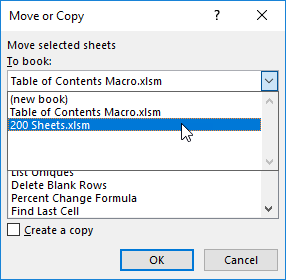
- Choose the open workbook that you would like to copy the Table of Contents to. In my example, I am using a workbook called “200 Sheets.”
- Choose the sheet you want the Table of Contents to appear in front of (usually the first sheet since Tables of Contents are normally found at the beginning). Then check the “Create a copy” checkbox. Then select OK.

- The sheet will be copied into the workbook and the Worksheet_Activate event should automatically run to create the new table of contents.
That's all there is to it. As with any workbook that contains macros, don't forget to save it as a macro-enabled file (.xlsm extension).
If you're new to VBA then checkout my free 3-part video series on getting started with macros & VBA.
VBA Code for Automatically Refreshing the Table of Contents
Here is the VBA code for both macros that you can copy and paste into your own workbook. You can also find it in the example Excel file that I've provided above.
Sub TOC_List()
'Create Table of Contents on this TOC sheet

Dim ws As Worksheet
Dim wsTOC As Worksheet
Dim i As Long

  Application.ScreenUpdating = False

  'Set variables
  Const bSkipHidden As Boolean = False 'Change this to True to NOT list hidden sheets
  Const sTitle As String = "B2"
  Const sHeader As String = "B4"
  Set wsTOC = Me 'can change to a worksheet ref if using in a regular code module
  i = 1

  'Clear Cells
  wsTOC.Cells.Clear

  'Title
  With wsTOC.Range(sTitle)
    .Value = "Table of Contents"
    .Font.Bold = True
    .Font.Size = .Font.Size + 2

    'List header
    .Offset(2).Value = "#"
    .Offset(2, 1).Value = "Sheet Name"
    .Offset(2).Resize(1, 2).Font.Bold = True
  End With

  'Create TOC list
  With wsTOC.Range(sHeader)

    'Create list
    For Each ws In ThisWorkbook.Worksheets
        'Skip TOC sheet
        If ws.Name <> wsTOC.Name Then
          'Skipping hidden sheets can be toggled in the variable above
          If bSkipHidden Or ws.Visible = xlSheetVisible Then
            .Offset(i).Value = i
            wsTOC.Hyperlinks.Add Anchor:=.Offset(i, 1), _
                                  Address:="", _
                                  SubAddress:="'" & ws.Name & "'!A1", _
                                  TextToDisplay:=ws.Name
            i = i + 1
          End If
        End If
    Next ws

    'Turn filters off
    If wsTOC.AutoFilterMode Then
      wsTOC.Cells.AutoFilter
    End If

    'Apply filters
    .Resize(i, 2).AutoFilter

    'Formatting
    .Font.Italic = True

    'AutoFit
    .Resize(i, 2).Columns.AutoFit

  End With

  Application.ScreenUpdating = True

End Sub
Of course, if you already have a Table of Contents macro that you prefer, you can substitute that code for the TOC_List macro.
How to Skip Hidden Sheets
By default the TOC_List macro will include hidden sheets in the list. However, I added some code to the macro that allows you to skip hidden sheets. This is controlled by the bSkipHidden variable that can be set at the top of the macro.
Here is what that section of code looks like in the macro:
'Set variables
Const bSkipHidden As Boolean = False 'Change this to True to NOT list hidden sheets
  Const sTitle As String = "B2"
It is currently set to False, but you can change it to True to skip hidden sheets. The Table of Contents list will only include the visible sheets in the workbook. Since the macro runs automatically, the Table of Contents will always be updated to display visible sheets only.
Table of Contents Gallery
At the end of the video I show how this same technique can be used with my Table of Contents Gallery macro. If you or your users are more visual-oriented, you might be interested in this solution. Instead of just clickable text, this Table of Contents shows you a snapshot of each sheet in the workbook. Each image is clickable and will take you directly to the corresponding sheet.
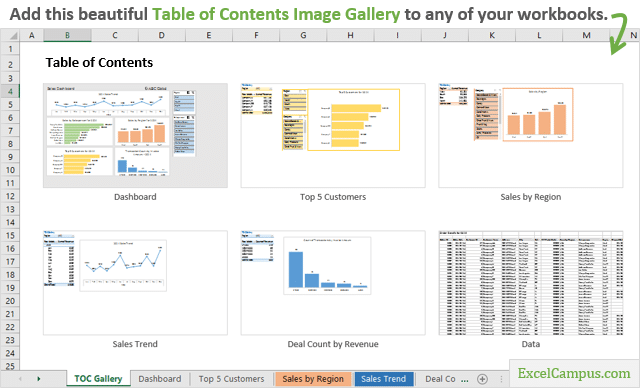
Just a note: This gallery image format does run slower than the list format I described earlier, especially if your workbook has a lot of sheets.
Event-Based Macros
As mentioned before, the Worksheet_Activate event runs any time the user activates the sheet that the code is in. In other words, it's event based. You can set up macros to run based on other events too, such as:
- Whenever you open or close a workbook.
- Changes are made to any cell, or a particular cell.
- Pivot tables are refreshed.
There are a ton of uses for event macros that will help make your files easier to use. Checkout my post and video on VBA Code Modules & How to Run Macros Based on User Events to learn more.
Professional and User Friendly
Adding a Table of Contents to your workbooks is super easy. And the great thing is that this one feature has the tendency to impress other users (and hopefully your bosses as well!). That's especially true of the gallery format because it looks like you did so much work!
If you would like to explore some other tips and tricks for making your job easier, making your data look more professional, and making your worksheets more user-friendly, check out my video on 5 uses for VBA macros at your job.
I hope that helps. Please leave a comment below with any questions or suggestions. Thank you! 🙂





This is great, not only does it work well, it looks better than other examples I’ve found also. I’m wondering though how to add a hyperlink to each of the sheets it cycles through into A1 to get back to the table of contents?
Thanks
I’ve worked it out, before the i=i+1, I added this:
With Sheets(ws.Name)
.Activate
.Hyperlinks.Add Anchor:=Range(“A1″), Address:=””, _
SubAddress:=”TOC!A1″, TextToDisplay:=”Back to TOC”
.Range(“A1”).EntireColumn.AutoFit
End With
Might not be super smart but it worked
Hi, It doesn’t work for me. Any advise?
Thank you Jon, Great article and code! One note. The download example xlsx doesn’t have any code in it. I think it needs to be an xlsm.
Question:
Is there a way to have a selection check box or pull down on the TOC sheet to choose to show or hide hidden sheets? I’ve tried a few ways but can’t figure it out.
Not sure if I got it wrong but changing bSkipHidden to True will actually include hidden sheets.
Const bSkipHidden As Boolean = False ‘Change this to True to NOT list hidden sheets
Would appreciate replies. Thanks.
Looks like the macros are missing from the file I download for the TOC Gallery – can this be fixed?
This is such a helpful post! I’ve always struggled with maintaining a manual table of contents in Excel, and the tips you provided for creating one that updates automatically are a game changer. Looking forward to applying these techniques in my next project. Thanks for sharing!
This is a fantastic resource! I never knew creating an automatic table of contents in Excel could be so straightforward. Your step-by-step instructions are incredibly helpful. Can’t wait to implement this in my next project—thanks for sharing!
This is such a useful feature! I often struggle to keep my table of contents updated manually, so I can’t wait to try out your step-by-step guide. Thank you for sharing these tips!
This is such a useful feature! I had no idea you could create an automatically updating table of contents in Excel. The step-by-step instructions were clear and easy to follow. Can’t wait to try this out in my own spreadsheets! Thanks for sharing!
Great post! The step-by-step guide on creating an automatic table of contents in Excel is super helpful. I love how you broke it down with screenshots. Can’t wait to implement this in my own spreadsheets! Thank you!
This is such a helpful post! I never knew how to create an automatically updating table of contents in Excel. The step-by-step instructions were clear and easy to follow. I can’t wait to try this out on my next project! Thank you for sharing!
This is such a helpful post! I love the idea of having a Table of Contents in Excel that updates automatically. It makes navigating large spreadsheets so much easier. Thanks for sharing the step-by-step process! I can’t wait to implement this in my projects.
This is such a helpful guide! The automatic updates feature for the table of contents in Excel is a game-changer for keeping my documents organized. I can’t wait to try this out on my next project. Thanks for sharing these tips!
This is such a useful feature! I’ve always struggled with manually updating the table of contents in my Excel workbooks. I appreciate the step-by-step instructions you provided; they made it easy to follow. Can’t wait to use this in my next project. Thanks for sharing!
This is such a useful feature! I’ve struggled with keeping my table of contents updated manually, so the insights you’ve shared on automating this process will save me so much time. Thanks for explaining the steps so clearly!
This is such a useful feature! I never realized how easy it could be to create an automatically updating table of contents in Excel. Your step-by-step guide was incredibly helpful. Can’t wait to implement this in my projects. Thanks for sharing!
This is such a fantastic resource! I never realized how easy it could be to create an automatically updating table of contents in Excel. The step-by-step guide made it really practical, and I can’t wait to implement it in my own spreadsheets. Thank you for sharing these tips!
Thank you for sharing this insightful post! I’ve always struggled with maintaining an up-to-date Table of Contents in my Excel files, and your step-by-step guide makes it seem so much easier. I can’t wait to implement these tips in my next project!
This is such a useful post! I had no idea that Excel could automatically update a table of contents. The step-by-step instructions were clear and easy to follow. Can’t wait to try this out in my own spreadsheets. Thanks for sharing!
This is very helpful but was wondering if there’s a way to ‘lock’ the Table of Contents tab in position so it’s always visible.