

Bottom Line: Learn to create a Table of Contents sheet that automatically updates whenever changes are made to sheets in an Excel workbook.
Skill Level: Intermediate
Watch on YouTube & Subscribe to our Channel
Download the Excel File
Here's a link to the file I use in the video that includes the VBA macros.
The following file will work with workbooks that contain Chart sheets. These are NOT worksheets that contain charts. Chart sheets are a special type of sheet that only contains a single chart that takes up the entire sheet.
Chart Sheets cannot be selected with hyperlinks because they do not contain cells. Therefore, this solution uses the Worksheet_FollowHyperlink event to select the Chart sheet. All of the code is still contained in the shtTOC sheet module, and the sheet can be copied to other workbooks.
Create Automatic Updates to Your Table of Contents in Excel
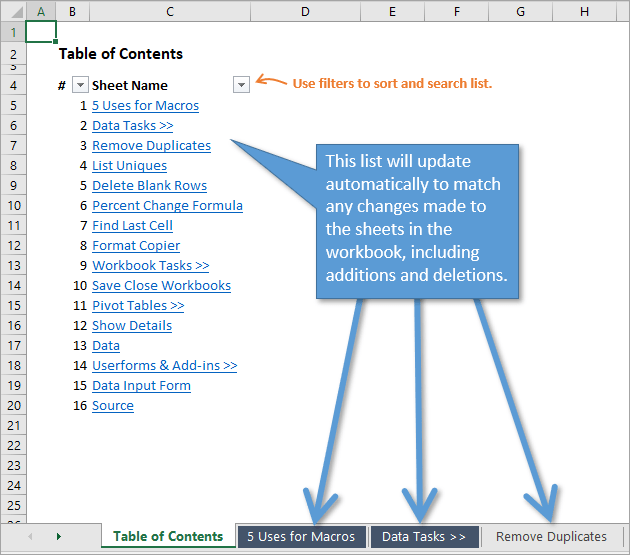
A Table of Contents is a simple yet extremely useful feature in any Excel workbook that contains more than a few sheets. This one sheet can provide a clickable list of your worksheet labels that link directly to their corresponding sheets.
This post will demonstrate how to create a Table of Contents (TOC) that updates automatically. The TOC will display an accurate list when you add, remove, or change the names of sheets in the workbook.
Adding a Macro to Create the Table of Contents
In this example I use two macros to update the Table of Contents.
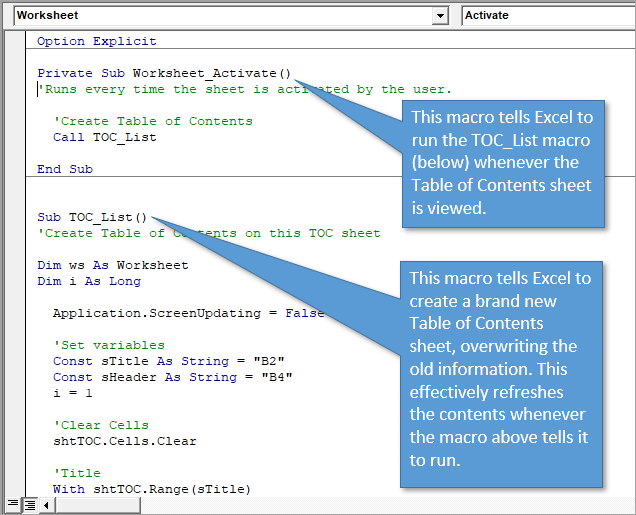
The first macro is the Worksheet_Activate event. This macro will run every time the user selects the Table of Contents sheet. The code is stored in the sheet's code module, and will only run when that particular sheet is activated (selected).
The code in the Worksheet_Activate calls the second macro (TOC_List). This macro actually recreates the entire Table of Contents on the sheet.
Alternatively, you could put all the code in the TOC_List macro in the Worksheet_Activate event. I just kept them separate in case you want to use a different macro for the TOC, like the TOC Gallery macro I mention below.
You just have to change the Call line in the Worksheet_Activate macro to call a different macro. The macro can also be stored in the same code module for the TOC sheet.
Use it in Your Own Workbooks
This solution is very easy to implement in your own workbooks.
All you have to do is copy the TOC tab (provided in the file download above) to your workbook. All of the code travels with the sheet because it is stored in the sheet's code module.
Here's how you can copy the sheet to a different workbook. It's always a good idea to save your workbook before adding this sheet that contains VBA code.
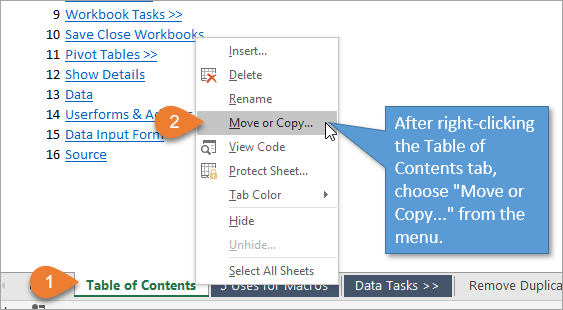
- Right-click on the Table of Contents tab, and then choose “Move or Copy…” in the menu that appears.
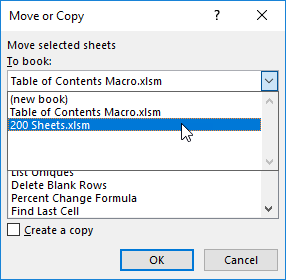
- Choose the open workbook that you would like to copy the Table of Contents to. In my example, I am using a workbook called “200 Sheets.”
- Choose the sheet you want the Table of Contents to appear in front of (usually the first sheet since Tables of Contents are normally found at the beginning). Then check the “Create a copy” checkbox. Then select OK.

- The sheet will be copied into the workbook and the Worksheet_Activate event should automatically run to create the new table of contents.
That's all there is to it. As with any workbook that contains macros, don't forget to save it as a macro-enabled file (.xlsm extension).
If you're new to VBA then checkout my free 3-part video series on getting started with macros & VBA.
VBA Code for Automatically Refreshing the Table of Contents
Here is the VBA code for both macros that you can copy and paste into your own workbook. You can also find it in the example Excel file that I've provided above.
Sub TOC_List()
'Create Table of Contents on this TOC sheet

Dim ws As Worksheet
Dim wsTOC As Worksheet
Dim i As Long

  Application.ScreenUpdating = False

  'Set variables
  Const bSkipHidden As Boolean = False 'Change this to True to NOT list hidden sheets
  Const sTitle As String = "B2"
  Const sHeader As String = "B4"
  Set wsTOC = Me 'can change to a worksheet ref if using in a regular code module
  i = 1

  'Clear Cells
  wsTOC.Cells.Clear

  'Title
  With wsTOC.Range(sTitle)
    .Value = "Table of Contents"
    .Font.Bold = True
    .Font.Size = .Font.Size + 2

    'List header
    .Offset(2).Value = "#"
    .Offset(2, 1).Value = "Sheet Name"
    .Offset(2).Resize(1, 2).Font.Bold = True
  End With

  'Create TOC list
  With wsTOC.Range(sHeader)

    'Create list
    For Each ws In ThisWorkbook.Worksheets
        'Skip TOC sheet
        If ws.Name <> wsTOC.Name Then
          'Skipping hidden sheets can be toggled in the variable above
          If bSkipHidden Or ws.Visible = xlSheetVisible Then
            .Offset(i).Value = i
            wsTOC.Hyperlinks.Add Anchor:=.Offset(i, 1), _
                                  Address:="", _
                                  SubAddress:="'" & ws.Name & "'!A1", _
                                  TextToDisplay:=ws.Name
            i = i + 1
          End If
        End If
    Next ws

    'Turn filters off
    If wsTOC.AutoFilterMode Then
      wsTOC.Cells.AutoFilter
    End If

    'Apply filters
    .Resize(i, 2).AutoFilter

    'Formatting
    .Font.Italic = True

    'AutoFit
    .Resize(i, 2).Columns.AutoFit

  End With

  Application.ScreenUpdating = True

End Sub
Of course, if you already have a Table of Contents macro that you prefer, you can substitute that code for the TOC_List macro.
How to Skip Hidden Sheets
By default the TOC_List macro will include hidden sheets in the list. However, I added some code to the macro that allows you to skip hidden sheets. This is controlled by the bSkipHidden variable that can be set at the top of the macro.
Here is what that section of code looks like in the macro:
'Set variables
Const bSkipHidden As Boolean = False 'Change this to True to NOT list hidden sheets
  Const sTitle As String = "B2"
It is currently set to False, but you can change it to True to skip hidden sheets. The Table of Contents list will only include the visible sheets in the workbook. Since the macro runs automatically, the Table of Contents will always be updated to display visible sheets only.
Table of Contents Gallery
At the end of the video I show how this same technique can be used with my Table of Contents Gallery macro. If you or your users are more visual-oriented, you might be interested in this solution. Instead of just clickable text, this Table of Contents shows you a snapshot of each sheet in the workbook. Each image is clickable and will take you directly to the corresponding sheet.
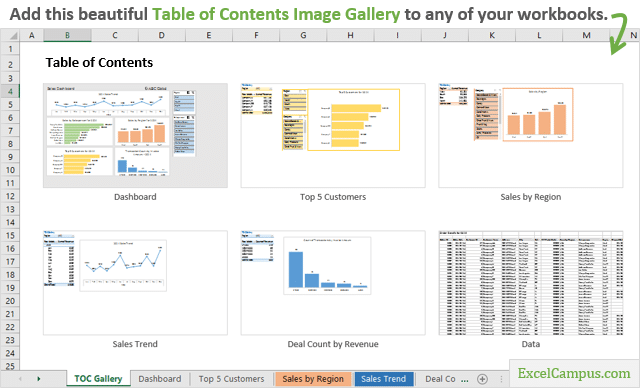
Just a note: This gallery image format does run slower than the list format I described earlier, especially if your workbook has a lot of sheets.
Event-Based Macros
As mentioned before, the Worksheet_Activate event runs any time the user activates the sheet that the code is in. In other words, it's event based. You can set up macros to run based on other events too, such as:
- Whenever you open or close a workbook.
- Changes are made to any cell, or a particular cell.
- Pivot tables are refreshed.
There are a ton of uses for event macros that will help make your files easier to use. Checkout my post and video on VBA Code Modules & How to Run Macros Based on User Events to learn more.
Professional and User Friendly
Adding a Table of Contents to your workbooks is super easy. And the great thing is that this one feature has the tendency to impress other users (and hopefully your bosses as well!). That's especially true of the gallery format because it looks like you did so much work!
If you would like to explore some other tips and tricks for making your job easier, making your data look more professional, and making your worksheets more user-friendly, check out my video on 5 uses for VBA macros at your job.
I hope that helps. Please leave a comment below with any questions or suggestions. Thank you! 🙂




Thanks Jon. This TOC code will be very helpful in our current workbooks, some of which have dozens of tabs. Great explanation as always. Your blog continues to be one of my go to locations for learning more about excel and VBA and to get great tips and tricks.
Thank you Marc! Happy to hear you will be putting this to good use. I really appreciate your support. 🙂
Great tool! Thanks for explaining it too.
Thank you Mark! 🙂
Hi Jon! I have enjoyed several of your videos. With each tutorial I watch my skills improve and I continue to look for ways to add my new knowledge. I was very excited when I saw this video on the Table of Contents Gallery; however when I try to open the spreadsheet; I get a notification from Excel saying that “Excel found unreadable content in ‘Table-of-Content-Gallery.xlsm'”. I tried to recover the contents of the workbook, but to no avail. I am using Excel 2010. Any directions that you could provide would be greatly appreciated.
Hi Bree,
I’m not sure what would be causing that error. It should work in Excel 2010. The file on this page also contains the code for the TOC Gallery macro. It’s in the same sheet module as the other code. You can try that code as well.
Jon, You never cease to amaze me with your VBA codes & excel skills! Wish you the best with your courses.
Thanks Sandeep! I really appreciate your support. 🙂
This is the most amazing thing I’ve ever seen in Excel. I have spent forever creating my own Contents pages and hyperlinking every tab. Wow. Mind still blown. Thank you again and again Jon
Thanks so much Patty! I’m so happy to hear you will be using this. 🙂
Hi Jon,
Thanks for the great article and insights to the complexities of Excel macros and VBA code.
I did what the article said to do, whether copy/paste the code or download the example and copy the tab to other workbooks, and it works great except for one sheet.
The tab gets copied ok, but when it runs on activate, I get:
Run-time error ‘-2147418113 (9000ffff)’;
Automation error
Catastrophic failure
The code stops on this line: For Each ws In ThisWorkbook.Worksheets
Looking at the watch for ws it shows a value of Nothing.
I looked at all the characters in the tabs names to see if there were any questionable characters, compared it to your example using the odd characters (ie: & and – ), but that didn’t make a difference.
My sheet only has 43 tabs, so I doubt that’s the issue. Only other thing that comes to mind is maybe the tabs character count.
Any ideas?
Hi Randall,
Does the file contain any Chart sheets? Not sheets that contain charts, but the Chart sheets where the chart takes up the entire page.
That could be causing it, although the macro should just bypass those sheets.
I’m not sure what else would be causing that.
No charts sheets. Some conditional formatting to dress them up, but nothing out of the ordinary.
When the macro runs, it creates the Title and List Header properly. Stepping thru the macro everything is good until the first pass thru the For Each statement.
I’m going to copy the sheets to another workbook, strip out the confidential data, and try with blank sheets next, keeping the tab names to see what happens.
Hello again Jon,
I think I’ve found the problem, and it’s not code related. My sheet has grown over many years and some oddities have crept in.
So to troubleshoot, I cleared out all the data, kept the tabs and ran the macro. Same errors. Then I deleted all but two tabs, the TOC being generated and a new blank tab. Ran the macro and same error.
While in the VB editor I noticed when I deleted the workbook tabs, the corresponding sheet in the VB window also disappeared. After removing all the tabs but the two, I still had Sheet1 thru Sheet42, with an icon that looked like the XL symbol. These weren’t hidden tabs (hidden tabs do get TOC’ed though – good to know) or anything visible. I also couldn’t find a way to get rid of them.
So final solution was to create a new workbook, copy the 43 tabs from the working sheet, copy your TOC macro, and watch the magic happen. Interesting to note that the good tabs in the unworkable sheet were listed as Sheet43 thru Sheet89. After copying the good tabs to the new workbook, the tabs kept the same Sheet43-89 names. It doesn’t throw off the macro in any way. Nearest I can figure is that odd Sheets may have crept in from 2003 format converted to the 2016 over the many years.
If you would like to investigate this issue, I have the two tab unworkable sheet and screen shots of the odd Sheet numbering issue. Email me if your interested.
Thank you for a great tool and I look forward to taking your classes in the near future.
Hi Raandall,
That’s interesting. They could be old Macro sheets. Or maybe just something that is corrupt.
The Sheet43 to Sheet89 you see in the VB Editor are the sheets’ code names. These can be used as sheet references in our code, instead of referencing the sheet by it’s tab name. There are some advantages to this. I explain more about those in The VBA Pro Course.
The code names should not change when you copy them to new workbooks, unless the workbook already has an existing sheet with the code name. You’ll see that I renamed the TOC sheet’s code name to shtTOC to keep it unique.
I also just updated the code to change that reference to a variable, so people can copy the code into their workbook without having to copy the entire sheet. This is mostly if they want to keep the formatting of their existing workbook. Cell styles do travel with the sheets, and some people don’t use the current/modern cell styles.
I hope that helps. Thanks again and have a nice weekend! 🙂
Can you add this macro to the ribbon in “my macros” tab or your personal macro workbook that you showed how to create in another article? I’d like to add it to the ribbon rather than having to copy and paste if possible. Thanks for sharing, Jon. This is awesome as usual.
Can this macro be added to the ribbon or a personal macro workbook? I’d like to access in the ribbon like you showed in your other article, or does it have to be copied and pasted over each time? I got the gallery macro working in the ribbon. Thanks for sharing Jon, amazing stuff as always.
Hi Nick,
The macro to create the regular list TOC can be added to your PMW and called from the ribbon.
The Worksheet_Activate event that does the auto refresh will need to be in the workbook that contains the TOC. Well, that’s not entirely true. You could use App Events in your PMW or an add-in to run this on any open file that contains a TOC sheet.
I’m not sure I’d recommend that, as the code would be running in the background each time you select a different sheet. It also has the potential to run on workbooks you don’t want it to, depending on how you program the event to run. You could add additional conditions so it only runs on sheets with some hidden text string in a specific cell, or something to make sure it’s the workbook you want to run it on.
I hope that helps. Let me know if you have questions.
Thank you so much.
This great tool is really help me.
I AM SO HAPPY.
Awesome! Thanks Abraham! 🙂
Jon,
2 questions.
1) What advantage do you have by calling the sub with Worksheet_Activate compared to just placing the code in that subroutine itself?
2) By storing the code in the worksheet rather than a module, is it then possible to store personal macros in that sheet as well, so you can easily access them by just moving a copy of the sheet to a new workbook?
I have had several occasions where I used a personal workbook for macros, then it crashed and what I mess, I went back to keeping my code in notepad. However, I am constantly looking for a better way to store it.
Thank you.
MichaelGNoble
Hi Michael,
Great questions! Here are my answers.
1) The only advantage is that it is easier to plug in your own TOC macro, or use different ones for different workbooks. You can store all of your different TOC macros in the sheet module, then just change the call line.
If you want to run the TOC Gallery macro that is included in the code module instead, then you would just change the call line to the following.
This just makes it a little more versatile. Otherwise there is no advantage. You could just put all the code in the Activate event and it would work the same.
One other small advantage is that you can just comment out that single Call line if you don’t want the macro to run. Not a big deal, but sometimes with events we want to temporarily disable them when developing or debugging.
2) Yes, you could store other macros in that sheet, or any sheet module. Some developers prefer this method because you can just copy sheets to other workbooks and the sheet becomes somewhat of a self contained application. A lot depends on the purpose of the macro.
In general, I prefer to store code in code modules instead of sheet modules. It is easier to see that there is VBA code in the workbook by looking in the Modules folder in the VB Editor.
When code is stored in sheet modules you end up having to click through each module to see if it contains code, or using Ctrl+F to find code.
In regards to storing code in your Personal Macro Workbook (PMW), I recommend adding the file’s folder to your backup solution. The file is stored in the XLSTART folder, and should definitely be included in your backup plan on regular intervals. Here is a link to a video that explains how to find the XLSTART folder on your computer.
I hope that helps. Thanks again and have a nice day! 🙂
As always, your skills and solutions are outstanding.
Your stuff makes me look good to my boss. . . . but you always get credit.
🙂
Hi Richard,
Thank you so much for the nice feedback. I really appreciate your support. And happy to hear you’re impressing the boss with this. I love it!
Have a great weekend! 🙂
Hi Jon,
Great code and really useful as your stuff always is. How would you modify the code so that it didn’t list any hidden worksheets?
Cheers
Bax
Hey Bax,
Great question! I just updated the code to include a toggle to skip hidden sheets.
In the Set Variables section you will see the following line of code.
You will just change that line to:
The If statement in the loop below will then check if the sheet is visible OR the toggle is on (bSkipHidden = TRUE). If both or EITHER are true then it will list the sheet. If BOTH are false then it will not list the sheet.
I hope that helps. Thanks again and have a nice weekend! 🙂
Dear Jon
Thanks, thanks & thanks for the wonderful video. I have following questions regarding TOC code:
1) Why only private sub is used for worksheet click events? why public sub is not used?
2) Why do click event subs only use Call Functions & there is no other code therein?
3) Why is TOC sub public & not private?
4) The workbook that I downloaded from the link provided in your blog post did not open. Displays error message. Pl. check.
Hi, I’ve started to look at several of your recent articles and this one is great. I’m currently working on a large spreadsheet so have added it (no problem). My only niggle is that I prefer Arial font and this comes through to my sheet partly in Arial and partly in Calibri? I’d like it to be in the same font, and smaller so I can see more sheets listed. If I simply save the sheet it reverts on next use, so I guess I’d need to add this to the code (but I have no idea how to do that!).
Hi Deirdre,
I’m copying my reply from the YouTube comments here so others see it.
This is due to the Cell Styles traveling with the worksheet. In this case the best bet is to just copy the VBA code to a new sheet within your existing workbook. I updated the code so that you will not need to modify it. You can just copy the two macros: Worksheet_Activate and TOC_List into the Sheet module of the new worksheet in your workbook.
You can copy/paste the code on the page above, both macros. Or you can download the file and use that code in the sheet module.
I just updated the page, so it might take a few hours for the server cache to clear and display the updated code. However, the file you can download should be the most recent version.
I hope that helps.
Jon,
As always this is just great stuff! Is there a way to not show hidden worksheets in the table of contents?
Hi Russell,
Great question! Yes, I updated the code to allow you to toggle including hidden sheets in the list.
In the Set Variables section you will see the following line of code.
You can change that to True to skip hidden sheets. It will then look like the following
When set to True you should only see visible sheets. Hidden and VeryHidden sheets will not be listed in the TOC.
I hope that helps. Thanks again and have a nice weekend! 🙂
Hello Jon…this is awesome!
I’m new to VBA, but I can only imagine that there must be a way to create a link back to the table of contents page once you click on a tab????? Just think that would be useful 🙂
Hey Kim,
Great question! Yes, we can absolutely create a backlink to the TOC. My Tab Hound add-in has this feature to create the backlink, but requires you add it to each sheet manually.
You can also do this manually by creating the link to the TOC on one sheet, then copy/paste it to all the other sheets. You can do this all at one time by first selecting multiple sheets (select the first sheet, hold shift, select the last sheet), then paste the hyperlinked cell to a blank cell. The only problem is that same cell has to be blank on all of the sheets you have selected. So if you know cell A2 is blank on all sheets, then you can use this technique. If not, then you have to manually go through each sheet.
This process can be automated with a macro. It gets a bit tricky, because you don’t want to override data on existing sheets. However, I’ll post a solution to this in the future as well. I was actually just thinking about a few ways to do this.
I hope that helps. Thanks again and have a nice day! 🙂
Hi Jon,
I am also new to VBA and found this macro very helpful since I have inherited some workbooks with lots of worksheets and being able to add the TOC with the links has saved me lots of time.
I currently use the method of creating the backlink manually. I like to add the backlink in the cell A1 but, as you mention, it is not always blank. So I either have to copy/paste on to the next available blank cell or add a column to shift everything to the right to have the column A blank.
I don’t really like the last option very much as sometimes it messes up the existing links between the worksheets and other workbooks.
I wonder if you have found a solution to automate this process?. Thank you
Nice Article, thanks for sharing, Keep up the good work!
Thank you Shobi! 🙂
Fabulous idea.
Rather interestingly when I stuck this in my Mac spreadsheet it works but I get “Runtime Error 1004 – Method ‘Autofilter’ of object ‘Range failed”. Wondering what it means and how to fix it?
Thanks Andrew.
I have not tested it on the Mac version yet. A lot will probably depend on which version of Excel you are using on the Mac. If you are on Office 365, you might want to make sure you are updated to the latest version. Microsoft has been making some updates to VBA on the Mac lately. Here’s an article with more info on the new VB Editor for Mac.
If that doesn’t work then you can comment out the lines of code for the autofilters. Just put apostrophes at the beginning of all the following lines, or delete the lines all together. This will ensure those lines don’t run. The TOC will still be created, you just won’t have the autofilters turned on.
'Turn filters off
'If wsTOC.AutoFilterMode Then
'  wsTOC.Cells.AutoFilter
'End If

'Apply filters
'.Resize(i, 2).AutoFilter
I hope that helps.
John,
I get the same error, “Run-time error ‘1004’ Method ‘AutoFilter’ of object ‘Range’ failed” . I am running Excel for Mac V 16.57 on MacOs Monterey V 12.2.1. How can this be fixed? thanks Joe Koa
Good article and well presented!
I will be using this..
Awesome! Thanks Gwen! 🙂
Jon,
I got the TOC for worksheets to work. The TOC Gallery Macro would not run when I copied to my existing Excel Workbook. Do I need Tab Hound to make this work?
Thanks,
Blane
Nice one Jon – love the auto-update feature. FYI – I run a mac normally and ran into an error with the AutoFilter. I changed it to be a two-step process as follows:
‘Apply filters
.Resize(i, 2).Select
Selection.AutoFilter
Probably a function of the mac version of Excel always being the step-child 🙂
Thanks again
It is not working.I copied in the module. Error message and cursor is stopping at me.When I run the macros. Please help. I have to use this for many of my workbooks.Please help me.
John, could you please put the text of ALL of the macros in the body of the article so we can copy them. When I copied the one macro in the body, I got an error. When I opened the example file and copied all 3 of the macros there, it finally worked.
Great tool and it has really saved me a lot of time. Can this me modified to run on a shared workbook?
The table of contents’ font defaults back to Helv even after I change it to Times New Roman. Is the TOC macro doing this and if so, can it be changed?
Why not put selection boxes for auto update option in your add-in module? That would make life so much easier for 5hose of us who bought your add-in.
I try to copy/paste above code and get error messages these stages (Me and Clear Cells)?
Set wsTOC = Me ‘can change to a worksheet ref if using in a regular code module
i = 1
‘Clear Cells
wsTOC.Cells.Clear
Hi. Do you have any tutoring on how to operate pivot table with macro?
Is there a way to reference a cell in that tab then? I would like to state who the invoice was to, as well as what it was for.
Thanks!
hey! I’m adding more columns of information next to the TOC to describe each item but my additional columns keep being reset when the TOC refreshes. Is there any way to protect them?
Is it possible to add another column next to “sheet name” to allow a description from a cell on each worksheet (for example A2 on each worksheet)?
Hello,
Thank you for the work on putting together this Macros. I do have a few questions. (1) I keep getting a 1004 error about the auto filtering. And indeed the filtering feature isn’t showing. How can I fix this? (2) is there a way to add a notes column next to the sheet column. Anything I type there ends up disappearing when I come back to the TOC.
Hello,
Thank you for this great tool.
I would like to sort by Tab Color if not automatically, at least manually once TOC is refreshed. Found Tab Color in the code but don’t know how to manipulate it to get TOC to show value/color.
Any help would be greatly apprecited.
Thanks Again!
THANK YOU SIR!
I want a workbook with reverse process, i.e, when I changed the contents of the the table, the sheet name automatically get changed.
Please help.
Const bSkipHidden As Boolean = True ‘Change this to True to NOT list hidden sheets
This is not hiding my hidden sheets. The article doesn’t mention anything else needing to be changed. What’s missing?
This is a great macro, and I appreciate your making it available, but it is returning “Run-time error ‘1004’ Method ‘AutoFilter’ of object ‘Range’ failed” How do I fix this? Also, it formats the sheet #’s as $’s
many thanks !
by some reason i was getting an error ‘code execution has been interrupted’ on each TOC update.
i fixed it with adding this line to the code
Application.EnableCancelKey = xlDisabled
Super helpful, especially that it updates automatically and I don’t even have to run the macro from time to time.
Using Office 365 and the message returned was “Me” not accessible. It worked before but is not now. Let me know.
Awesome article and soo easy to implement. Great job. Thank you.
Excellent- just what I was looking for
What do you mean by “can change to a worksheet ref if using in a regular code module?”
Hi Jon,
Thanks for all the very great videos, and specially this TOC codes, which certainly will help me a lot.
Just a quick question: I wonder how I can use the code in a Personal Workbook Module so that the code can be run to create TOC without saving it as macro-enabled workbook? I think this is surely be helpful when I can share the workbook as standard xlsx workbook, and who receive the workbook use the workbook with standard hyperlink TOC.
I’m sorry if my question might be confusing. The other way that I have tried is copy the TOC code above to my workbook, and then copy and paste the TOC generated to a new sheet and delete the TOC with codes. This can let me save the workbook as standard xlsx workbook with the TOC.
Thank you and any help would be much appreciated.
Cristiano
Jon,
Thank you for the clear and decisive presentation. it has helped me during the creation of a particular project i am on just now creating. Great help. Regards, Tim
Exactly what I was looking for! Thank you.
Very well presented – thank you for making this available!
Is there a way to refresh table of contents sheet when a different sheet is clicked on?
I followed the copy procedure and got the following error message. Any clues as to how to fix this. thanks
“Excel cannot insert the sheets into the destination workbook, because it contains fewer rows and columns than the source workbook. To move or copy the data to the destination workbook, you can select the data, and then use the Copy and Paste commands to insert it into the sheets of another workbook.”
This is a great start, but I would like to modify it slightly.
1) My worksheet names are all abbreviated to show more tabs, but I want the TOC to show the full name. For example, for the tab SCA, I want to show the full name: Sales Comparison Approach. The full name is included within each worksheet, and the cell is named “Title,” but I don’t know how to reference this in the VBA code.
2) Is there a way to insert the printed page number next to each sheet name? Sadly, we have clients who still waste paper printing our reports, so we need a traditional looking TOC.
Hi John, Thanks a lot for sharing such a valuable and remarkable macro which can save a lot of pain taking and time consumption of Excel users, i want to ask u, that can u create a macro that could automatically generate a document map and TOC of a document in word? i am sure u can, if u can plz send me on my email. Wishing best for u