

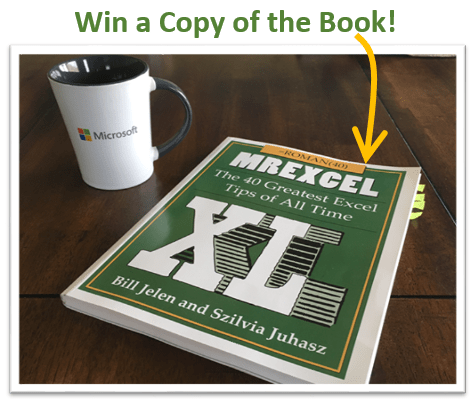
I'm giving away 4 copies of Bill Jelen's newest book, MrExcel XL: The 40 Greatest Excel Tips of All Time.
Note: The contest is now over, but checkout my review of this great book below. There is also a video at the end of the page with a tutorial on the winning tips.
My Review of this Awesome New Book
Not all Excel books are created equal. My friend Bill Jelen (aka Mr. Excel) released a new book last month titled, MrExcel XL: The 40 Greatest Excel Tips of All Time.
This is Bill's 40th Excel book, and I have to say it is probably my favorite Excel book of all time.
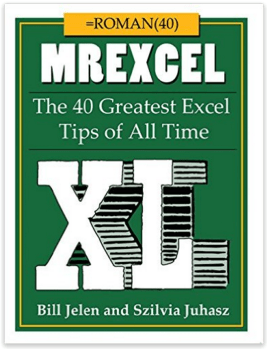
This book is not only packed with Excel tips and tricks, it is also very entertaining and sure to provide some laughs.
Bill has put together the 40 Greatest Excel Tips Of All Time for this book, and it is packed with awesome time saving tips and techniques. If you have ever been to one of Bill's live seminars or read one of his other 39 books, then you've probably found yourself saying, “Wow! I never knew Excel could do that!” This new book is no exception.
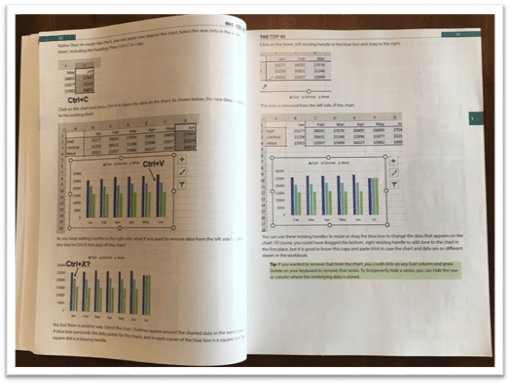
The image above is an example of one of the tutorials in this book. I'm a visual learner and really appreciate all the screenshots.
30 Additional Excel Tutorials
Szilvia Juhasz (my friend and co-host of Excel TV) co-authored this book with Bill and added 30 additional Excel tips and tricks. This was in honor of Excel's 30th birthday this year, and this section of the book is packed with some fantastic tips.
Szilvia was also kind enough to mention my name in reference to my explanation of VLOOKUP with the Starbucks menu. Checkout page 194 for that one. Thank you Szilvia! 🙂
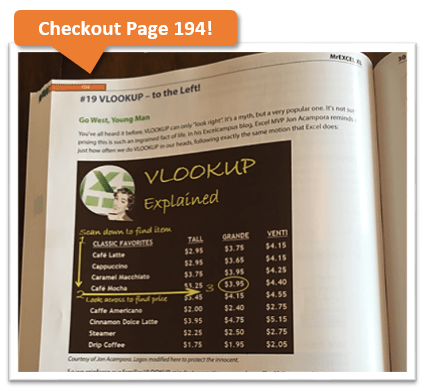
So that's 70 Excel tips and tutorials that are clearly explained with nice screenshots and images, all on glossy pages. It's an awesome book and I have picked up some great tips from it. No matter how long you have been using Excel, there is always something new to learn.
Have You Ever Had an Excel Cocktail?
But it doesn't stop there. This book is not only a great learning reference, it is also very entertaining.
Part 3 of the book includes Szilvia's new book called, The Excel Lover's Guide to Cocktails.
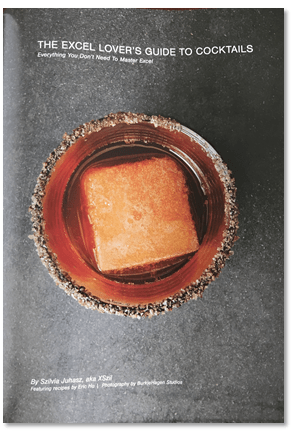
This is an Excel inspired cocktail recipe book. You will learn how to make some great drinks like the Power Pivotini (think Martini), Stacked Column Shot, Ctrl+B (think Bloody Mary), Broken Link (think Old Fashion), and many more.
The cocktail book is included as a section inside the book and contains some great pictures of each drink.
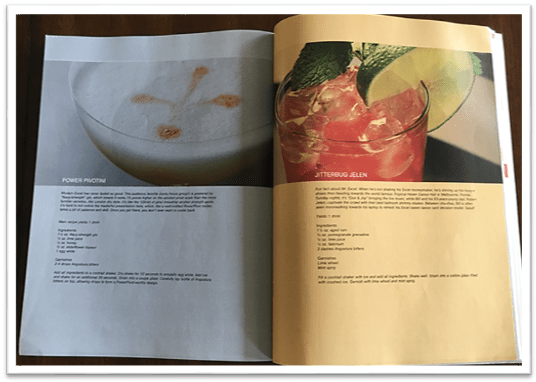
These would be a lot of fun to make for any office party, and I advise consuming after you have finished working with Excel for the day. 🙂
Get Ready to Laugh!
After you make yourself an Excel cocktail you can flip through part 4 of the book – Excel Fun.

This last section of the book includes an Excel Joke Book by Jordan Goldmeier, a collection of hilarious Excel Tweets collected by Debra Dalgleish, Excel Art by the Frankens Team, and a collection of True and Almost True Stories from Mr. Excel himself.
If you work with Excel a lot then you have experienced your fair share of ups and downs. Happy dances when things go right, and head pounding frustration when things break. This section of the book makes light of a lot of those challenges, and let's you know that you are not alone… 🙂
The inside back cover also includes the Periodic Table of Excel Keyboard Shortcuts by Mike Alexander. I love keyboard shortcuts and this is a really cool visual reference using the periodic table.
There is a ton of content packed into this 277 page book. I love to just flip through it and learn something new every time I pick it up. All the pages are glossy and you can tell that a lot of work went into the artwork and images. It's a great book to keep on your desk, or to give as a gift to your favorite Excel geek.
Win a Free Copy of the Book
To help spread the word about this awesome book, I am going to give away 4 free copies!
This will be the printed version of the the book. You can check it out here on Amazon
I will hold a drawing and to pick the winners at random.
I want to make it as easy as possible for you to enter the drawing. So, all you need to do is leave a comment at the bottom of this post with your favorite Excel tip.
This could be something as simple as your favorite keyboard shortcut or formula. One of my favorites is the Alt+; keyboard shortcut to select visible cells.
Add a sentence or two to describe what your shortcut or tip does, so others can learn from it. And don't worry about it being the most amazing tip ever, just something simple that saves you time.
Winners Announced!
I want to say a big THANK YOU to everyone that participated in this contest. There were over 350 unique comments, and a lot of great tips that we can all learn from.
Here are a list of the winners I picked at random. I accidentally picked 6, instead of 4, so we have two extra winners. Congratulations!
- Lynne – Ctrl+. (period) to move around selected range.
- Rajendra – Use Pivot Tables for working with numbers – Report Filter Pages
- Tom Crouch – Excel Tables and Ctrl+T
- Diane Smith – Double Clicking the Format Painter
- Matthew – F2 to Edit Text or Formula in active cell
- Debra Holcomb – Ctrl+; (semicolon) to enter today's date
Video of the 6 Winning Tips
I also put together a tutorial video of the 6 winning tips listed above.
I will be adding more videos and tutorials on the tips you posted in the future. Feel free to read through the comments below, and see how many of the tips you already know. 🙂
Thanks again!




CTRL 1 is one of mine. It quickly brings up the Format Cells dialog box.
Alt + = is a very useful shortcut for me.
The F4 key to hard reference a cell. So time saving.
VLOOKUP! Hands down when you work in accounting.
My favorite is using the & to concatenate text, #s, and link them to source so monthly headers, text, commentary, all get updated with the # within the text. Unnoticeable on the paper but great way to make sure the text or commentary reflects the data. Use the round function, multiply and text functions to get the right format for the number that is now part of text.
My favorite is Ctrl + D. It copies the cell above it, or if you select a bunch of cells it will copy the first row down into the selection. Love keyboard shortcuts!!
My favorite shortcut – which I use constantly and without thinking is the copy and paste keyboard shortcuts: Ctrl-C, Ctrl-V combination. Simple, yet powerful.
Very simple, and probably very widely used, but my favorite is making a data list a Table (CTRL + T). This sets the stage for so many sorting/searching/analyzing/etc. options which make life so much easier.
Hi
I have been enjoying learning excel cool functions and tools. Thanks to Jon for doing this. This has helped me to make some quick desktop for my data which gives more understanding to the data.
By far the most useful tip is the Alt + Down Arrow shortcut to bring up the filter menu on a filtered table!
My favorite Excel tip is changing a negative number to positive or vice versa. Many times I have a bunch of negative numbers that I need to be positive numbers. So first I type a -1 then copy it. Next I highlight the numbers I want to change, then left click, select Paste special then Multiply and viola my numbers are now positive.
Each month I receive unformatted data which I then have to cleanse and represent. The columns containing dates look like dates in the format dd/mm/yyyy, but they are actually text rather than numeric. To convert to numeric fields, I add a column, then in the new column, I multiply the old column cells by 1 and then change the format to dd-mmm-yy. It is then easy to ensure that the dates are now numeric rather than text.
Like the Alt = shortcut fop sums
Using cell references in place of “col_index_num” in a VLOOKUP has saved me so much time – so handy when i need to bring back a whole bunch of data from one table into a new spreadsheet.
It’s very interesting I have shared this to my friends and colleagues as well. Thanks a lot
My favorite Excel tip is a two-parter:
1) Use F2 to jump to the formula bar; it’s a super helpful shortcut that saves a ton of time over the course of the day, and…
2) Use a butter knife or other flat object to pry the F1 key off your keyboard. It’ll end up saving you a ton of time by not pulling up the help window every time you would have accidentally hit F1.
There are many Excel shortcuts that I love…
– One of the most simple is F4: After typing cell reference makes reference absolute or parcial reference
– Shift+F3: Insert a function into a formula
– Ctrl+a: Display formula window after typing formula name
– Alt+F1: Create default chart
I regret no enough shortcuts for charts…
The keystroke function I use the most is the ctl-C ctl-V. This has saved me a lot of time over the years.
My favorite is Mynda Dashboard Course. It has remarkable functionality and she explains everything throughly.
I actually have two tips. Both have worked wonders.
1. Subscribe to “Excel Campus”.
2. Subscribe to “MyOnlineTrainingHub”.
These will enumerator many more tips, all very worthwhile.
Fred
I love [Ctrl +` ] to show formulas quickly
“VLOOKUP” is my favorite command & very useful
Love ctrl + . to move around a selected range; great for getting to the bottom of a selection without having to scroll!
One of the most useful items for me in a database is the text to column feature, so many people enter last name, first name and then the information is unusable for a mailing list; by using the text to column I can have first name in one column and last name in the second column then allowing me to use as a mailing list either with mail merge in Word or just as a mailing list.
My favorutie (own) UBF
Function nLF(Optional t As Integer) As String
Dim x As Integer, nLFa As String
If t = 0 Then t = 1
For x = 1 To t
nLFa = nLFa & Chr(13)
Next x
nLF = nLFa
End Function
I use to enter one or more Carriage returns in messageboxes or text fields
Msgbox “Helol” & nlf(2) & “How are you?”, vbQuestion, “”
CTRL + ; to enter current date in a cell.
This is probably the shortcut that I used most and that I’ve shown the most to my colleagues.
My favorite keyboard shortcut is CTRL + SHIFT + 8 to select the current region.
Very useful when you need to select multiple rows / columns without having to scroll with your mouse.
Use the MOD function to shade every N # of rows on a spread sheet!!
Control T for creating Pivot Tables and Creating Dashboards have truly made me look exceptionally smart after watching your videos. Thanks Jon.
I use the CTL + C; CTL + X & CTL + V all the time. It has been very useful in cutting & pasting data. I have taken a new job & have used these tips.
I love the ability to customize the Quick Access Toolbar. Some of the workbooks I work on are quite large and many require repetitive use of different Excel commands. Creating and/or changing the Quick Access Toolbar is very simple (search Quick Access Toolbar in help for detailed instructions). Using it is a wonderful time saver since you no longer have to constantly switch between the ribbon tabs to use the different commands.
CTRL T to make an Excel table out of a data table. Learning about using the Excel table in general has been a major time saver for me.
‘F4 ‘ an unforgettable short cut key that i use daily for ‘repeat operations’ and making cells ‘absolute’ for copying (dragging) formulas to other cells.How tedious it would have been otherwise! Thanks Microsoft and thanks a millions to all my Excel ‘Gurus’ for whatever little I’ve known (and have been working with) in XL from people like them-moiz
My best Excel tip is to follow: Jon Acampora – Excel Campus, Mynda Treacy – My Online Training Hub, & Francis Hayes – The Excel Addict. These people and their sites offer a wealth of knowledge and useful tips and tricks. These people dedicate their time and efforts to making our Excel life’s easier. Thank you for all you do!
Pivot Table
Considering I am still learning about Excel and prone to many mistakes – CTRL + Z (Undo Command) has been used a lot! Another one I like is CTRL + D (Fill Down command) which has saved me a lot of time when I need to enter the same date for various transactions.
There are many :
1. F9 to check the math of a formula
2. Ctrl + Shift + right n down arrow
3. Alt + Enter in a cell for next line
4. Char (10) to move text to another line in a formula
5. Ctrl + Shift + L for filters
6. Use of “&” in a formula instead of concatenate
7. Rept function for “in line” chart in a cell
These are my favorite tricks which I use it on a daily basis.
My tip:
keyboard shortcut CTRL+TAB to change between worksheets. I have the M705 logitech mouse, so I set one of the side buttons of the mouse to keystroke CTRL+TAB. So I can easily switch between worksheets using the keyboard or mouse. The ALT+F11 is set for another mouse button as well.
I love the NETWORKDAYS Formula. I use it to auto-calculate how many working days are remaining in a given period of time. I then use the output of that to calculate the number of working hours in that period of time.
I love the simplicity of inserting a table. That way I don’t have to copy & paste calculated columns, Excel does it for me.
I love Dashboard because it does tell you everything from getting from varied of charts with its Slicers attached to them and data can be use any strategies, just one click on any Slicers which are connected to its Pivot Tables are awesome and you drawn many feedback on dashboard’s.
My favorite fast shortcut must be F11 to make a chart.
When entering a formula, click on the formula name in the screen tip for information on that formula.
Using the Row() or Column() functions within formulas. This makes the formulas more dynamic for when I need and want to add or delete rows or columns. This is especially helpful in a vlookup formula when adding or deleting columns. Therefore, there is not the need to rewrite the formula when a column is added or deleted.
Quickly copy print settings from one sheet to another.
Select the sheet tab containing the print settings you want to duplicate;
hold down the CTRL key and select the sheet tab(s) you want to copy the print settings to;
On the page layout tab, click the small arrow on the bottom right of the Page Setup group and clock OK.
pressing F11 to make the default chart graph as quick as possible
My favourite shortcut is + T to turn data into a table – it makes is so easy to do pivot tables after this and when you add in a new formula field the entire column is populated wihtout having to copy and paste.
The ability to use the filter to remove non-contiguous with delete sheet rows. So quick and easy.
I love using the camera tool to help me create dashboards.
My favourite tip is CTRL +; which insers current date automatically. When i am building my reports i have to put date in, this saves me manually entering the whole date or even going to the calender or my phone to check date ;-).