

The function keys are often the most overlooked set of keys on the keyboard. Usually just sitting up there collecting dust.
But in Excel, the function keys are extremely useful. So, in this post I’m sharing 27 Excel function keys shortcuts that will save you time, simplify your tasks, and unlock hidden features you might not know about.
Whether you’re a beginner or a seasoned Excel user, these tips will help you work smarter, not harder.
Video Tutorial
Watch on YouTube & Subscribe to our Channel
Download
Download our FREE Excel Shortcuts PDF with over 270 shortcuts for Windows, Mac, and Web
Click here to Download the Free Guide
F1: Help, Ribbon Control, and Full Screen Mode
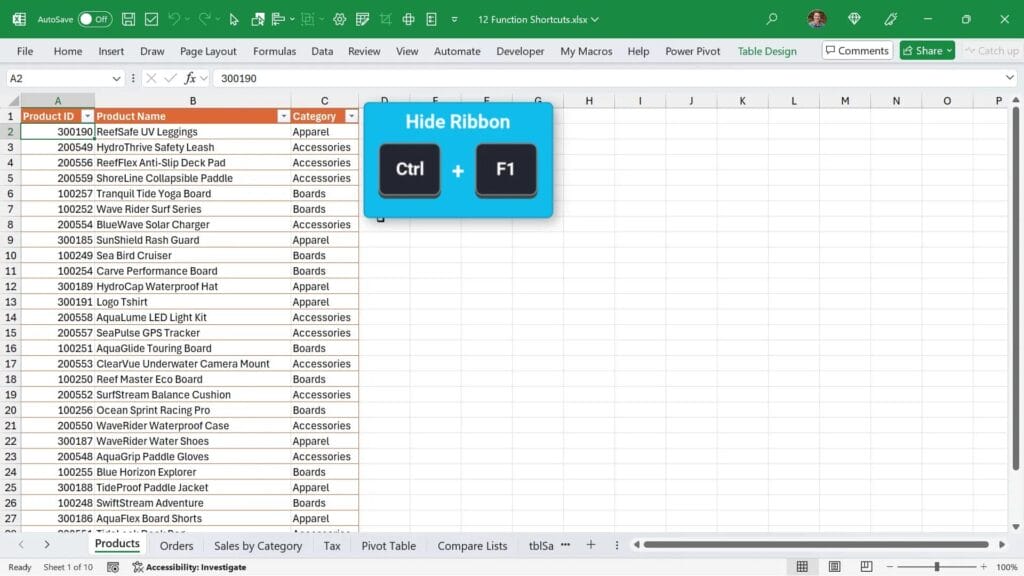
Control + F1: Hide or Show the Ribbon
When you want to declutter your Excel window and see more rows, pressing Control + F1 hides the ribbon. This frees up space and makes it easier to focus on your data. Press the same keys again to bring the ribbon back.
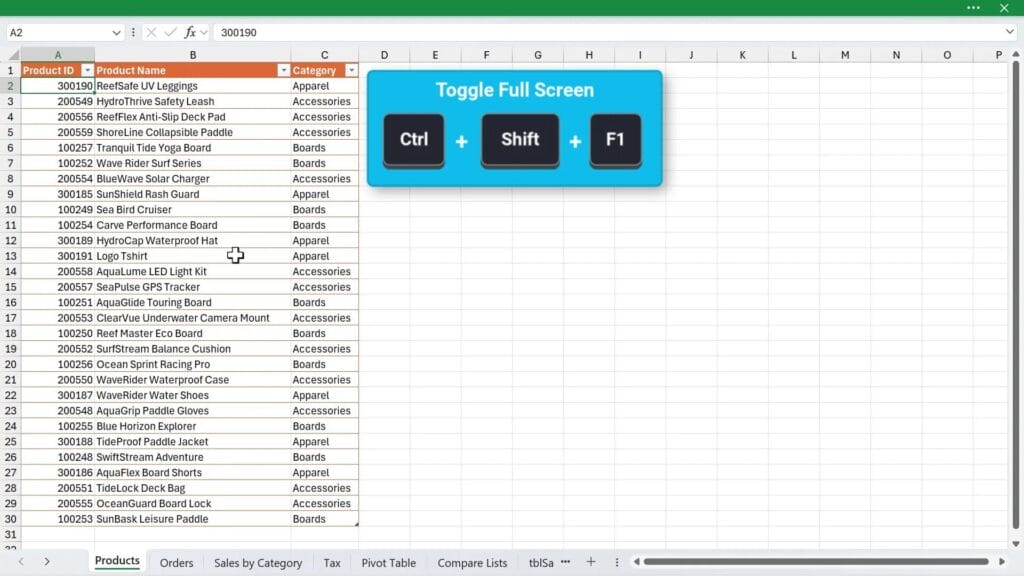
Control + Shift + F1: Toggle Full Screen Mode
This shortcut hides not only the ribbon but also the title bar and quick access toolbar, putting Excel into full screen mode. It’s perfect when you want to maximize your workspace. Press Control + Shift + F1 again to exit full screen mode.
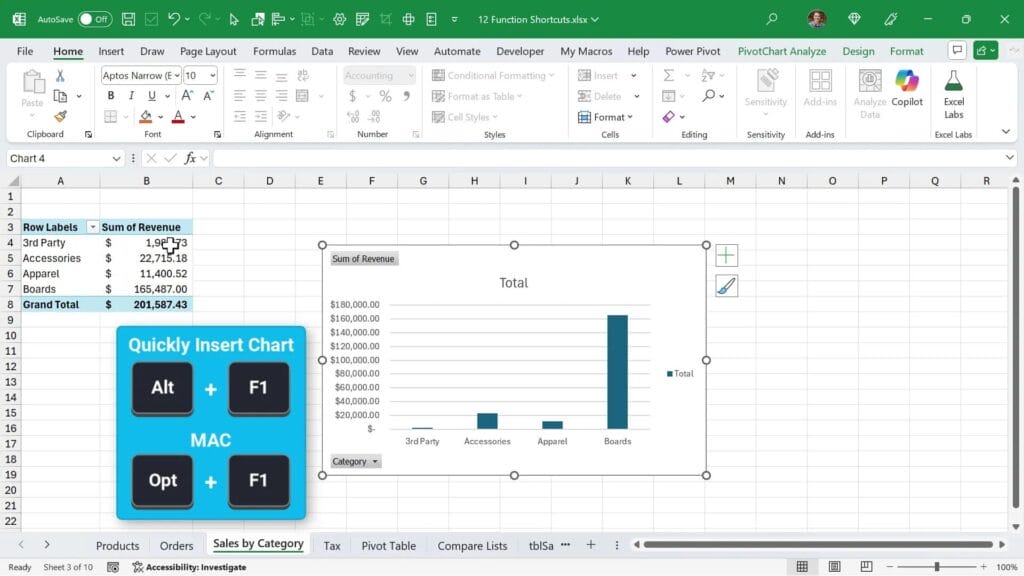
Alt + F1: Instantly Create a Chart
Need a quick visual? Select your data and press Alt + F1 to create a chart right away. If your data is in a Pivot Table, this shortcut creates a Pivot Chart instead, saving you several steps.
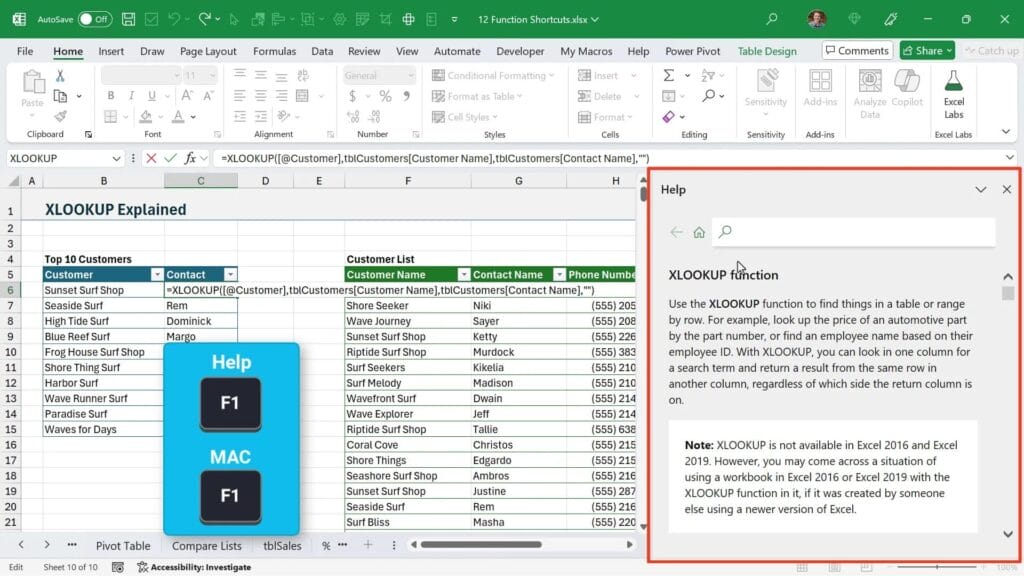
F1: Get Help for Functions
While editing a formula, place your cursor inside a function and press F1. Excel will open the help menu for that specific function, guiding you through its usage and parameters.
F2: Edit Cells and Rename Files Quickly
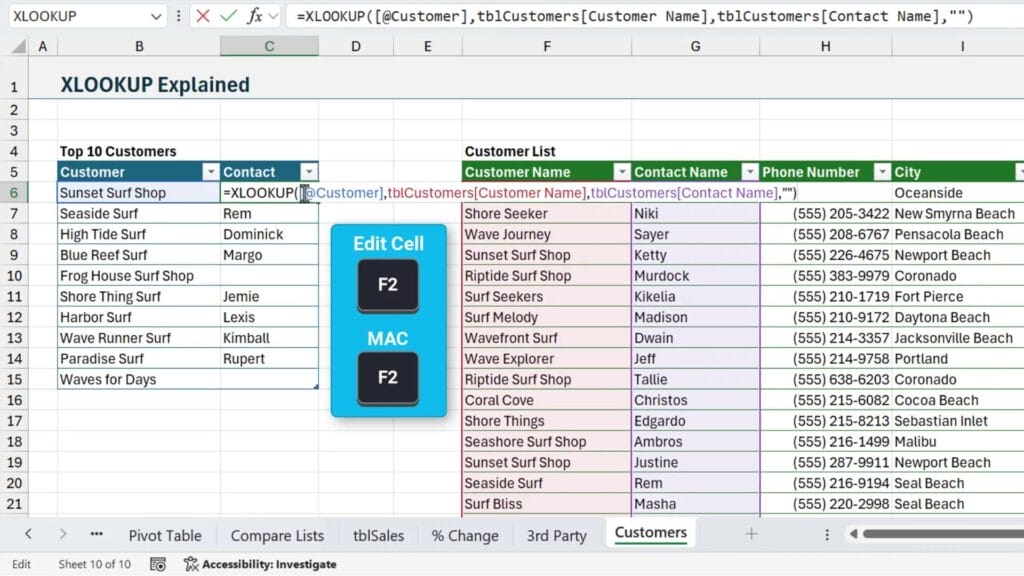
F2: Edit Cell Contents
F2 is one of the most popular shortcuts in Excel. It lets you edit the active cell directly, showing the formula or content inside. After editing, press enter to save or escape to cancel.
Control + F2: Edit in Formula Bar
If you prefer editing in the formula bar, press Control + F2 to focus there. This is especially handy for longer formulas or when you want better visibility while editing.
F2: Rename Files in File Explorer
Here’s a little pro tip: outside Excel, in File Explorer, pressing F2 lets you quickly rename the selected file. It’s a universal shortcut that comes in handy beyond just Excel.
Note for Laptop Users
On laptops or compact keyboards, you might need to press the FN key along with function keys. Some keyboards have a function lock to toggle this behavior.
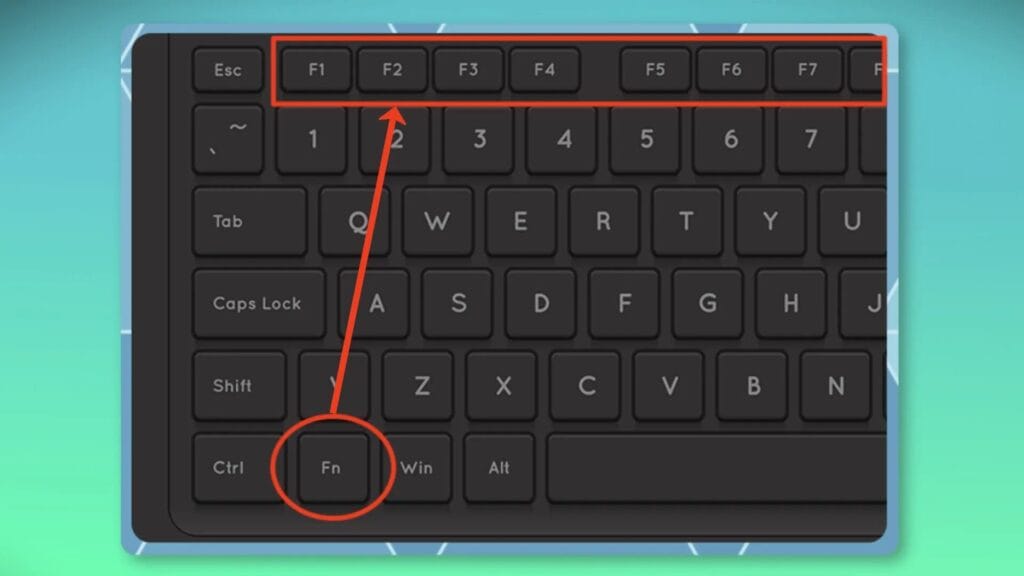
A quick Google search for your specific model will help you set this up.
F3: Manage Named Ranges with Ease
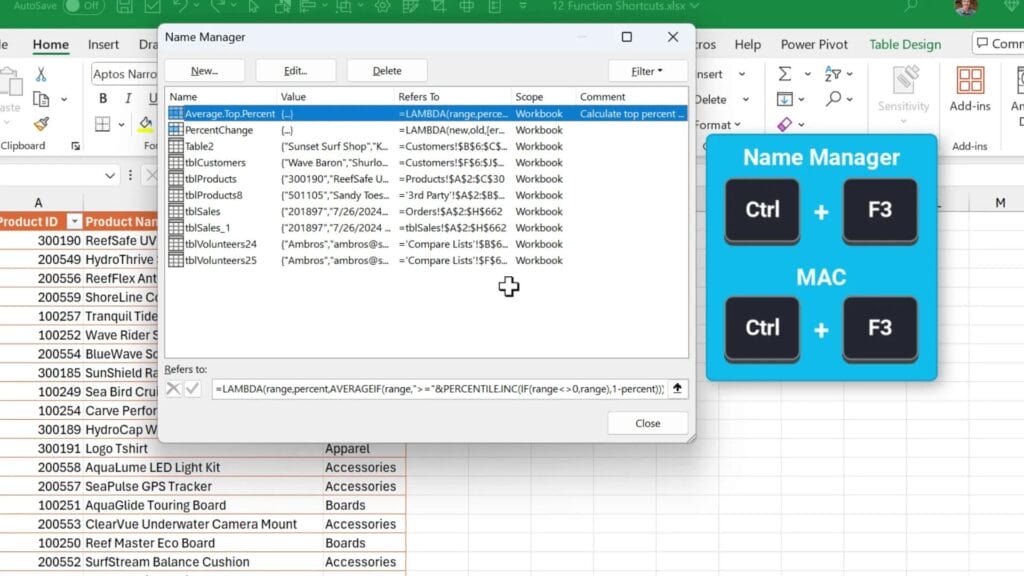
Control + F3: Open Name Manager
The Name Manager is a great tool when working with named ranges, Lambdas, or Excel tables. Press Control + F3 to open it. Here, you can:
- View all named ranges
- Edit names by double-clicking
- Rename tables or ranges you forgot to name properly
This shortcut keeps your workbook organized and makes working with complex formulas much easier.
F4: Absolute References and Repeat Last Action
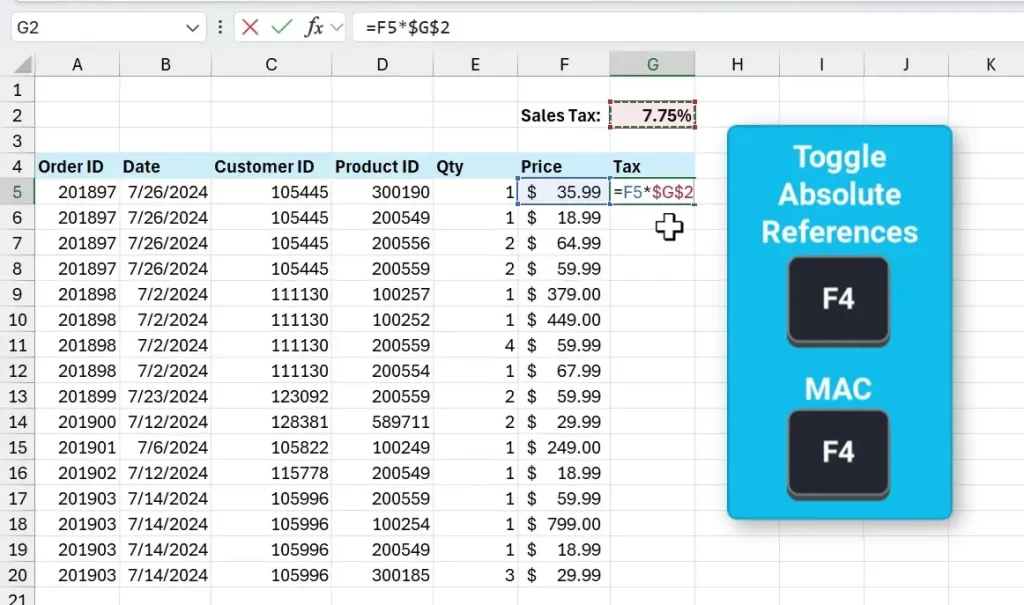
Use F4 to Toggle Absolute and Relative References
When writing formulas, you often need to lock cell references. Select the cell or reference in the formula, then press F4 to add dollar signs, making it absolute (e.g., $G$2). Press F4 repeatedly to cycle through:
- Absolute reference (e.g., $G$2)
- Mixed reference row locked (e.g., G$2)
- Mixed reference column locked (e.g., $G2)
- Relative reference (e.g., G2)
This is essential for copying formulas correctly across cells.
F4 to Repeat Last Action
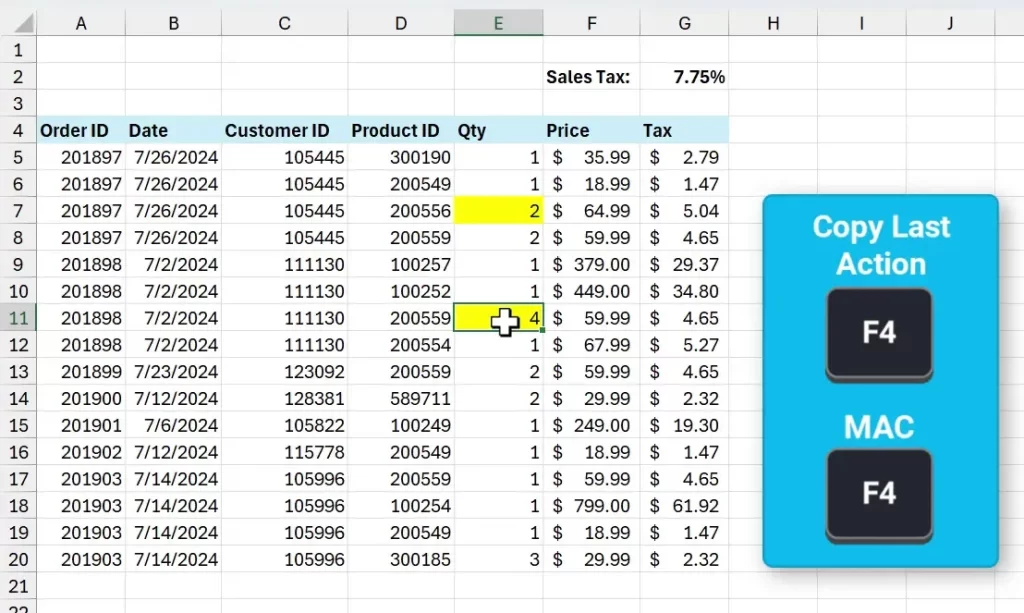
Another handy use of F4 is repeating your last action. For example, if you fill a cell with yellow color, select another cell and press F4 to apply the same fill color. You can keep pressing it to repeat the action on multiple cells.
F5: Navigate and Select Cells Quickly
F5 or Control + G: Open Go To Dialog
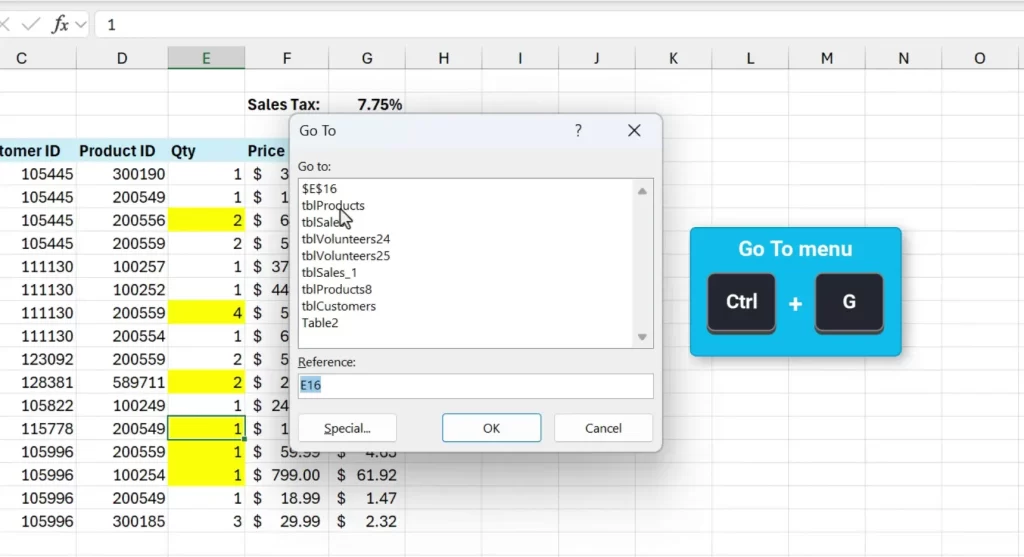
Pressing F5 or Control + G opens the Go To dialog box. This is great for jumping to any cell, named range, or table in your workbook. Simply type the reference or select from the list and hit enter.
Go To Special: Select Specific Cells
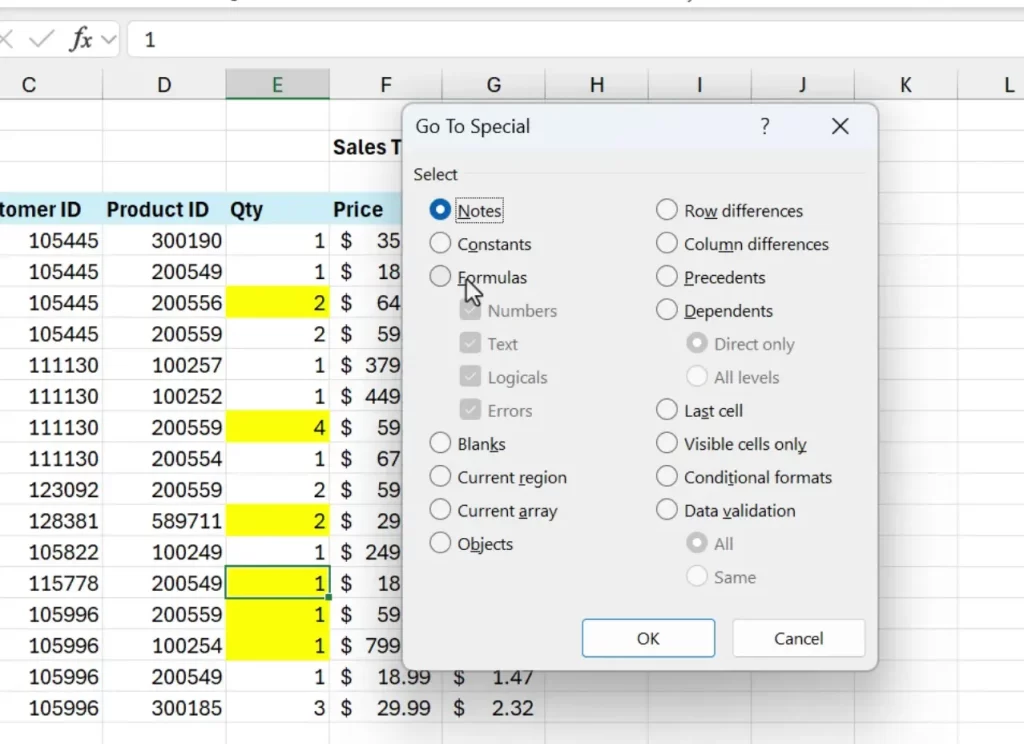
Within the Go To dialog, click Special to select cells based on criteria such as:
- Cells with formulas
- Blank cells
- Constants
- Conditional formats
This feature is incredibly useful when auditing or editing complex worksheets.
Alt + F5 and Control + Alt + F5: Refresh Data
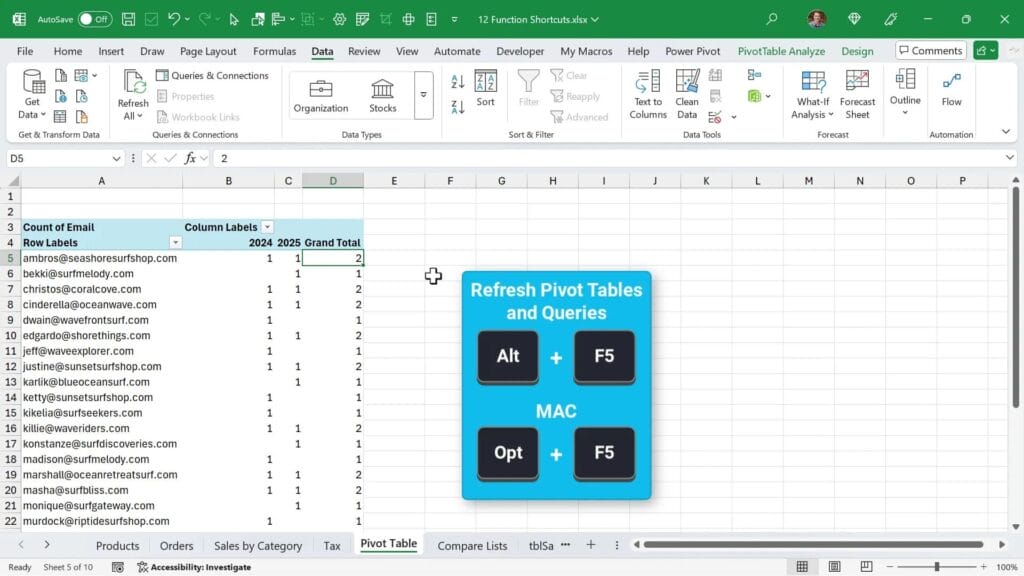
Working with Pivot Tables or Power Query? Press Alt + F5 to refresh the selected Pivot Table or query. To refresh all tables and queries in the workbook, use Control + Alt + F5.
If you forget these, you can also find the shortcut by hovering over the Refresh All button on the Data tab.
F6: Navigate Between Workbook Elements
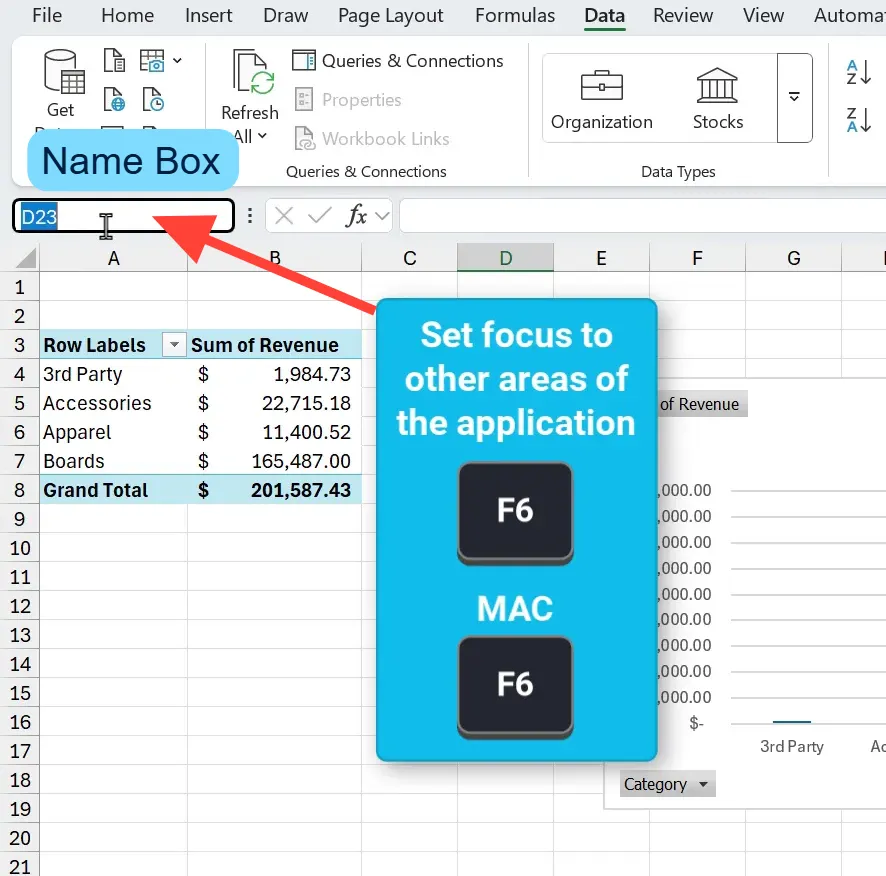
Press F6 to Cycle Through Excel Areas
F6 cycles focus through different parts of the Excel window:
- Once: Moves to sheet tabs at the bottom
- Twice: Moves to the name box
- Subsequent presses: Cycle through other UI elements
Use arrow keys to navigate tabs and hit enter to select.
Control + F6: Switch Between Open Workbooks
If you have multiple Excel workbooks open, press Control + F6 to switch between them. It’s a handy way to toggle without reaching for your mouse.
Alternatively, Control + Tab also toggles between workbooks, and many users prefer it, especially if they use Alt + Tab to switch between applications.
F7: Spell Check and Thesaurus
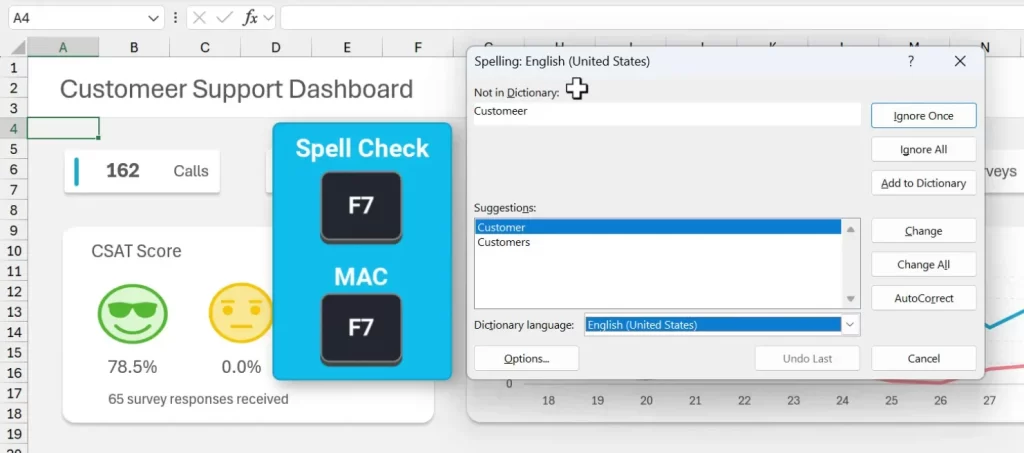
F7: Run Spell Check
Press F7 to launch the spell check window. This tool scans your worksheet for misspelled words and offers suggestions. You can double click a suggested correction to apply it.
Spell check also works inside shapes and text boxes, which many users overlook.
Shift + F7: Open Thesaurus
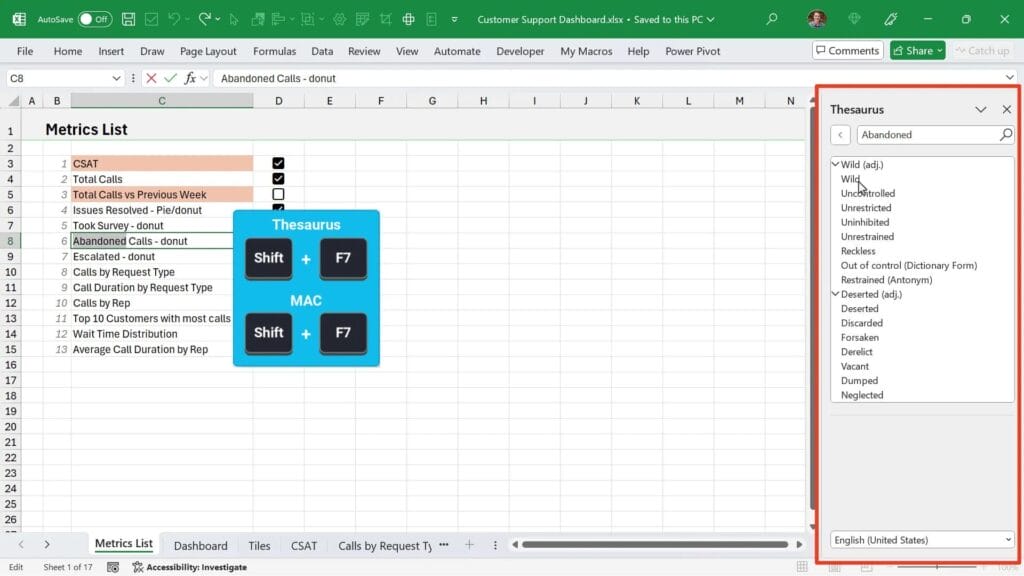
If you want to find synonyms or alternate words, select text within a cell and press Shift + F7. This opens the thesaurus for quick word suggestions.
F8: Extend Selection and Macro Window
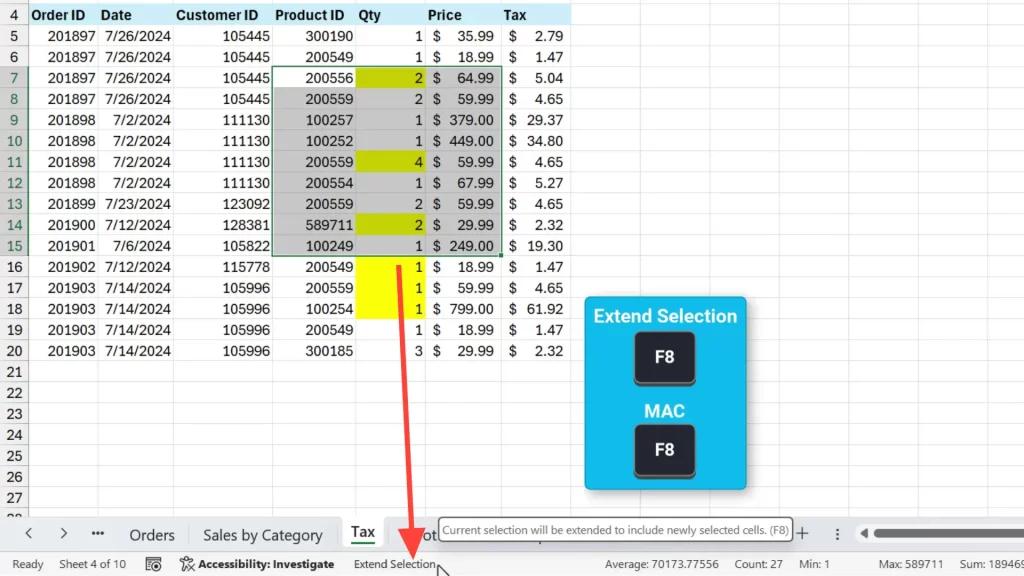
F8: Toggle Extend Selection Mode
Sometimes when selecting cells, you might accidentally hit F8. This puts Excel into extend selection mode, where selecting one cell extends the selection range. The status bar will show “Extend Selection”.
Press F8 again or Escape to turn off this mode and return to normal selection.
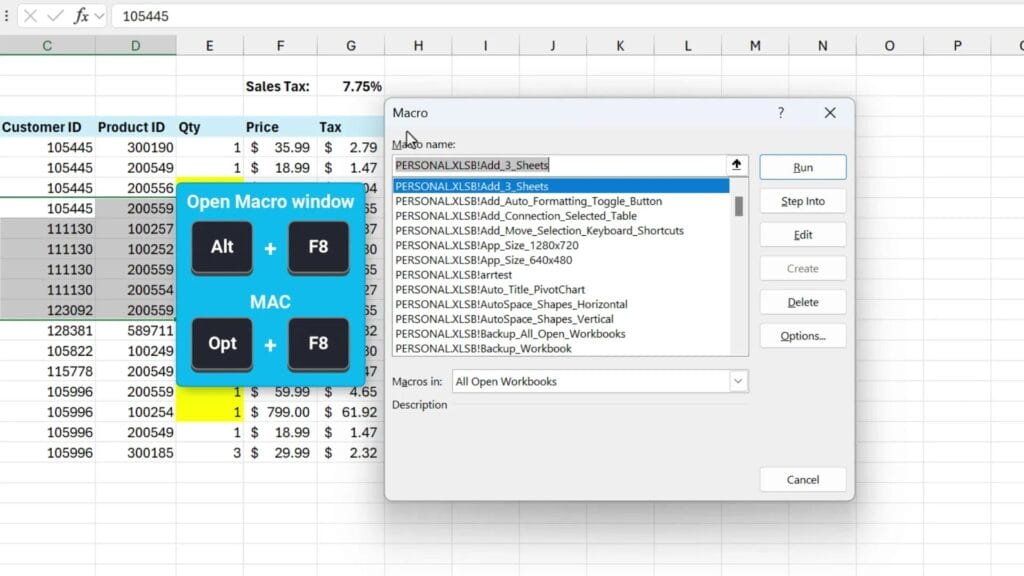
Alt + F8: Open Macro Window
Press Alt + F8 to open the macro dialog box. Here you can:
- Run existing macros
- Edit macros
- Manage macros in your personal macro workbook or any open workbook
This is a powerful tool for automating repetitive tasks in Excel.
F9: Manual Calculation and Formula Evaluation
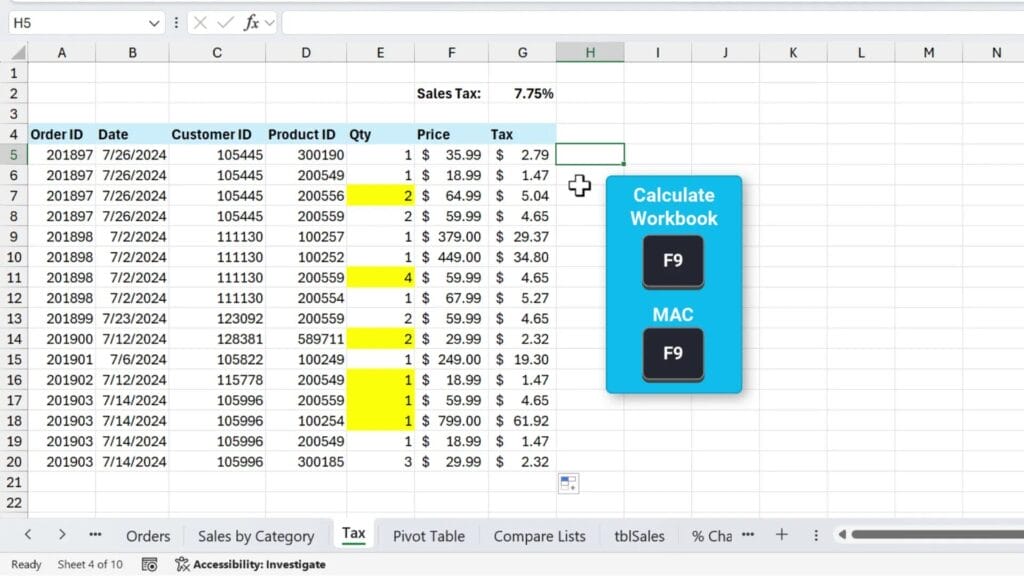
F9: Calculate Workbook Manually
If your workbook is set to manual calculation mode to improve performance, press F9 to calculate all formulas in the workbook. This is faster than switching back to automatic calculation.
Shift + F9: Calculate Active Worksheet
To calculate only the current worksheet, use Shift + F9. This saves time if you’re working with large workbooks.
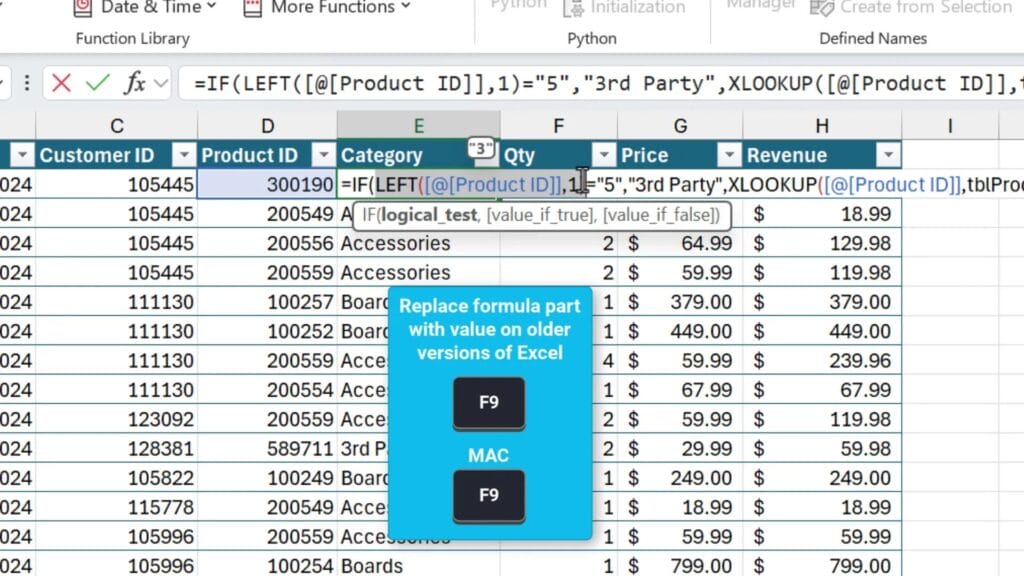
F9: Evaluate Parts of a Formula
When editing a formula, select a part of it (like a function or expression) and press F9 to see the result. This replaces the selected part with its calculated value temporarily. Press Escape if you don’t want to keep the change.
Note: In Microsoft 365, Excel can now show calculation results as screen tips when you select parts of a formula, reducing the need to press F9.
Alt + F10: Manage Shapes and Objects
Open the Selection Pane
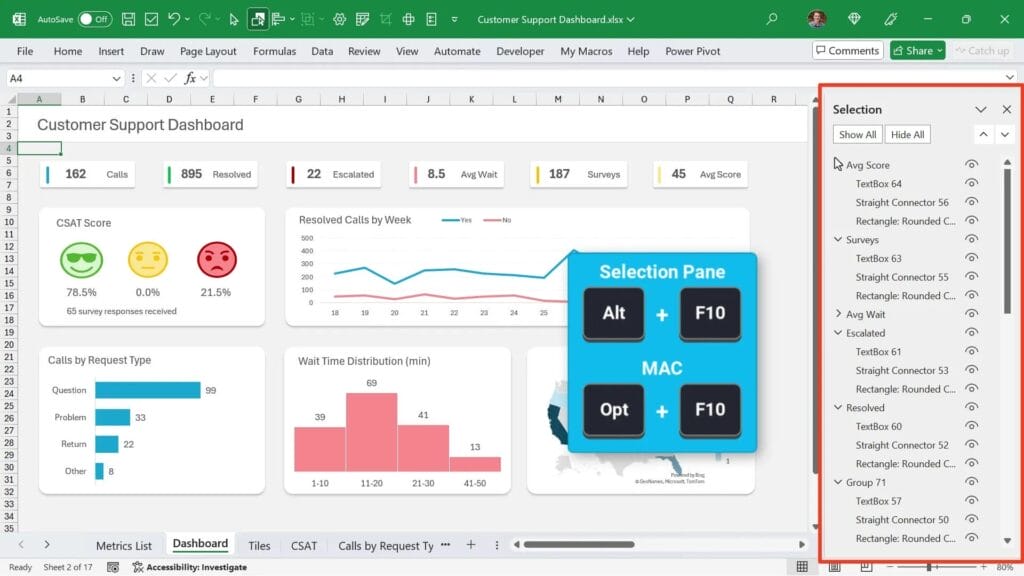
Press Alt + F10 to open the Selection Pane. This pane lists all shapes, charts, slicers, and other objects on the sheet.
You can:
- Select objects or groups
- Rename groups or individual shapes for easier identification
- Toggle visibility of objects on and off
This is especially useful when working with complex dashboards.
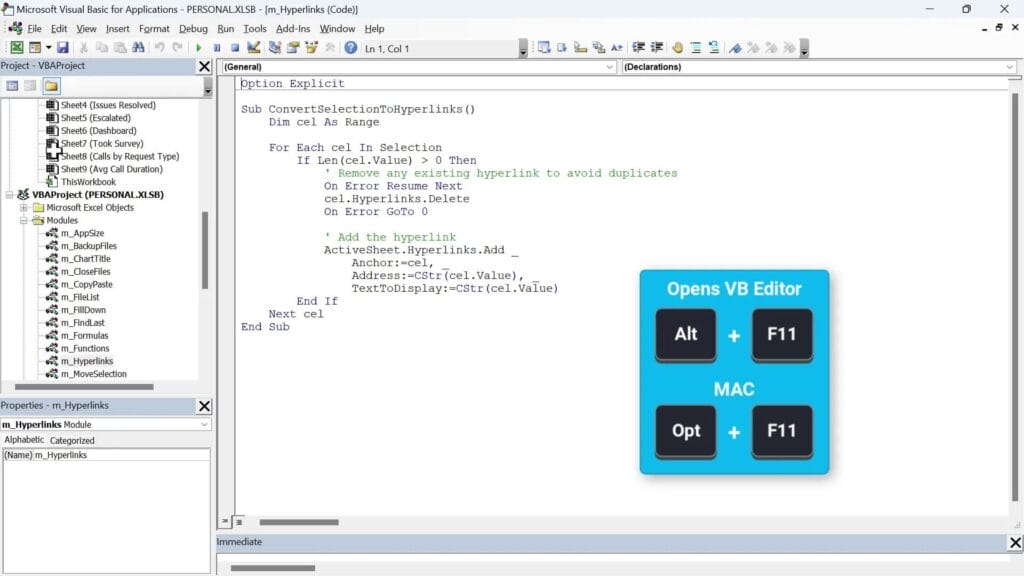
Alt + F11: Open the VBA Editor
Access the Developer World
One of the most powerful shortcuts is Alt + F11, which opens the Visual Basic for Applications (VBA) editor. Here you can write macros to automate tasks not possible with regular Excel functions.
Learning VBA can save you hours of repetitive work and unlock advanced capabilities.
Watch Out for Mistakes
If you forget to press Alt and just press F11, Excel will insert a new chart sheet based on the selected data. It’s easy to fix by right-clicking and deleting the unwanted sheet.
Shift + F11 and F12: Insert New Sheet and Save As
Shift + F11: Insert a New Worksheet
Press Shift + F11 to quickly add a new worksheet to your workbook. It’s faster than right-clicking and choosing “Insert”.
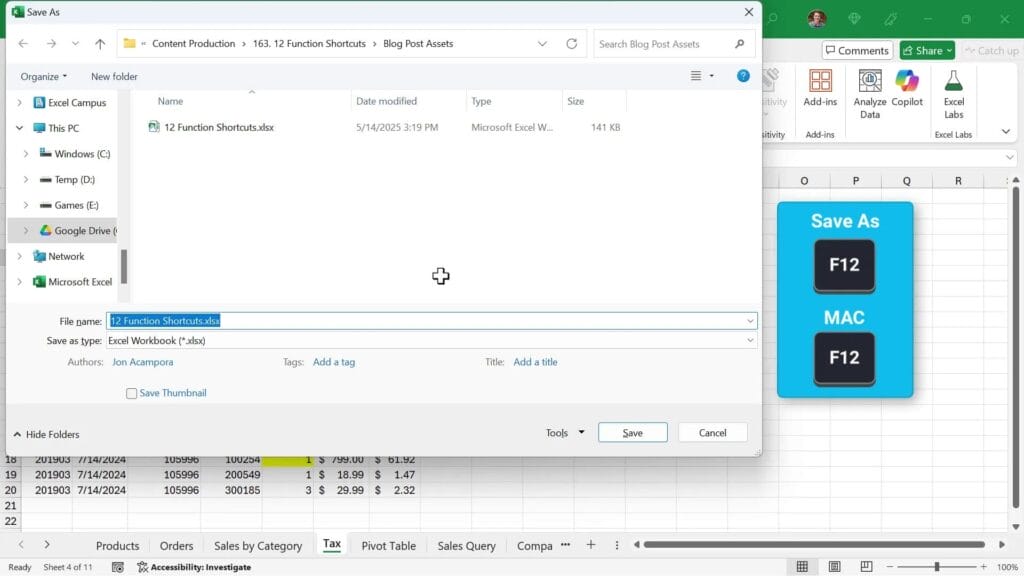
F12: Open Save As Window
F12 opens the Save As dialog, allowing you to rename your file, choose a save location, or change the file type. This shortcut also works across other Office apps like Word and PowerPoint.
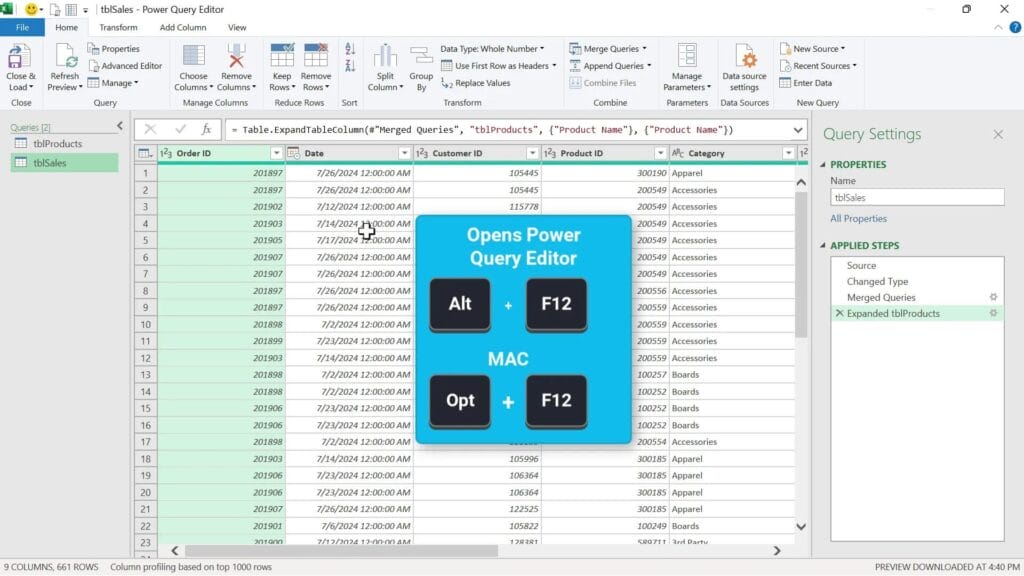
Alt + F12: Open Power Query Editor
If you use Power Query for data transformation, Alt + F12 opens the Power Query editor window directly, saving you time navigating through the ribbon.
Conclusion: Unlock Your Excel Potential with Function Keys
Excel function keys shortcuts are a hidden treasure trove for anyone looking to boost their productivity. From editing cells with F2 to managing macros with Alt + F8 and navigating complex workbooks with F6, these shortcuts save time and simplify your work.
Remember, the best way to get comfortable with these shortcuts is to practice them regularly. Start by mastering a few that fit your workflow, then gradually add more to your toolkit.
Which Excel function keys shortcuts are your favorites? Have I missed any gems? Leave a comment and share your tips.
Don’t forget to download the free Excel shortcuts guide packed with over 270 shortcuts for Windows, Mac, and the web. It’s a great resource to take your Excel skills to the next level.
Happy Exceling!




Love Excel Shortcuts – F2, F4, Alt+F11, Ctrl+Arrows … and so many more! Anything to avoid the mouse!
A recent revelation for me was the use of F2 when editing a Named Range or a Data Validation Range. For so long I would get frustrated trying to select the part of the range I wanted to edit by using the mouse, to avoid having the whole range getting messed up by trying to move the cursor with arrow keys. F2 was the great stress-reliever! So obvious and simple, but I missed it for so long!
Love your channel – you’re one of my shortcuts!
Thanks for sharing Dave!! That’s a great tip that I didn’t include in this post. Pressing F2 while editing toggles between Enter and Edit mode.
Edit mode allows you to use the arrows keys to move the text cursor.
Enter mode changes the cell selection with the arrow keys.
Thanks again and have a nice day!
thank you
The using F6 too move between elements also let’s you use Shift-F6 to move BACK through them.
So, perhaps, overshoot by one element and just press Shift-F6 to return one step, back to the element you desired.
(Rather than having to cycle through almost all choices again to stop at the one you needed.)