

The New Excel Updates from 2025 bring powerful AI features and quality of life improvements. These updates are designed to speed up reporting, reduce errors, and make complex tasks easier.
This article breaks down 17 top changes. Each section explains what changed, why it matters, and how to use it right away.
1. PivotTable Auto Refresh (BETA)
The New Excel Updates from 2025 include PivotTable Auto Refresh to keep reports current without manual refreshes.
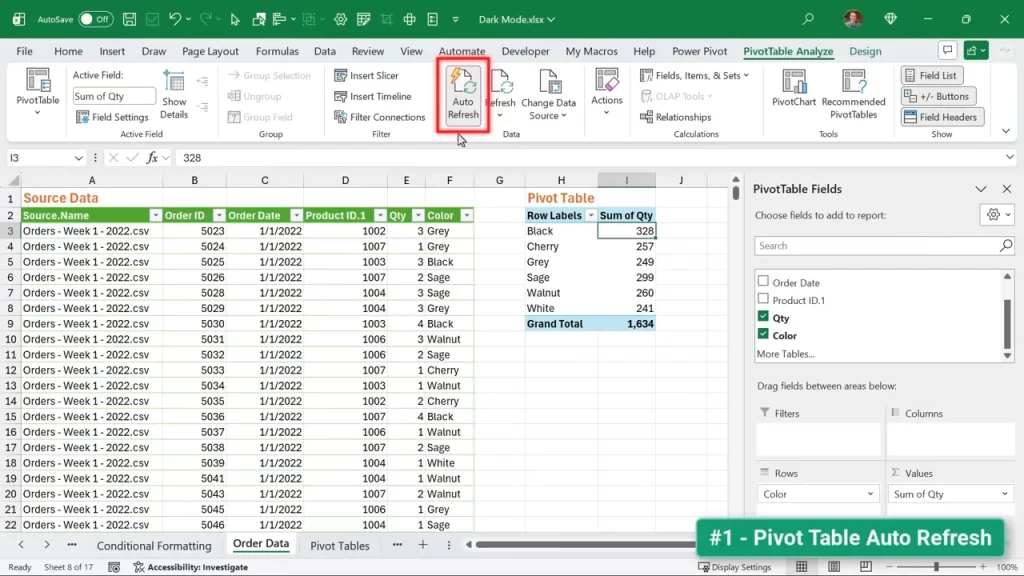
Auto refresh means the pivot table updates when the source data changes. This prevents sending outdated reports and cuts down on manual steps.
- Great for dashboards and scheduled reports.
- Reduces the chance of human error when data changes frequently.
How to use it:
- Insert or select a PivotTable.
- Enable the auto refresh option in the PivotTable settings if available.
- Confirm that the source table or range is a proper Excel table to ensure smooth updates.
2. Clean Data with Copilot
The New Excel Updates from 2025 add a Clean Data tool that leverages Copilot to find and fix inconsistencies.
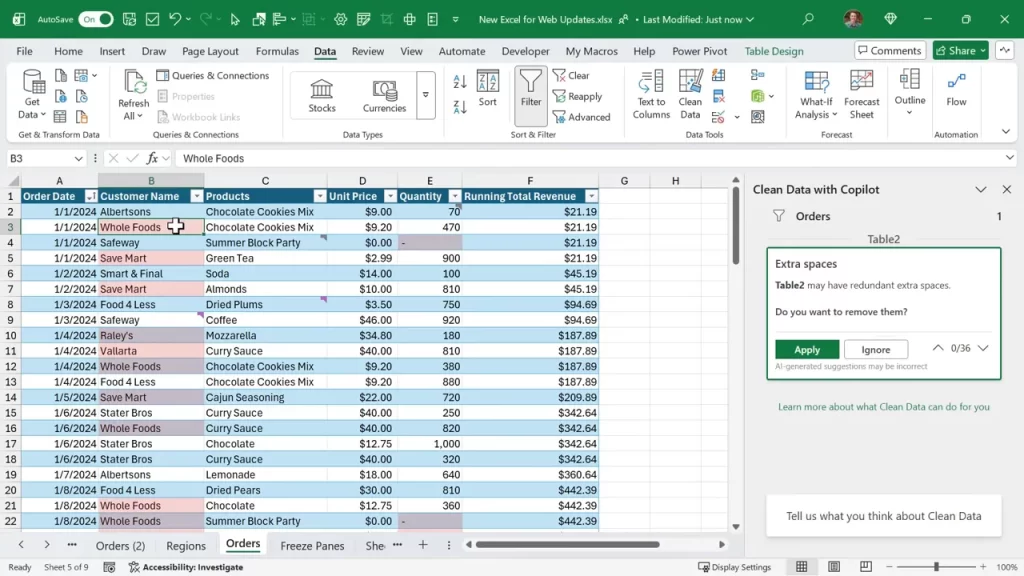
This feature highlights issues like extra spaces, inconsistent formats, and similar data problems. You can preview changes and apply them automatically.
- Saves time on manual cleaning tasks.
- Includes an undo option if you want to revert fixes.
Quick steps to use Clean Data:
- Go to the Data tab and open Clean Data.
- Review the suggested inconsistencies Copilot finds.
- Click Apply to fix the issues or Undo to revert.
3. COPILOT Function (BETA)
The New Excel Updates from 2025 introduced the COPILOT function to bring AI directly into formulas.
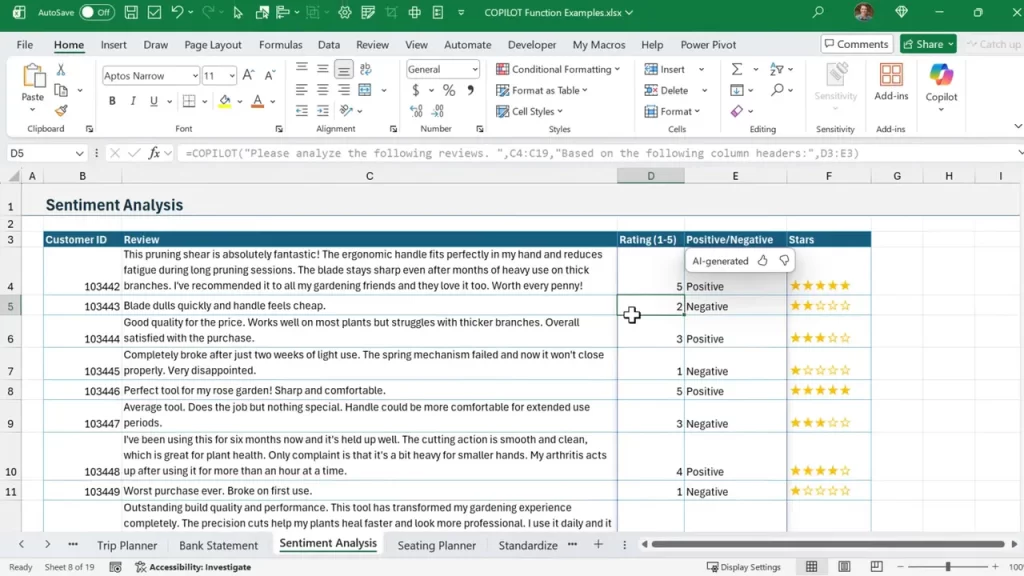
This function can read text in a cell and return structured outputs such as categories or ratings. It unlocks new types of calculations that used to be very difficult.
- Use it for sentiment, classification, summarization, and custom rule outputs.
- Works row by row to fill adjacent cells based on content.
How to apply it:
- Type the COPILOT function or use formula generation for help.
- Reference the cell with the text you want Copilot to analyze.
- Adjust the prompt or parameters inside the function as needed.
4. Explain Formulas with Copilot
The New Excel Updates from 2025 let Copilot explain formulas directly on the grid so you never feel lost with complex logic.
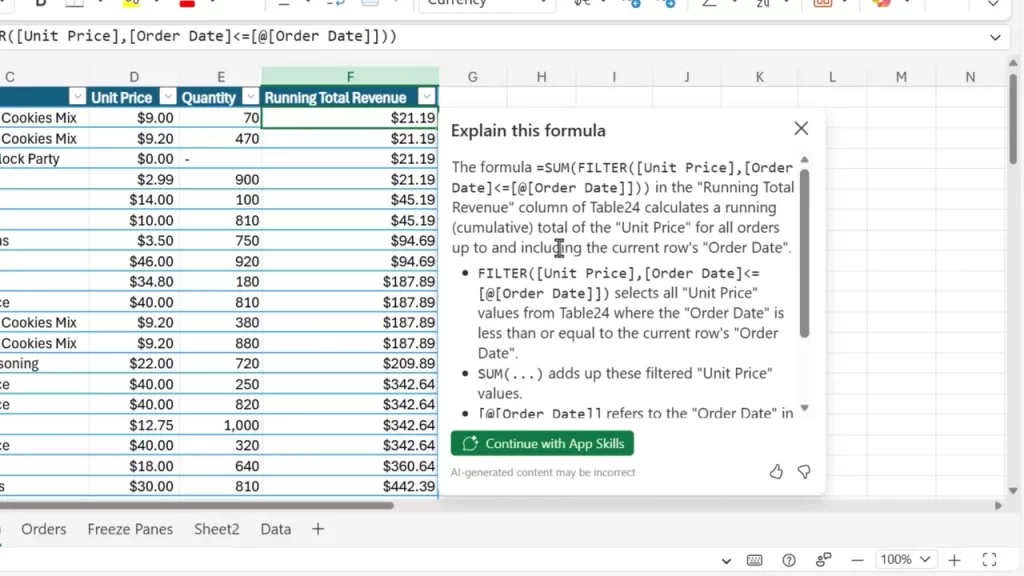
Right click a formula and choose Explain This Formula. Copilot will open a pane with a plain language explanation and step by step breakdown.
- Great for audits, handoffs, and learning formulas faster.
- Helps teams document logic without external notes.
Steps to get an explanation:
- Right click the cell with the formula.
- Select Explain This Formula.
- Read the breakdown and suggested fixes if available.
5. Formula Completion with Copilot (BETA)
The New Excel Updates from 2025 include formula completion where Copilot suggests entire formulas based on column headers and context.
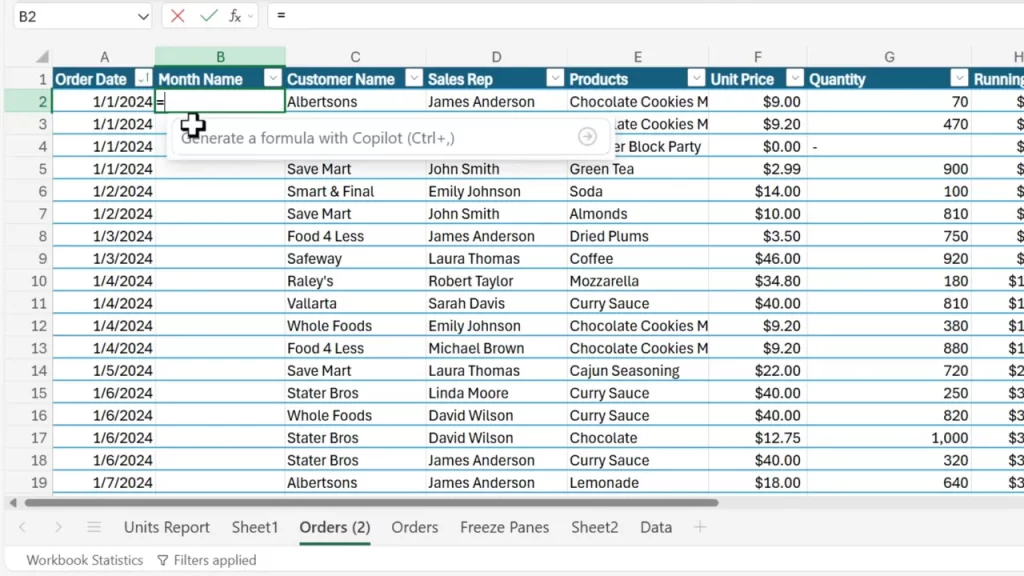
Type equals in a cell and Copilot will propose a formula for the entire column. Click the suggestion to apply it across the range.
- Saves time on repetitive column formulas.
- Helps reduce syntax errors and inconsistent logic.
To use formula completion:
- Click a cell under a header and type =.
- Choose the suggested formula from the Copilot popup.
- Apply it to the column with a single click.
6. Formula Generation with Copilot
The New Excel Updates from 2025 added a formula generation box where you describe what you need and Copilot writes the formula.
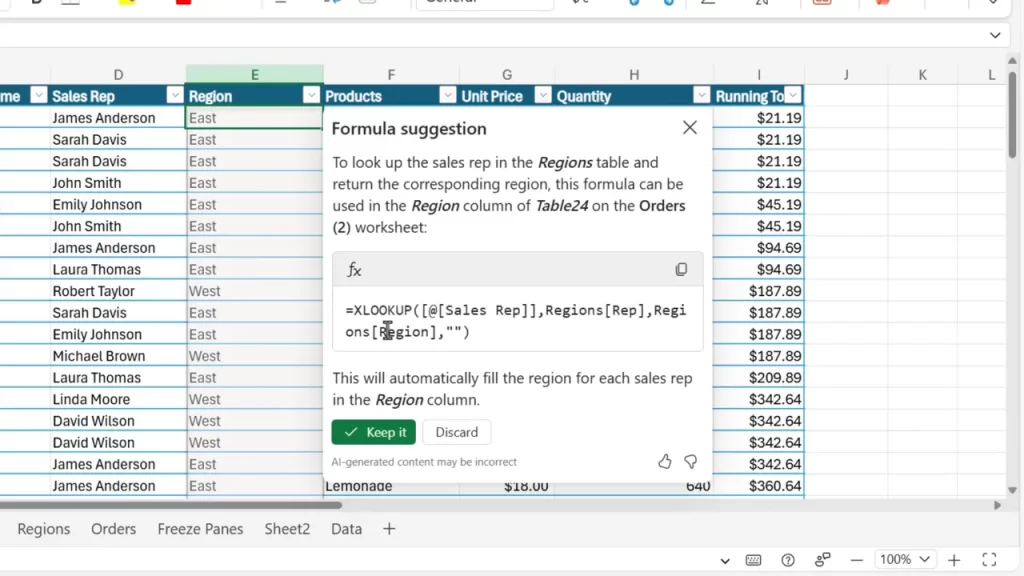
Simply type a task description, and Copilot creates the formula. It supports complex operations like XLOOKUP, conditional logic, and nested functions.
- Ideal for non-experts or when building complex formulas quickly.
- Reduces trial and error when crafting multi-step formulas.
How to generate a formula:
- Open the formula generation box in the formula bar area.
- Describe the calculation or lookup you want.
- Review the generated formula and click Keep It to apply.
7. Fix Formula Errors with Copilot
The New Excel Updates from 2025 make fixing formula errors easier with Copilot error assistants.
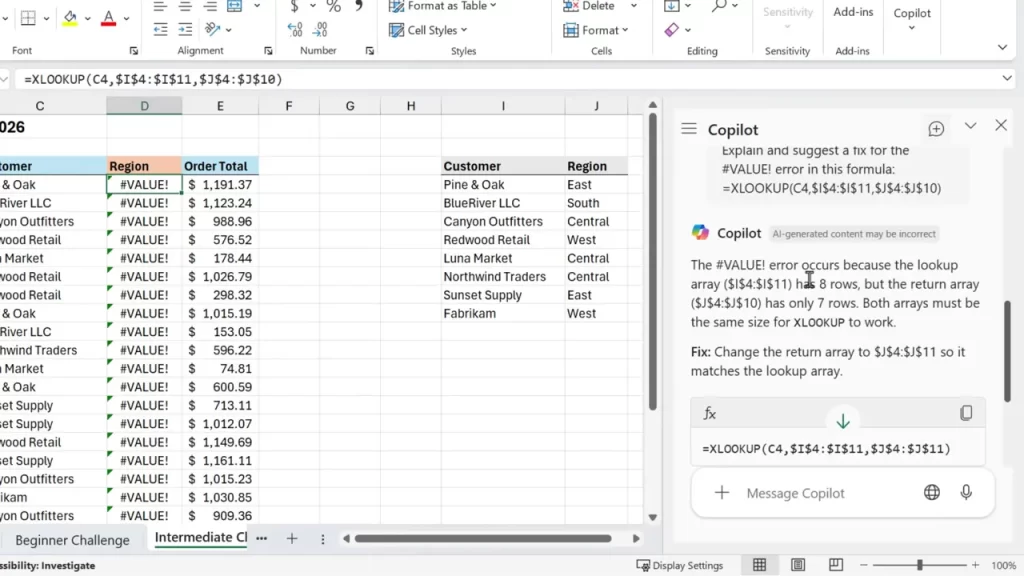
When a formula returns an error, a Copilot button appears. Click it to open a task pane that explains the error and suggests fixes.
- Speeds up debugging for complex sheets.
- Often shows the exact cell or argument causing the issue.
Use the error fixer like this:
- Click the Copilot button next to the error indicator.
- Read the explanation and recommended changes.
- Apply fixes directly or adjust the formula manually.
8. Power Query Get Data Dialog
The New Excel Updates from 2025 include a revamped Get Data dialog with an integrated search for data sources.
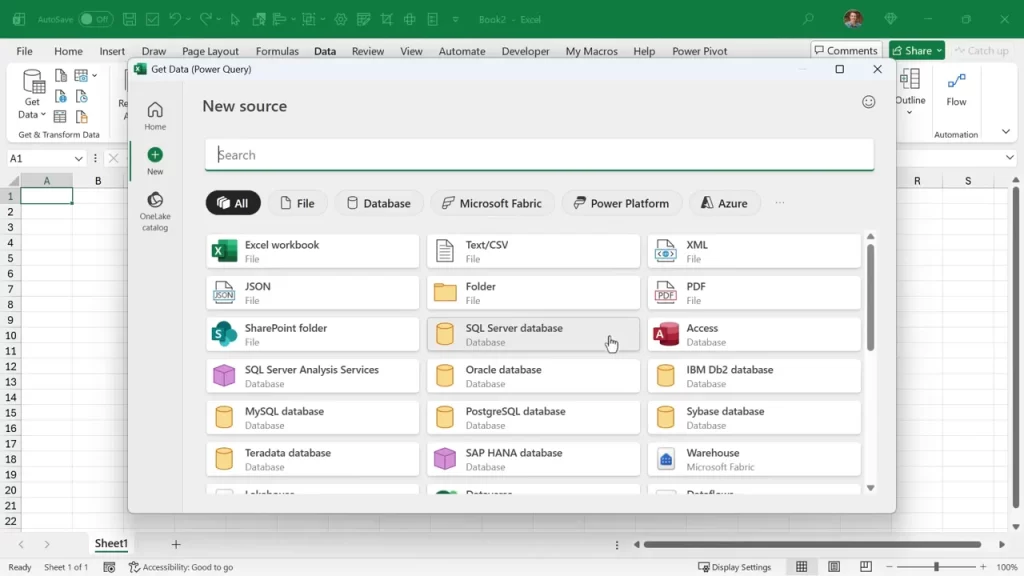
The dialog makes it faster to find the right connector. There is a search box and a clearer layout for all supported sources.
- Saves time when connecting to databases, files, and web sources.
- Makes onboarding easier for new users who are unsure where to start.
How to connect quickly:
- Click Data then Get Data.
- Use the search box to find the connector you need.
- Follow the connector-specific prompts to load the data.
9. Power Query Editor for Web
The New Excel Updates from 2025 brought Power Query Editor to the web version of Excel for the first time.
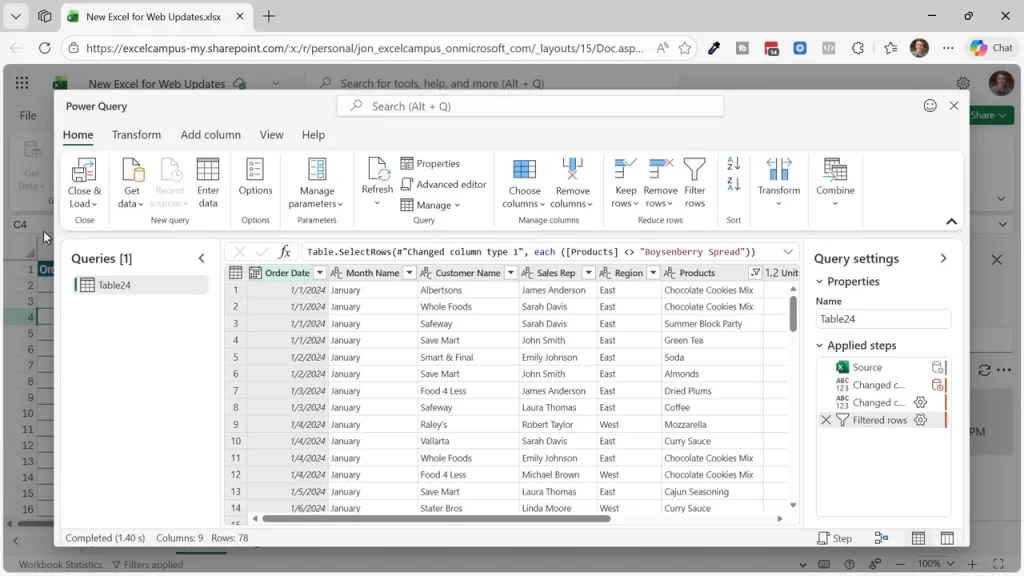
You can now create and edit queries from a browser. Right-click menus and familiar transformations are available online.
- Works well for Teams and SharePoint workflows.
- Removes the dependency on the desktop app for many automation tasks.
How to use the web editor:
- Open Excel for the web and click Get Data.
- Choose Launch Power Query Editor.
- Edit transformations, then apply and load changes.
10. Agent Mode in Excel (Frontier)
The New Excel Updates from 2025 introduced Agent Mode so Excel can perform multi-step tasks automatically.
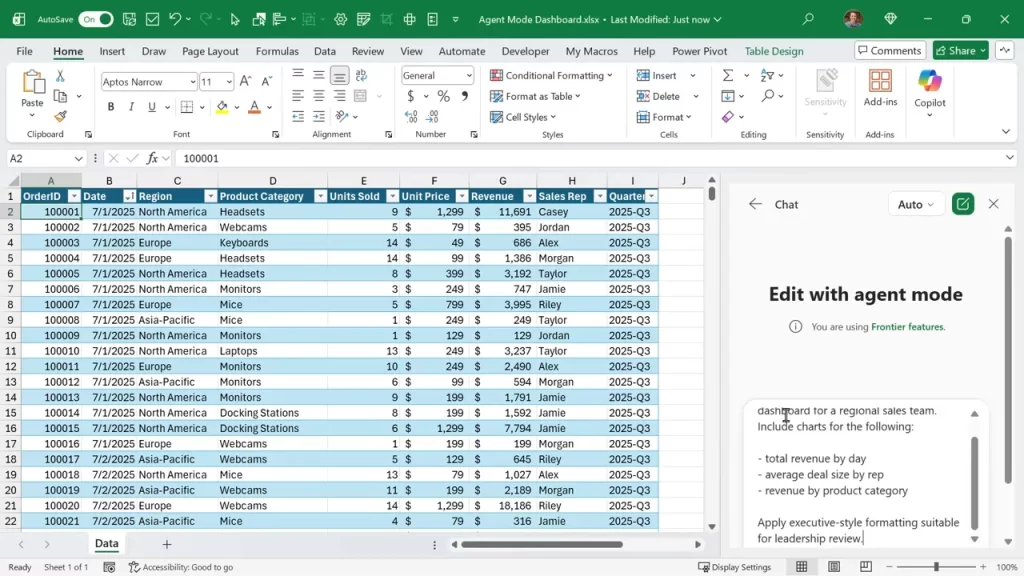
Agent Mode can build dashboards, run complex transformations, and chain tasks across the workbook. It can save hours on repetitive workflows.
- Supports models like ChatGPT and Claude as backends.
- Best for multi-step tasks that require logic, formatting, and charting.
Agent mode workflow:
- Describe the task or choose a prebuilt agent.
- Let the agent run through the steps and make changes.
- Review the output and accept or refine the results.
11. Text Analysis with Copilot
The New Excel Updates from 2025 enable Copilot to analyze text and return summaries like sentiment breakdowns.
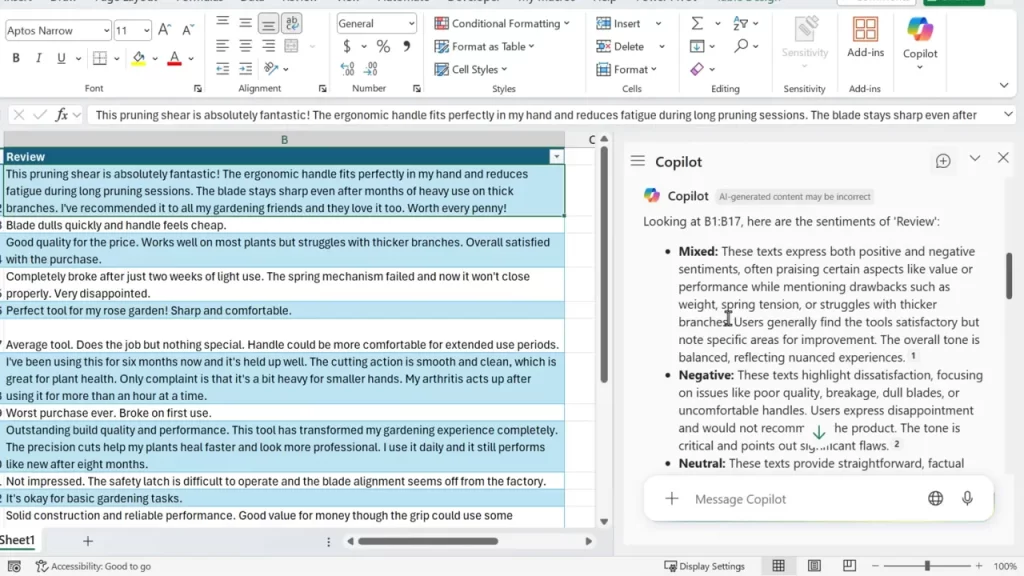
Use this for product reviews, survey responses, and customer feedback. Copilot provides counts and qualitative summaries for mixed, negative, neutral, and positive text.
- Great for quick sentiment reports without external tools.
- Can be combined with the COPILOT function for row level analysis.
How to run text analysis:
- Select the text range you want to analyze.
- Invoke Copilot and request a sentiment or theme summary.
- Use the results to drive charts or pivot summaries.
12. PivotTable #SPILL Error Handling (BETA)
The New Excel Updates from 2025 improved PivotTable behavior when cells block the pivot from expanding.
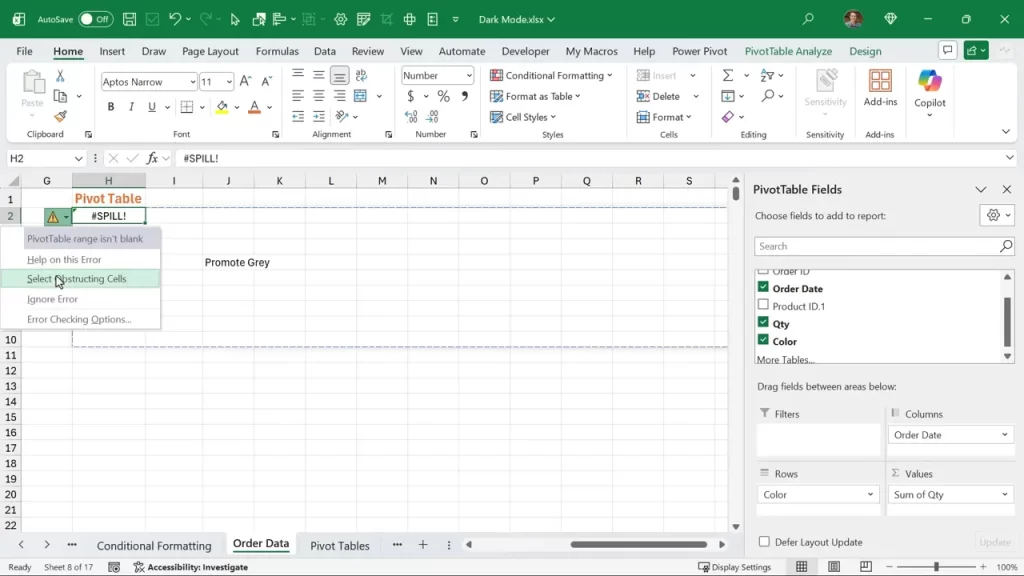
Instead of showing an intrusive warning, Excel now highlights the obstructing cells so you can remove or move them. This is cleaner and less confusing.
- Makes pivot troubleshooting faster.
- Reduces accidental overwrites when cleaning sheets.
To resolve a spill block:
- Select the highlighted obstructing cells.
- Delete or move the contents blocking the pivot output.
- Refresh the PivotTable to permit the spill to occur.
13. Dark Mode
The New Excel Updates from 2025 introduced a true dark mode that also changes the worksheet fill color to a dark background.
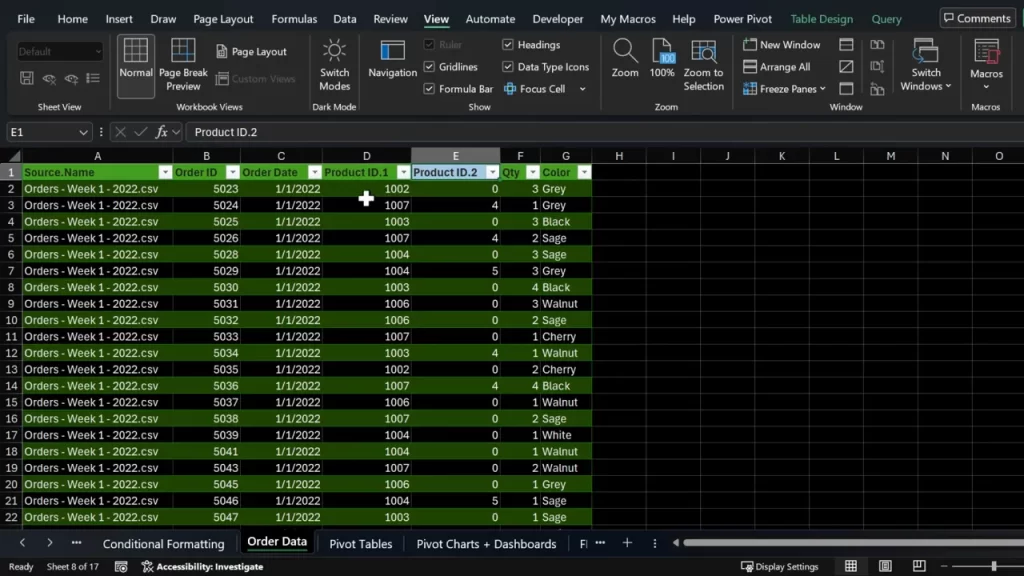
Turn on the black Office theme and then use Switch Modes on the View tab to enable dark sheets with light text.
- Easier on the eyes during late work sessions.
- Reduces screen glare and can be easier for presentations in low light.
How to enable dark mode:
- Go to File then Options and choose the Black theme.
- Open the View tab and click Switch Modes.
- Confirm the sheet background and text colors suit your needs.
14. Python Editor in Excel
The New Excel Updates from 2025 added a built-in Python editor accessible from the Formulas tab.
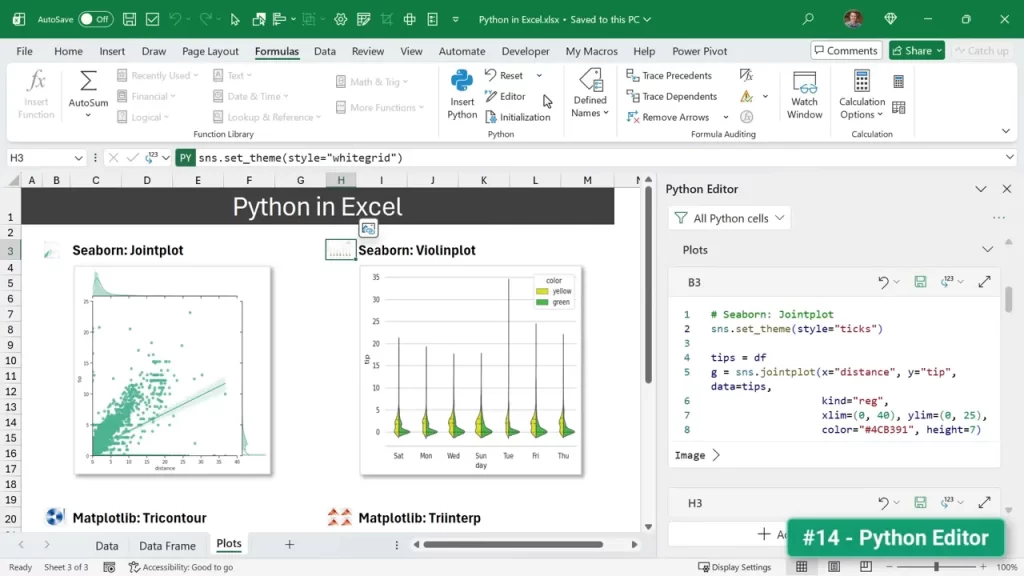
The editor has syntax highlighting, screen tips, and output previews in a task pane. You can edit code while interacting with workbook cells.
- Useful for advanced analytics and custom data transformations.
- Bridges Python workflows and Excel without exporting files.
Quick Python workflow:
- Open the Python editor from the Formulas tab.
- Write or paste your Python code and add cell references if needed.
- Run the code and view outputs in the task pane or the sheet.
15. View Side by Side on Mac (BETA)
The New Excel Updates from 2025 give Mac users the ability to view worksheets side by side with synchronous scrolling.
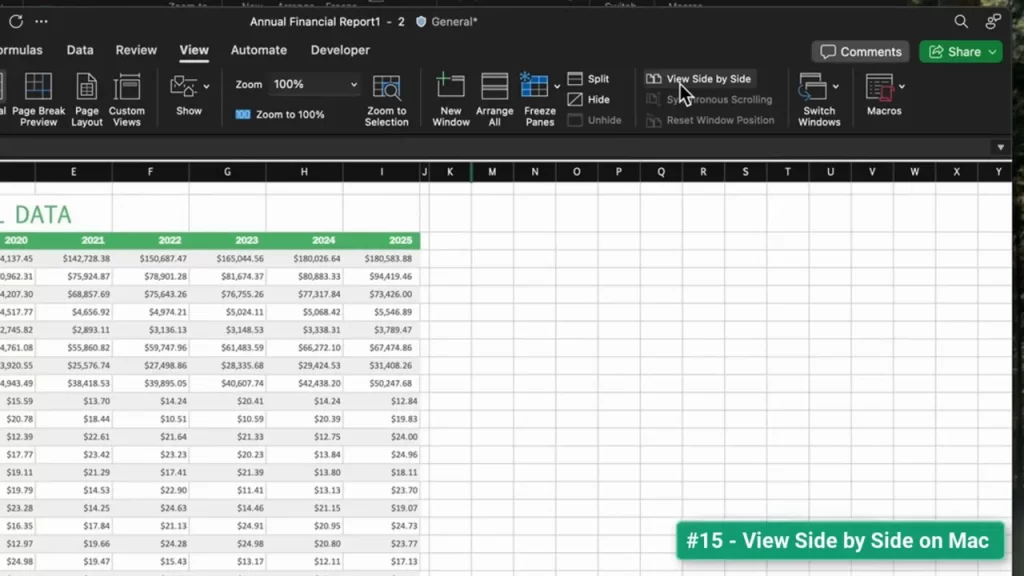
This feature makes comparisons and multi-sheet audits much easier on macOS. It mirrors a common desktop convenience that many professionals rely on.
- Helps reconcile data between two sheets.
- Great for reviewing changes or matching layouts.
How to use side by side view:
- Open the two workbooks or windows you want to compare.
- Choose View Side by Side and enable Synchronous Scrolling.
- Scroll one workbook to move both at the same pace.
16. Value Tokens for Rich Data (BETA)
The New Excel Updates from 2025 add value tokens to show when a formula references a rich data type like stocks.
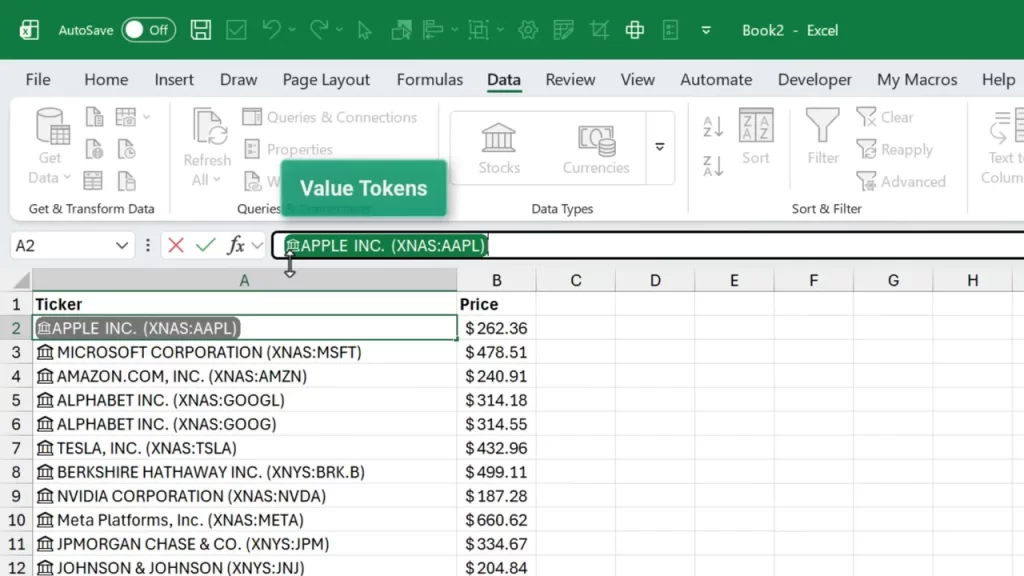
A small icon appears in the formula bar to indicate the cell contains a rich data type. This makes it easier to spot linked data and convert it if needed.
- Clarifies when a cell is linked to a richer object rather than plain text or numbers.
- Helpful when debugging formulas that use data types like Stocks or Geography.
Tips for working with value tokens:
- Hover or inspect the token to view details about the rich data type.
- Use the data type cards to expand fields into your worksheet.
- Convert to plain values when you need static outputs.
17. Show Changes Extended
The New Excel Updates from 2025 extended the Show Changes history to one year so edits are easier to track over long projects.
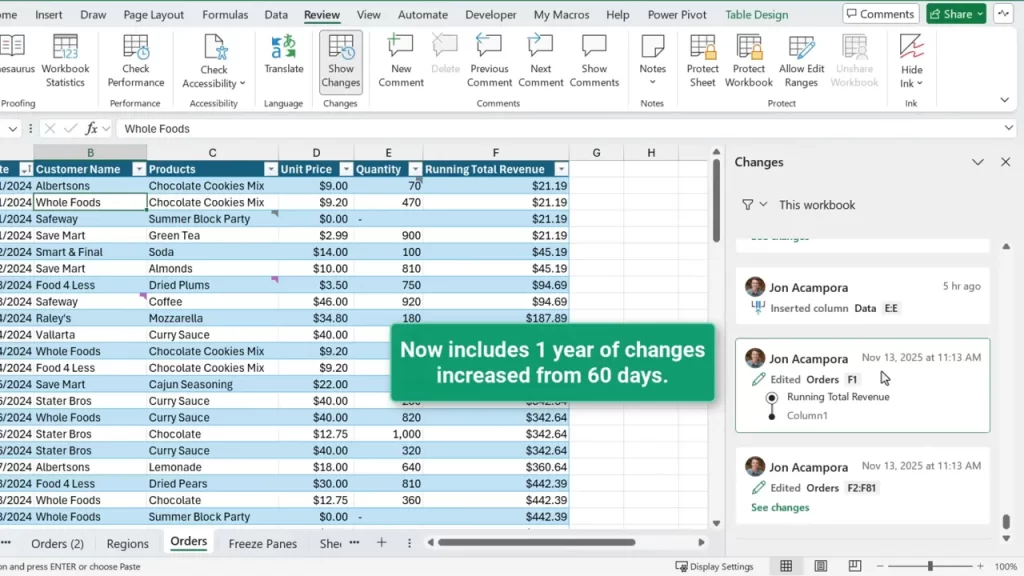
This replaces the older 60 day limit. Now you can review changes made over the past year directly from the Review tab.
- Ideal for quarterly or annual reports maintained by multiple collaborators.
- Makes audits and rollbacks more manageable.
How to view changes:
- Open the Review tab and click Show Changes.
- Browse the list of edits and select an entry to view details.
- Restore or note changes as needed for your version control.
Final thoughts
The New Excel Updates from 2025 bring AI and usability upgrades that matter to professionals. They cut repetitive work and reduce errors.
Start with the features that solve your biggest pain points. Try Copilot for text analysis and formula help. Use Agent Mode for multi-step automation. Enable power features like Power Query on the web for team workflows.
Which of the New Excel Updates from 2025 would save you the most time? Pick one and experiment. Small changes add up quickly.




Add comment